4. Operating Instructions
multifunction indicator at the top of the screen. There are two extra buttons, an up arrow
and a down arrow, that can make scrolling through lists easier on the live control.
Figure 4.41. The live control display on the CT100B web page. Each button and knob on
the front panel of the CT100B maps to buttons on this page, which can be used to control
the CT100B remotely.
4. Download/Upload Traces. This displays a list of the traces stored on the CT100B and allows
transfer of traces to and from the PC.
5. trace.csv. This downloads a .csv text file with m vs. millirho and ns vs. millirho columns.
6. selected.csv. This downloads a .csv text file with user-selected columns (these can be chosen
at MENU → Settings → Network Settings → selected.csv Options).
7. PDF and HTML versions of the CT100B Operator’s Manual.
4.16. Remote Control
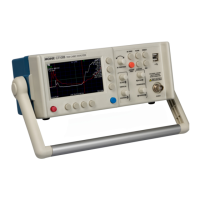
Using the accompanying CT Viewer™ 2 software, the CT100B can be operated by remote control.
The remote control system allows the operator to manipulate traces and store movies of traces over
time. Remote control only functions over Ethernet connections. It does not work when the
CT100B is connected by USB only.
Refer to Section 6.1.3 Send Saved Traces Using Ethernet and Section 6.2 Using Remote Control for
instructions on connecting CT Viewer 2 to the CT100B and enabling remote control. Please
consult the CT Viewer 2 Quick User Guide for more information about using remote control and
manipulating a remote TDR trace.
CT100B TDR Cable Analyzers Operator’s Manual 75


 To Next Page
