3. Getting Started
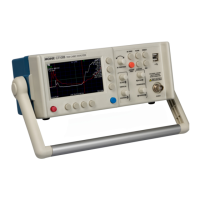
Figure 3.9. Screenshot showing typical features of the CT100B.
3.10.3. Setting Date and Time
The date, time, and time zone must be accurately set for saved data in the CT100B to be correctly
time-stamped.
1. Change the date and time by pressing the MENU button. This calls up the Main menu.
2. Select the Settings soft-menu option and then select the Info menu.
3. Select the Time menu option. The Time menu appears.
4. Select the Set Time Zone menu option. A dialog box listing all time zones appears on the
screen.
5. Use the M-FUNCTION knob to scroll through the list of time zones. Highlight the correct
time zone.
6. Choose the Select menu option. The CT100B may prompt you to restart. If so, restart the
unit and return to the Time menu. The CT100B is now set to the correct time zone.
7. Ensure the menu option for daylight saving is correct for the region you’re in. If you observe
daylight saving, make sure it reads Daylight Savings On, indicating that this setting is on. If
the option reads Daylight Savings Off, then press the menu button to toggle it on. The
CT100B may prompt you to restart. If so, restart the unit and return to the Time menu.
The CT100B will automatically adjust for daylight savings on the correct dates. If you do
not observe daylight saving, make sure it’s toggled to Daylight Savings Off.
8. Select the Time/Date menu option. A dialog box used to set the date and time appears. See
Section 3.10.1 for methods of navigating and entering data into a dialog box.
9. Press the OK menu option when the correct time and date have been entered.
CT100B TDR Cable Analyzers Operator’s Manual 33


 To Next Page
 Loading...