25
5.8 Firmware update
Periodically, the robotic mower firmware or operating system parameters will be updated. Check and update as
follows:
1. To update the Firmware of the robotic mower with the mobile app, please refer to the
‘Mobile Application Installation & Guide’.
2. See your local authorized service centre, who are able to perform an update whilst completing maintenance and
service work. During the winter service completed by an authorized service centre the software will be updated.
3. USB memory stick update from Mowbot service
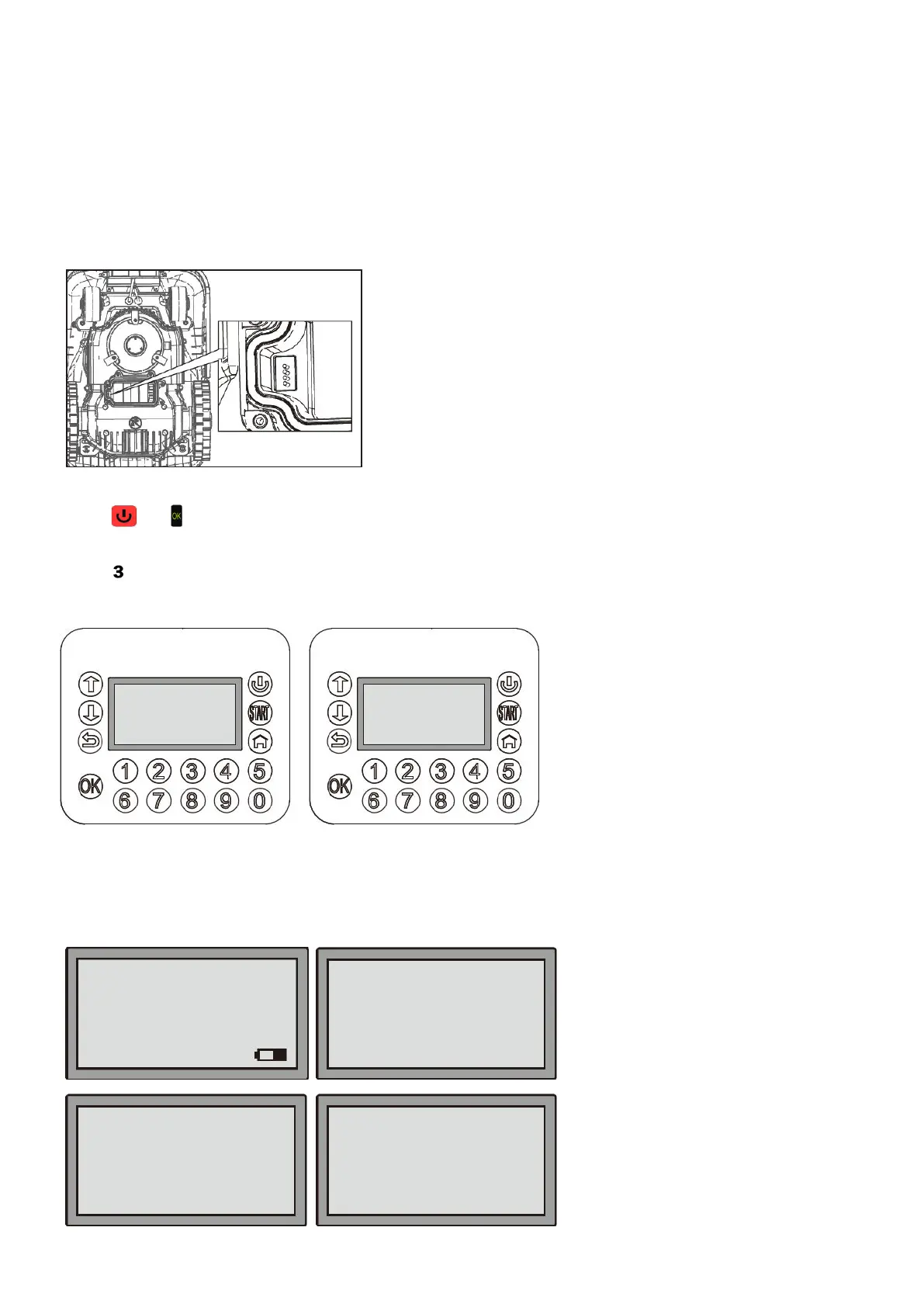
The robotic mower has a USB port located in the battery compartment for manual firmware updates. To access the
USB socket, remove the battery and insert a USB memory stick containing the firmware update.
Insert the battery again, turn the main power switch to “ON”.
Press
and at the same time for 4 seconds to enter the Boot Mode.
Press
to start updating. After the update has finished, the Robotic Mower will restart and the screen will enter the
“Input PIN” page. This means the firmware has updated successfully.
Note:
1. Please make sure the battery level has enough charge for updating (>50% left).
2. DO NOT press the main power switch during updating.
5.9 Alert or note information
The screen will display alerts or information when the Robotic Mower detects any fault.
Waiting
59%
1-Generate PUK
2-Update firmware
(Wireless)
3-Update firmware
(U-disk)
08-59-21 Mower
Close cover to start
Press OK to Go ON
Press OK to Go ON
Battery not fully charged
Close cover to continue
charging,


 To Next Page