WI-FI DCS USER’S GUIDE 12
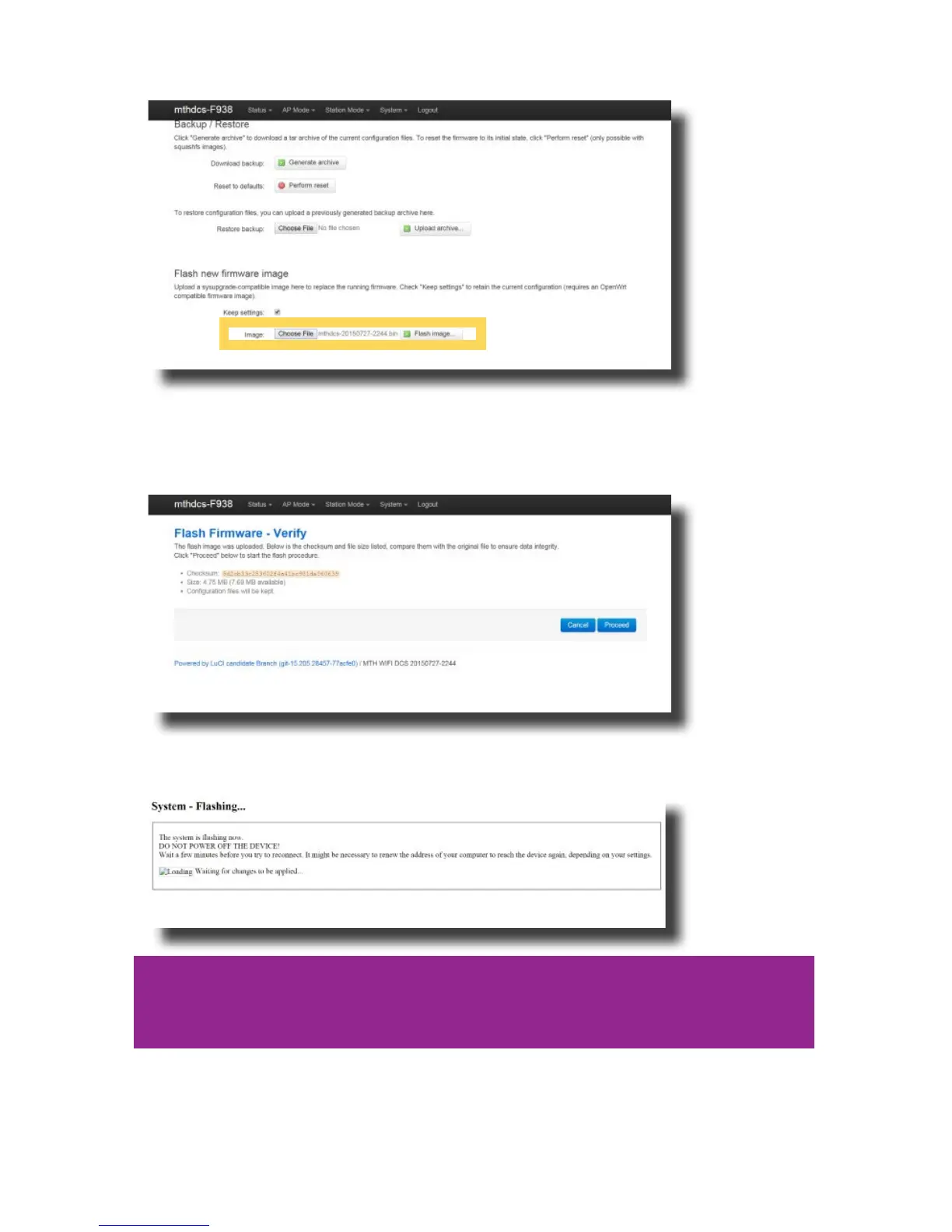
7. Wait until the le window closes (up to 15 seconds). Verify the lename selected is
displayed next to the CHOOSE FILE button.
8. Select FLASH IMAGE...
9. When the FLASH FIRMWARE - VERIFY page is displayed, select the blue
PROCEED button.
10. You should now see the SYSTEM FLASHING SCREEN.
Note: While the rmware image is being ashed, DO NOT TOUCH THE DEVICE
(tablet, phone, PC, laptop) OR THE DCS EXPLORER! WAIT A FULL 3 MINUTES.
IF YOU DO NOT, THE DCS EXPLORER COULD BE DAMAGED AND REQUIRE SERVICE!


 To Next Page