WI-FI DCS USER’S GUIDE 4
DOWNLOAD AND INSTALL DCS APP
for iOS and Android
iOS:
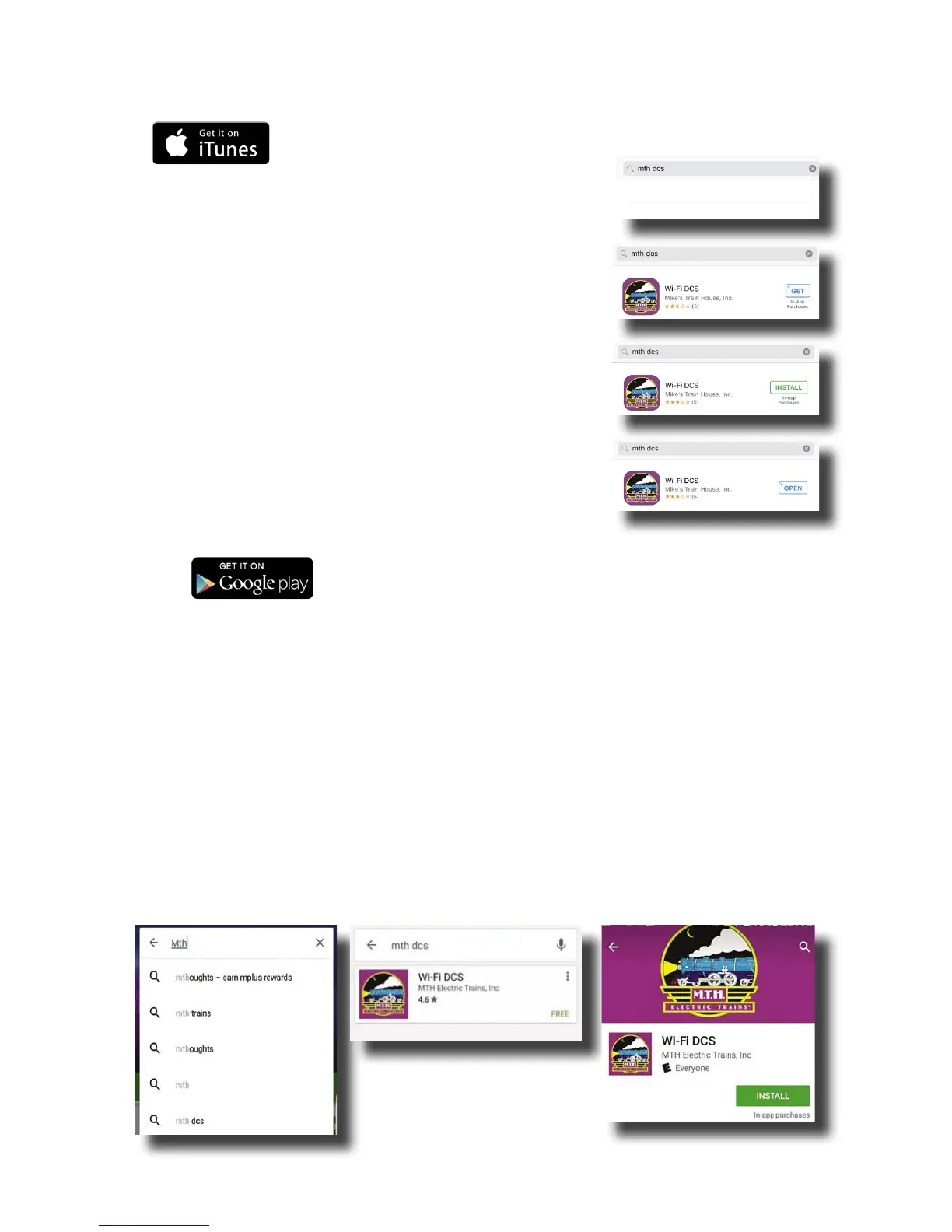
1. Tap the App Store icon on your Apple device
2. In the lower right of the screen, tap the magnifying
glass to search the app store
3. Tap the gray search bar at the top of the screen and
type “MTH DCS” without the quotation marks.
4. Tap the blue search button in the lower right corner
of the screen.
5. When the MTH Wi-Fi DCS app appears tap “GET” in
the upper right area of the screen.
6. Once the app downloads, the “GET” box will change
to “Install.”
7. Tap “Install” and the box will change to “Open.”
8. Tap Open to open the app.
9. There will now be an icon on your screen when you
want to open the app in the future.
Android:
1. Tap the Play Store icon on your Android device
2. Tap the white bar at the top of the page to bring up
the search function.
3. Type “MTH DCS” into the search bar without the
quotation marks.
4. Tap on the purple MTH logo for Wi-Fi DCS.
5. Tap on the Install button in the middle of the
screen.
6. Once the app is installed, tap open to run your app.
7. There will now be an icon on your screen when you
want to open the app in the future.


 To Next Page