WI-FI DCS USER’S GUIDE 5
Using the MTH Network
In MTH network mode, your DCS Explorer creates its own unique Wi-Fi network. In this
mode, you simply connect your smart device to the MTH network, open your app, and run
your trains! Please note, your smart device will not be connected to the internet while
operating in MTH network mode.
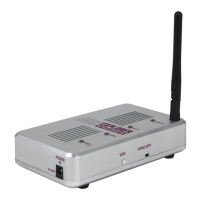
1. Attach the antenna to the DCS Explorer.
2. Set the HOME/MTH selector switch to MTH.
3. Connect the DCS Explorer to the track using the red and black track connection
included in your set.
4. Connect the included power supply into the DCS Explorer.
5. Plug the DCS Explorer into an AC wall outlet.
6. Wait 1 minute for the WIU to initialize. When ready, the PWR and WI-FI LEDS will be lit.
7. If you haven’t already, go to the iOS App Store or Google Play Store and install the app
on your smart device. Search for MTH DCS to quickly nd the app in either app store.
8. In your smart device, navigate to Wi-Fi settings and connect to the MTH DCS network.
The network name (SSID) and network key are printed on the label afxed to the
bottom of the DCS Explorer.
9. Open the app and select your DCS system type. The choices are DCS Explorer or
DCS WIU. You can change this later in app settings.
10. Tap RUN MY TRAINS.
11. Tap CHOOSE OR ADD AND ENGINE near the top of the screen and follow the prompts.
12. After adding an engine(s), tap START UP and enjoy running your trains in
Wi-Fi DCS.


 To Next Page