WI-FI DCS USER’S GUIDE 8
Using a wired Ethernet Network
If you prefer, the DCS Explorer can be hard wired to your network router using standard
Ethernet cables and a USB to Ethernet apdapter. In this conguration, a network router
is required. The smart device typically connects to the router via Wi-Fi, so there is limited
benet to using this conguration. It may improve overall performance in an environment
with unreliable Wi-Fi network signaling.
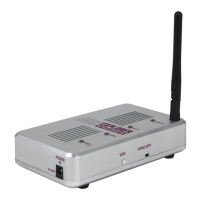
1. Attach the antenna to the DCS Explorer (It isn’t necessary of course but, it’s a great
place to store it!).
2. Set the HOME/MTH selector switch to MTH (I know, it seems odd but, trust us).
3. Connect the DCS Explorer to the track using the red and black track connection
included in your set.
4. Connect the DCS Explorer to your network router using a standard Ethernet cable
and USB to Ethernet adapter.
5. Plug the DCS Explorer into an AC wall outlet.
6. Wait 1 minute for the DCS Explorer to initialize. When ready, the PWR and WI-FI LEDS
will be lit.
7. If you haven’t already, go to the iOS App Store or Google Play Store and install the
app on your smart device. Search for MTH DCS to quickly nd the app in either
app store.
8. Make sure your smart device has Wi-Fi turned on and is connected to the Wi-Fi
Network of the router.
9. Open the app and tap RUN MY TRAINS.
10. Tap CHOOSE OR ADD AN ENGINE then tap ADD MTH ENGINE and follow the prompts.
11. Tap START UP and enjoy running your trains in Wi-Fi DCS!


 To Next Page