WI-FI DCS USER’S GUIDE 7
7. Open your web browser and enter the IP address 192.168.143.1 in the url address line.
This is usually the top text box in your browser. This will open LuCI, the MTH DCS web
interface.
8. Enter the password MTHDCS and hit enter. Do not change the username from ROOT.
9. Select the STATION MODE tab along the top of the screen. Then, select
WIRELESS from within that tab. Wireless is the only option under Station Mode.
10. In the ESSID eld, enter the network name (SSID) you want to connect the module to.
This is probably the same network you connect your phone or other devices to.
11. If your network is secured (requires a password) then select the encryption type from
the drop down menu. If you don’t know your encryption type, try the last choice which
is mixed mode. If that doesn’t work, you will need to obtain your specic encryption
type from your router.
12. Enter your home network password in the KEY eld. This is also known as your
NETWORK KEY.
13. Click the SAVE AND APPLY button in the lower right part of the screen.
14. Remove power from the DCS Explorer and close your browser.
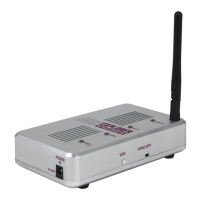
15. Set the HOME/MTH selector switch to HOME.
16. Follow the instructions for connection to your home network using WPS in the previous
section, however, ignore steps 7 and 8. The WIU will now automatically connect to your
home network each time it is powered up.


 To Next Page