WI-FI DCS USER’S GUIDE 25
Refresh (Read)
You can Refresh the app to reect your current operating state in a couple of ways.
1. Tap the REFRESH ICON in the upper left of the screen to update the app with the
current status of your layout.
2. From the ENGINE LIST, swipe down and release to update the app with the current
status of your layout.
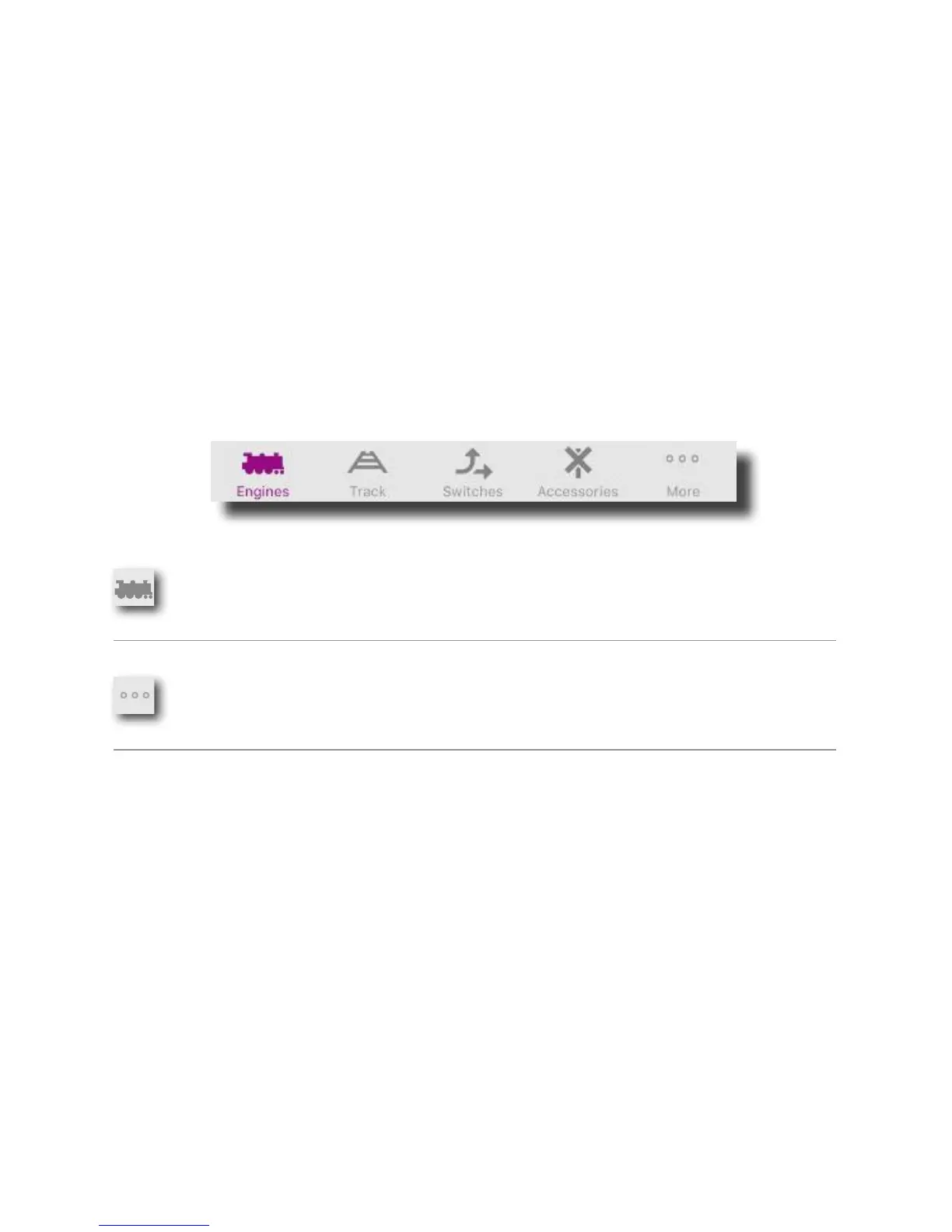
Tab Bar
Across the bottom of the screen is the tab bar. The icons on this bar normally allow you to
navigate between major functionalities of the app. However, other than the More button,
none of these functions (Track, Switches, Accessories) are available when using the app
with the DCS Explorer. Clicking on the More button will give you access to select features
that do function when the app is connected to the DCS Explorer.
Engines: Tap here for primary engine controls where
you can add, edit, operate, and customize your
More: Tap here to upgrade your app, access app
information, and nd links to news, videos, product
searches, catalogs, and more!


 To Next Page