Chapter 1: Sending Faxes
10 FaxFinder Client User Guide
Sending a Fax from Email (T.37)
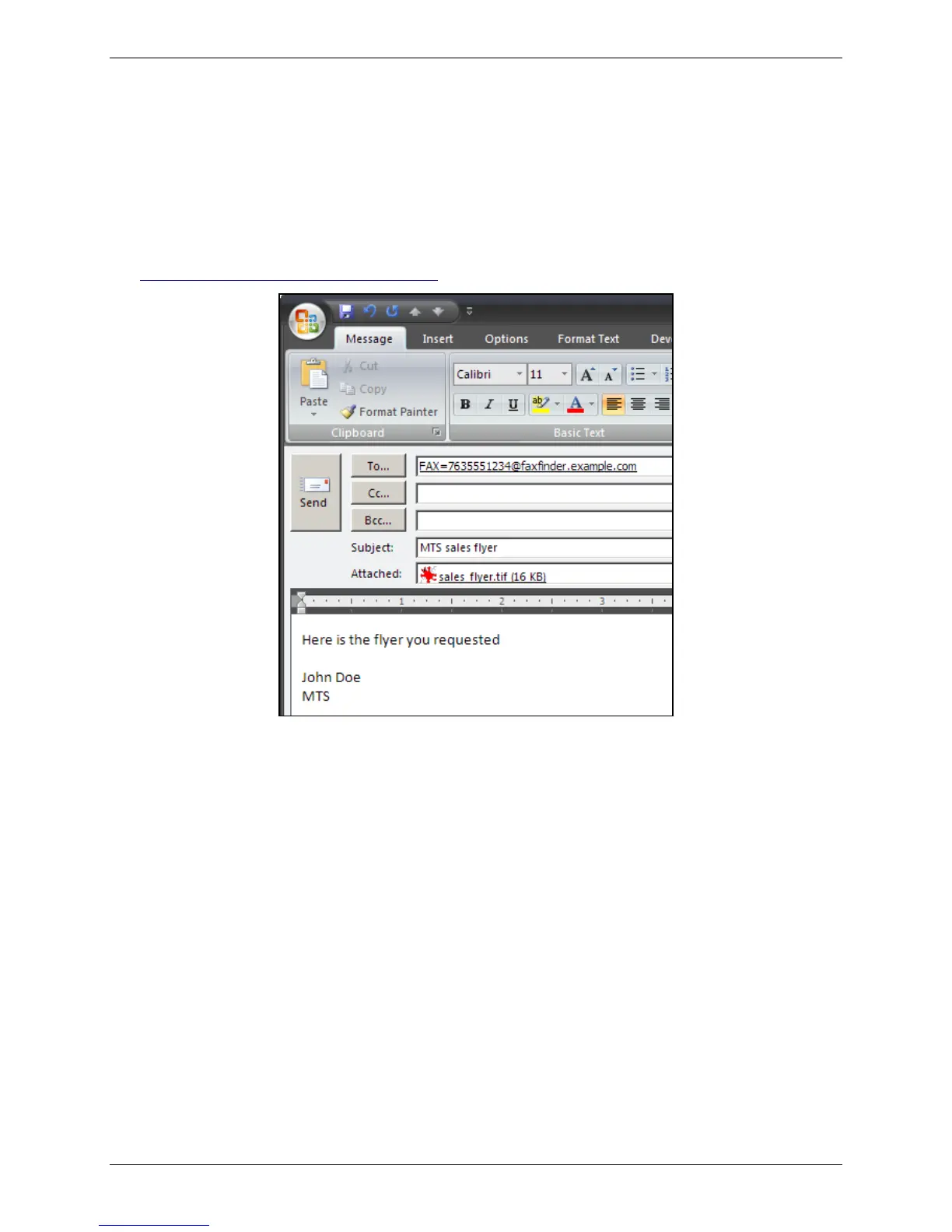
You can send an email as a fax using the T.37 format in the To field in Microsoft Outlook. You will need
the domain name of the FaxFinder unit and the recipient’s fax number.
To send a fax by email:
1. Enter the recipient’s fax number in the To field in the following format:
FAX=##########@FaxFinder domain name. For example the image below shows
FAX=7635551234@faxfinder.example.com.
2. Add your message and any attachments. Attachments must be in TIF, PDF, PS, or TXT format. The
36MB is the maximum file size for sending a fax through email. Text entered in the email message
area appears in the comments section of the fax cover page.
3. Click Send.
Sending a Fax from the Web Interface
To send a fax through a web browser using the FaxFinder Web Management Interface:
1. Type the FaxFinder’s hostname or IP address in the browser’s address bar and press Enter.
Note: Your browser may display security warnings. Click Yes to process in Internet Explorer.
Firefox may require you to add an exception for the FaxFinder’s IP address.
2. Enter your Username and Password and click Login.
3. Click Send Fax to open the Send Fax page. Sender information fields are filled with your user
information automatically.
Note: If you have a large number of contacts, the recipient information may take a several minutes
to load.



 To Next Page