14 FaxFinder Client User Guide
This chapter describes how to configure and use the FaxFinder Fax Client Software.
Starting the Fax Client
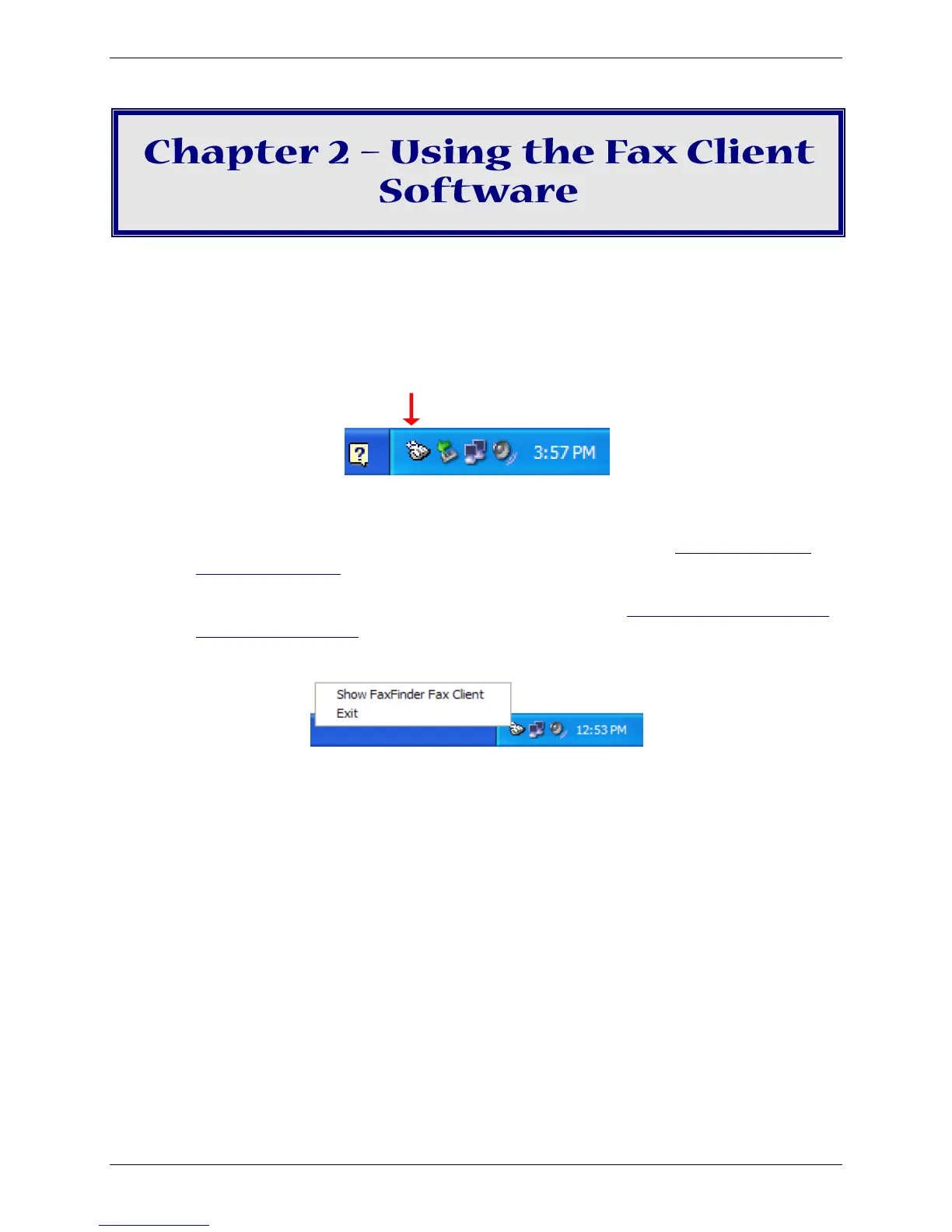
1. Check the system tray to determine if the fax client is already running. The FaxFinder icon appears in
the system tray if the client is running.
If the FaxFinder icon is not in the system tray, click Start | All Programs | FaxFinder | FaxFinder
Client.
Note: If the FaxFinder Fax Client is not installed on your computer, refer to Appendix A – Client
Software Installation or contact your administrator. To install the software, you need
administrator rights for your computer. After installing the software, associate one or more
FaxFinder units with the software on your computer. Refer to Associating the Software and
a User with a FaxFinder in Appendix A.
2. Click the FaxFinder icon and select Show FaxFinder Fax Client.
Exiting the Fax Client
You can minimize the fax client and leave it running the background. If you exit the fax client, you cannot
send faxes from other applications by printing.
To exit the fax client:
● Click File | Exit or click the icon in the system try and click Exit. FaxFinder prompts you to confirm
the exit.
Adding and Viewing Contacts
The following steps explain how to add individual contacts through the Fax Client. You can also import
contacts through the Contacts page in FaxFinder’s Web Management Interface. Contact your
administrator for information about using the Web Management Interface to import contacts.
1. On the Devices tab, right-click on the FaxFinder you want and click Open.



 To Next Page