Chapter 1: Sending Faxes
FaxFinder Client User Guide 9
● Highlight the document you want to remove and click –. The software prompts you to confirm
removal.
7. Check Use Cover Page to include a cover page. When this box is checked, the Cover Page drop down
list is available. This list includes cover page options for the FaxFinder unit.
a. Select a cover page and click View to display it.
b. Type a brief description in the Subject field.
c. Type a message in the Comments field.
8. Click Schedule to send the fax at the date and time specified. To exit the Fax Schedule window and
discard all changes, click Close.
Sending a Fax by Printing
Once the FaxFinder Fax Client software is installed on your computer and associated with a FaxFinder,
you can use the Print function in other programs to send a fax.
To send a fax through another program:
1. Create the document that you want to fax and save it.
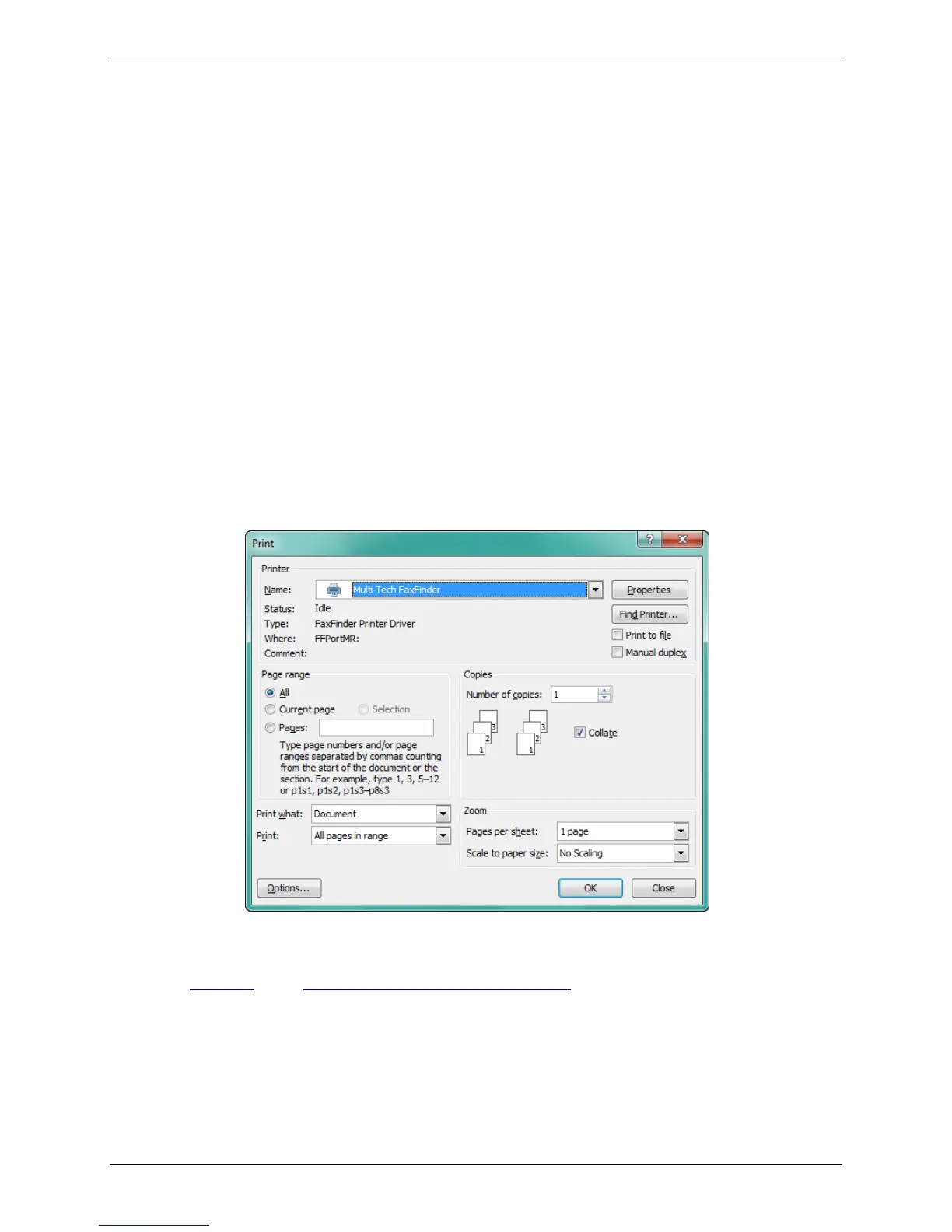
2. Select Print.
3. Select Multi-Tech FaxFinder as your printer and click OK (or Print depending on your program). The
FaxFinder Schedule Fax window opens.
4. Follow Steps 4-9 under Sending a Fax with the Client Software to finish sending the fax.



 To Next Page