Chapter 2: Using the Fax Client Software
FaxFinder Client User Guide 23
2. Click Advanced.
3. Set the options you want and click OK.
Advanced Options
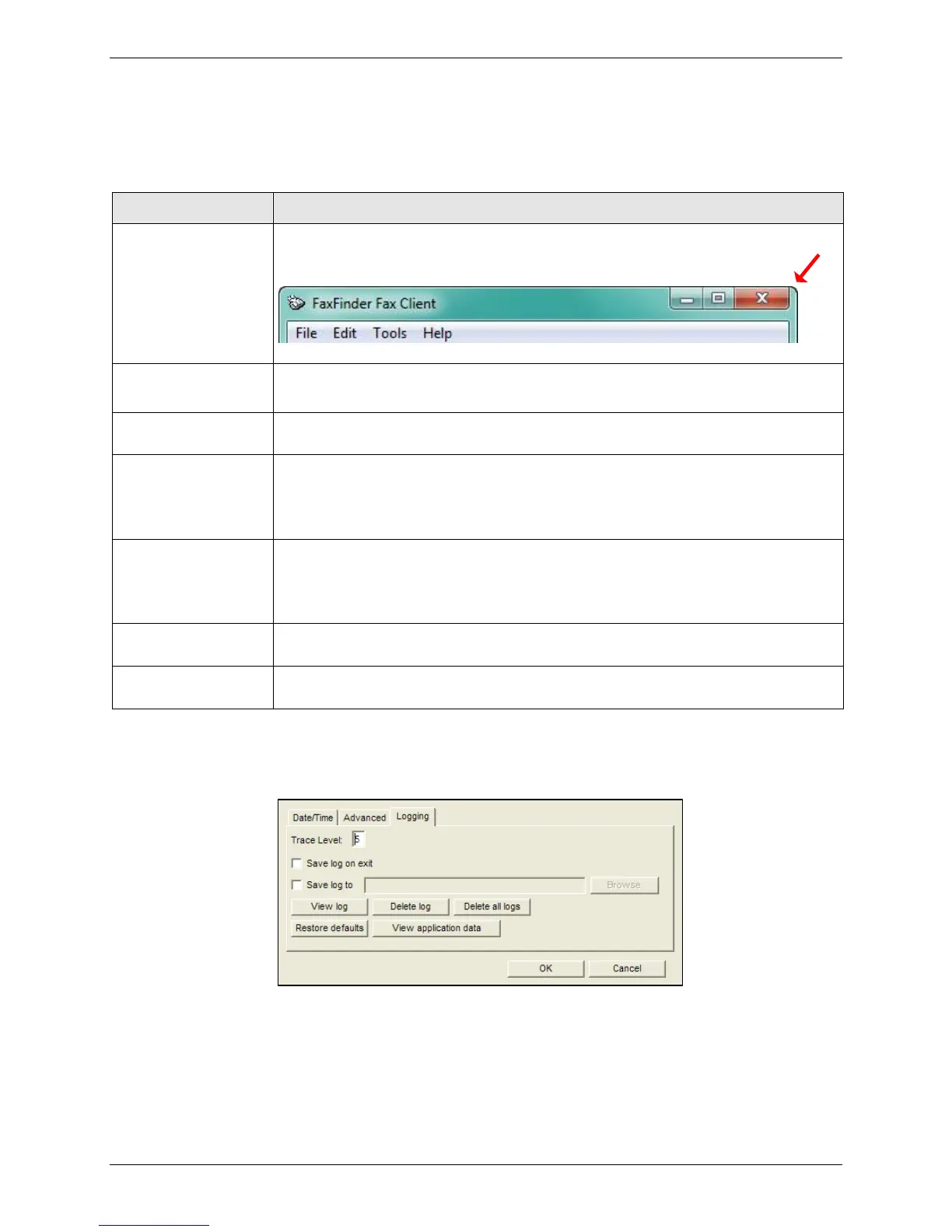
Check to automatically minimize the fax client window when you click the X in
the upper right corner.
Check Minimize after
scheduling
Check to automatically minimize the fax client window when you schedule a fax.
Check to delete print captures after they are scheduled. This can help save disk
space.
If you use Outlook 2000 or newer, this option adds your Outlook contacts to
FaxFinder automatically. FaxFinder will only add Outlook contacts that have a fax
number. If Outlook is not in the default directory, use the Browse button to
identify the correct folder.
If you selected Include Outlook Contacts, click this to update your FaxFinder
contact list. This ensures that FaxFinder and Outlook are synchronized. By
default, FaxFinder tracks additions and changes automatically. FaxFinder will
prompt you to confirm the update.
Select which contact list appears by default on the Send Fax page. Options are
Personal Contacts, Global Contacts, Personal Groups, and Global Groups.
Click this to delete the list of recently sent faxes. FaxFinder will prompt you to
confirm the update.
Configuring and Viewing Fax Logs
k
Configuring Logging Options
To configure fax log settings for the fax client software on your computer:
1. Click Edit |Options | Logging.
2. Set logging options and click OK.



 To Next Page