Chapter 3: Using the Multi-Tech TIFF Viewer
26 FaxFinder Client User Guide
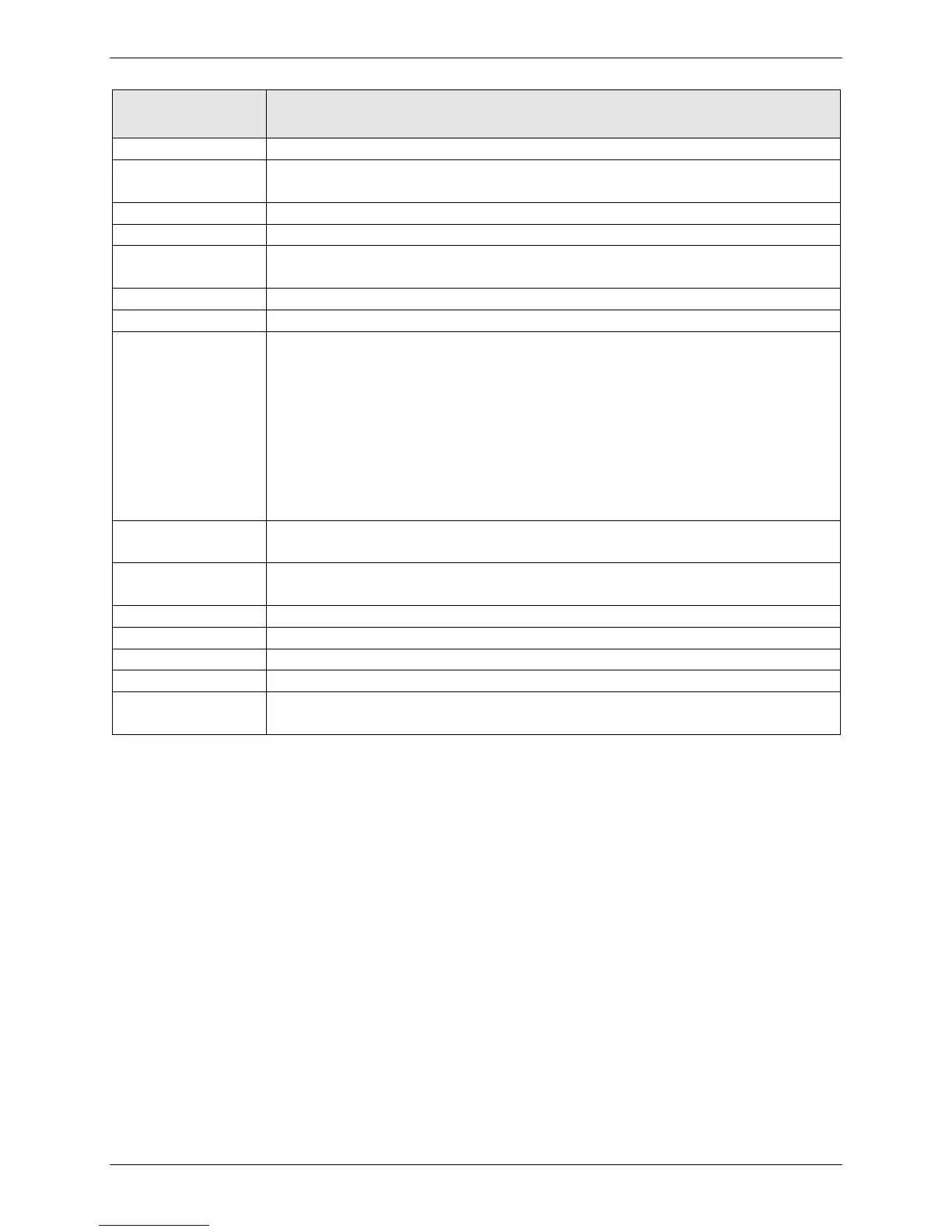
Restores the image to the normal view.
Resizes the image to fit the width of the viewer window. You may need to pan
down to see the length of the document.
Fits the entire image in the viewer window.
Centers the image in the viewer window.
(Omni-Directional Scroll). Click the Hand icon to pan through the image. Then
hold down the mouse button and drag the mouse to move the image.
Click to increase image size.
Click to decrease image size.
(Spot Magnifying Glass). Click on the area you want to magnify. If you hold the
mouse button down, the mouse pointer will become a rectangle that shows a
magnified view of the area. If you drag the mouse, the area in the magnifier will
update to magnify the content currently under the mouse pointer.
This function opens a secondary window that shows the magnified area. You
can adjust the size of this window by dragging on its borders. Relocate this
window by putting the clicking inside the window and dragging it to a new
position.
Use these to page through a multiple page fax document.
Shows the current page number. To change pages, select a page from the drop
down list.
Click to rotate the document by 90 degrees to the left or right.
Flips the image horizontally.
Flips the image vertically.
Reverse the colors on black and white images. Disabled for color TIF files.
Displays information about image, including file name and path, compression,
dimensions, colors, and resolution.
Thumbnail View
The thumbnail image on the left of the viewer window shows a small version of the current image as
well as the dimensions. Left-click on the thumbnail image to reset the current image to the original. This
does not undo any changes that were saved.



 To Next Page