Chapter 2: Using the Fax Client Software
18 FaxFinder Client User Guide
Deleting a Fax
To cancel a scheduled fax through the Fax Status tab:
1. On the Devices tab, right-click on the FaxFinder you want and click Open.
2. Right-click on the fax you want and select Abort.
To cancel a fax through the Print Capture tab:
Documents on the Print Capture tab remain listed until they are either manually deleted with this
command or you have configured the client to delete them after sending.
To delete a print capture:
1. Click Print Capture.
2. Right-click a fax and click Delete. You will be prompted to confirm the delete.
Administrators can also delete outbound faxes through the Web Management Interface. Consult the
Administrator’s Guide for more information.
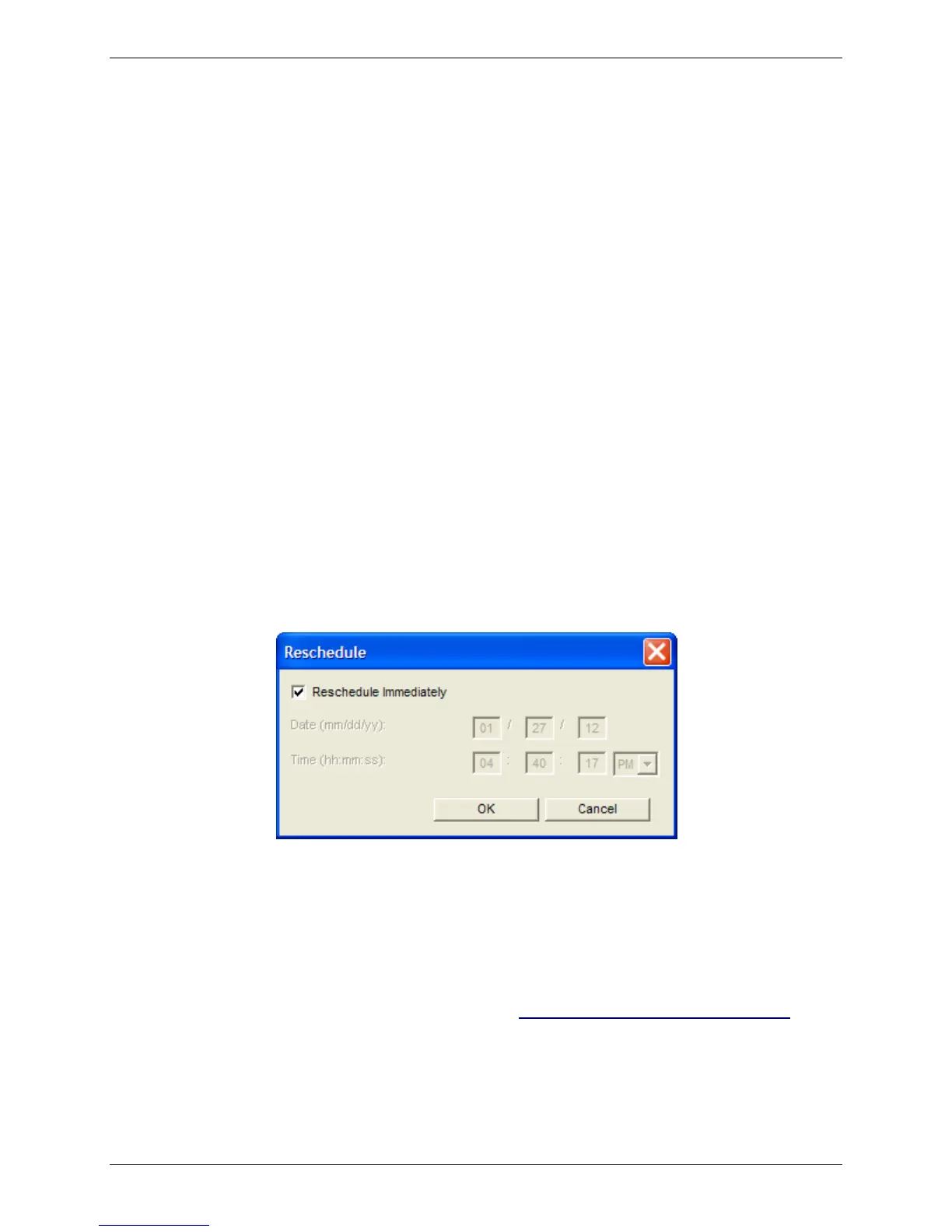
Rescheduling a Fax
To reschedule fax through the Fax Status tab:
1. On the Devices tab, right-click on the FaxFinder you want and click Open.
2. Right-click on the fax you want and select Reschedule.
Note: By default when you select Reschedule, Reschedule Immediately is selected.
3. Make desired changes and click OK.
To reschedule fax through the Print Capture tab:
1. Click Print Capture.
2. Right-click on the fax you want to reschedule and click Fax. The Send Fax window opens.
Note: By default, Send Immediately is selected when you reopen the Send Fax window.
3. Click Options to open the scheduling window. Refer to Sending a Fax with the Client Software for
information on using the Send Fax window.



 To Next Page