Chapter 2: Using the Fax Client Software
24 FaxFinder Client User Guide
Logging Options
To determine how much detail is included in logs, enter a value from 1 to 9. A trace
level of 9 provides the most log detail. A level of 1 is the least amount of trace.
Select this to ensure the log file exists after the application is closed.
Select this if you want to create a log file other than the default. You may Browse to
an existing File Folder and type in the name of the custom log file in the edit field.
Viewing Fax Logs
To view the current log:
● Click Edit |Options | Logging and then click View Log.
To open a Windows Explorer window to find and view any log file:
● Click Edit |Options | Logging and then click View Application Data.
Deleting Logs
To erase the current log:
● Click Edit |Options | Logging and then click Delete Log.
To delete all log files:
● Click Edit |Options | Logging and then click Delete All Logs.
Restoring Log Settings
To restore log settings to factory defaults:
● Click Edit |Options | Logging and then click Restore Defaults.
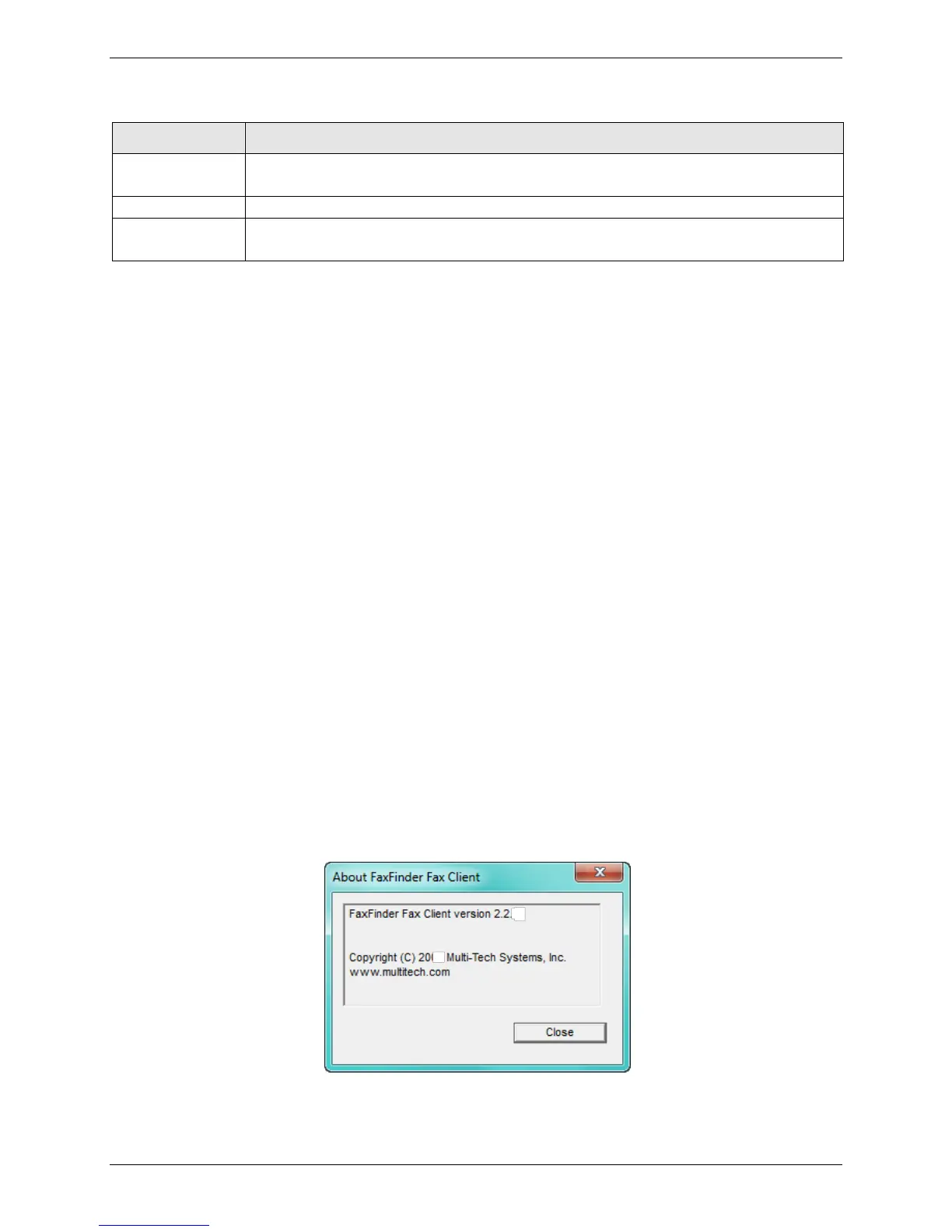
Checking Fax Client Software Version
To determine which version of the Fax Client software you have:
● Click Help | About.



 To Next Page