21
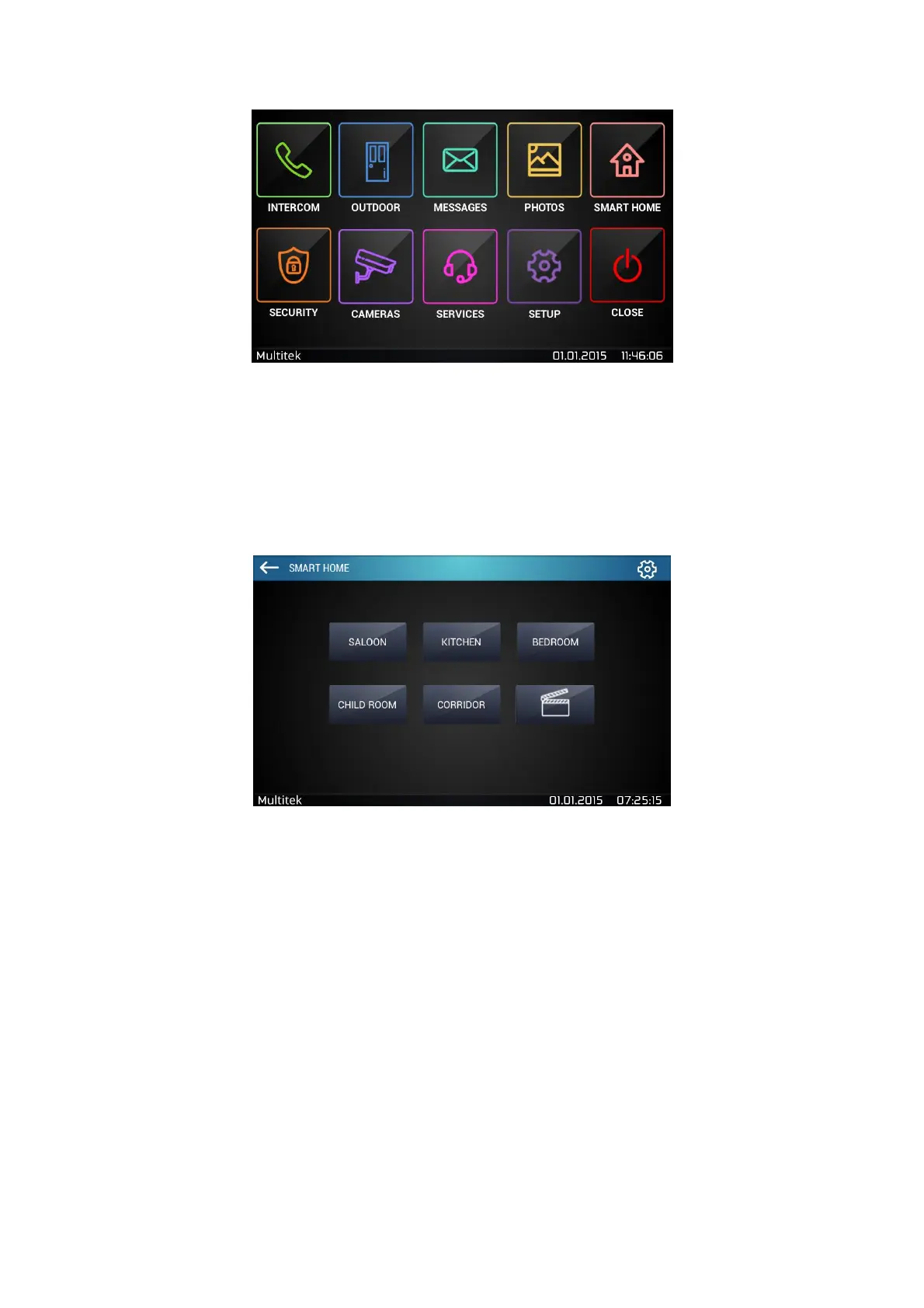
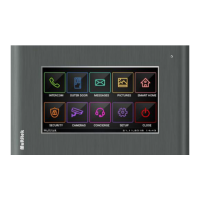
Figure 17:Home screen
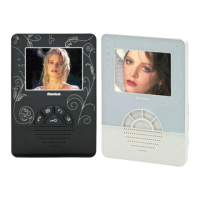
When you open the menu, you see the list of your rooms and scenario icon (Figure 6). When you click scenario
icon, you can see the list of your scenarios.
When there is no setup at the very beginning, you will just see the scenario icon.
Figure 18:Main KNX screen
To setup smart home functionalities, press “settings” icon on the top right corner in the Smart Home menu.
Default password is set to 0000. Smart home password can be changed from main Setup menu – Phone
connection – Change password page.
7.5 Adding Rooms And Devices
In order to add a device, go to Smart Home Settings so that “Room Settings” will open. (Figure 7) Using the icons
located on the right; you can add, edit or delete rooms.


 To Next Page