22
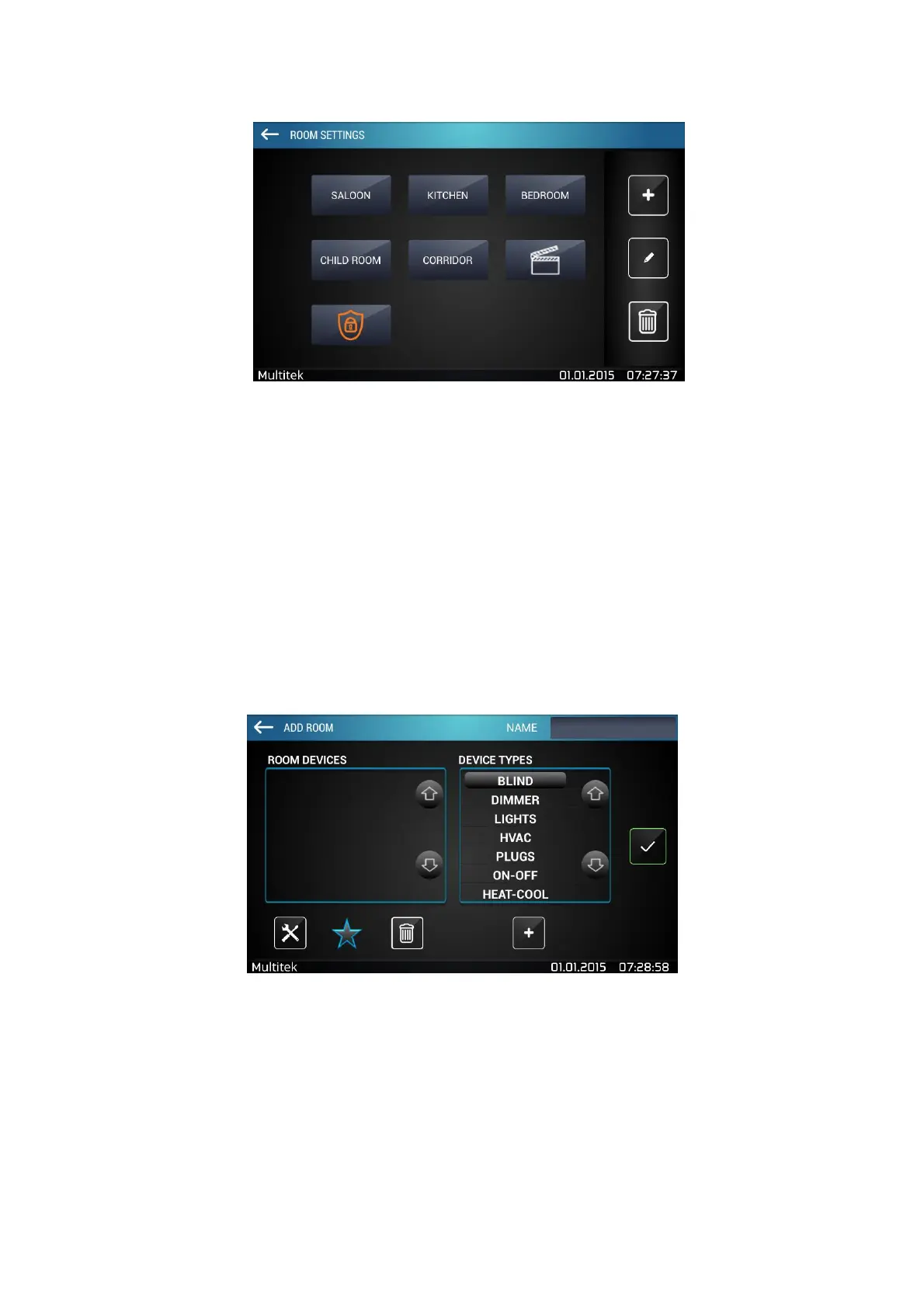
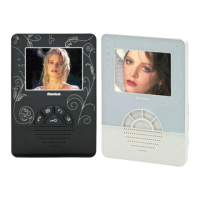
In order to add a room press “+” button. “Add Room” (Figure 8) screen will show up. Name the room by typing
your rooms name to “Name” section located at the top right.
Different type of devices are defined in “Device Types” list. These are Curtain, Dimmer, Lights, Air conditioner,
Socket, On/off and Heat Control devices. When you click add (+) icon located below device types list, selected
device will be added. You can navigate between devices by cursors located on the right.
Below “Room Devices” section; device configuration, favorite and delete icons are located. Using these icons,
you can manage device settings.
Figure 20:Add Room Screen
After you select your devices, select the device that you want to configure, then press configuration icon to enter
its configuration details. In the three figures below, you can see screenshots of different devices.
Codes in the configuration screen must be in the format of (0-31). (0-7). (0-255). After typing, the code values
click check icon.


 To Next Page