9
When the new display page appears (you’ll see Android icon on the bottom left), it is possible to edit the
following fields:
Enter two-digit block number
i.e. 01 for Block one or a single block
apartment
Enter three-digit room number
i.e. Enter 005 for room number 5
You can connect up to 3 parallel devices
per room. Enter 1,2 or 3 for this field. If
there is a single device in a room this
value should be “1”.
After completing all fields, tap green check sign icon located on the right of the screen.
After entering all these parameters correctly, the device will restart and run with the new values.
BLOCK NO: 01 ROOM NO: 001 DEVICE TYPE: 1
BLOCK NO: 07 ROOM NO: 010 DEVICE TYPE: 1
BLOCK NO: 12 ROOM NO: 103 DEVICE TYPE: 1
7.2. Smart Home Relay Application
First of all, the “Smart Home” tab is entered from the settings menu. It is saved by selecting Relay (16 relay or 4
relay) from this page. Click ”SMART HOME" in the main menu to open the application.
7.2.1 Add Device
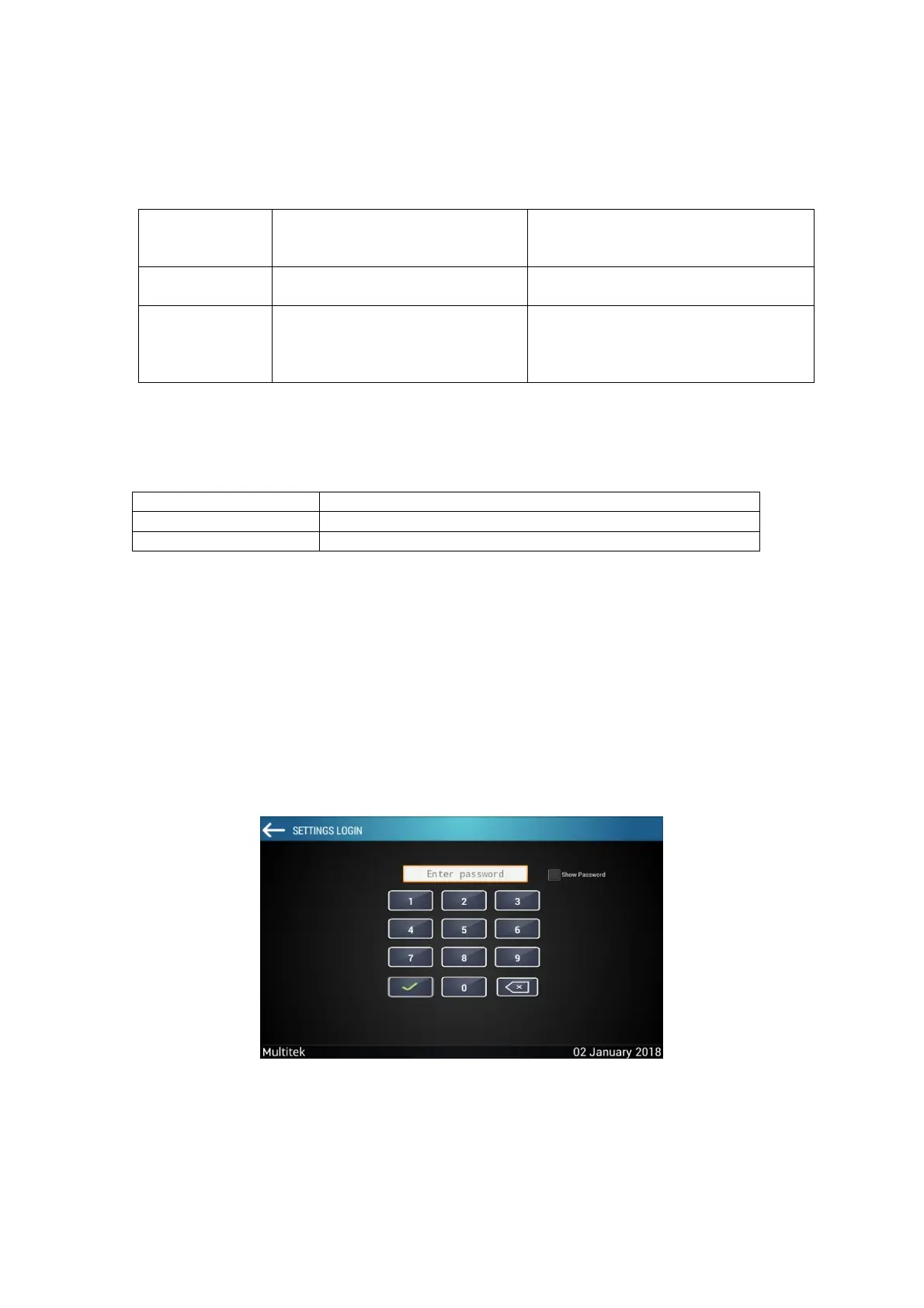
Press setting icon on top right to the add device. Password screen appears to the setting menu.
Default Password: 0000
Figure 6: Add Device


 To Next Page