25
7.5.1. Editing Rooms And Devices
In order to edit an existing room, select the room and press to editing icon (pencil icon) on the main Smart Home
Settings menu.
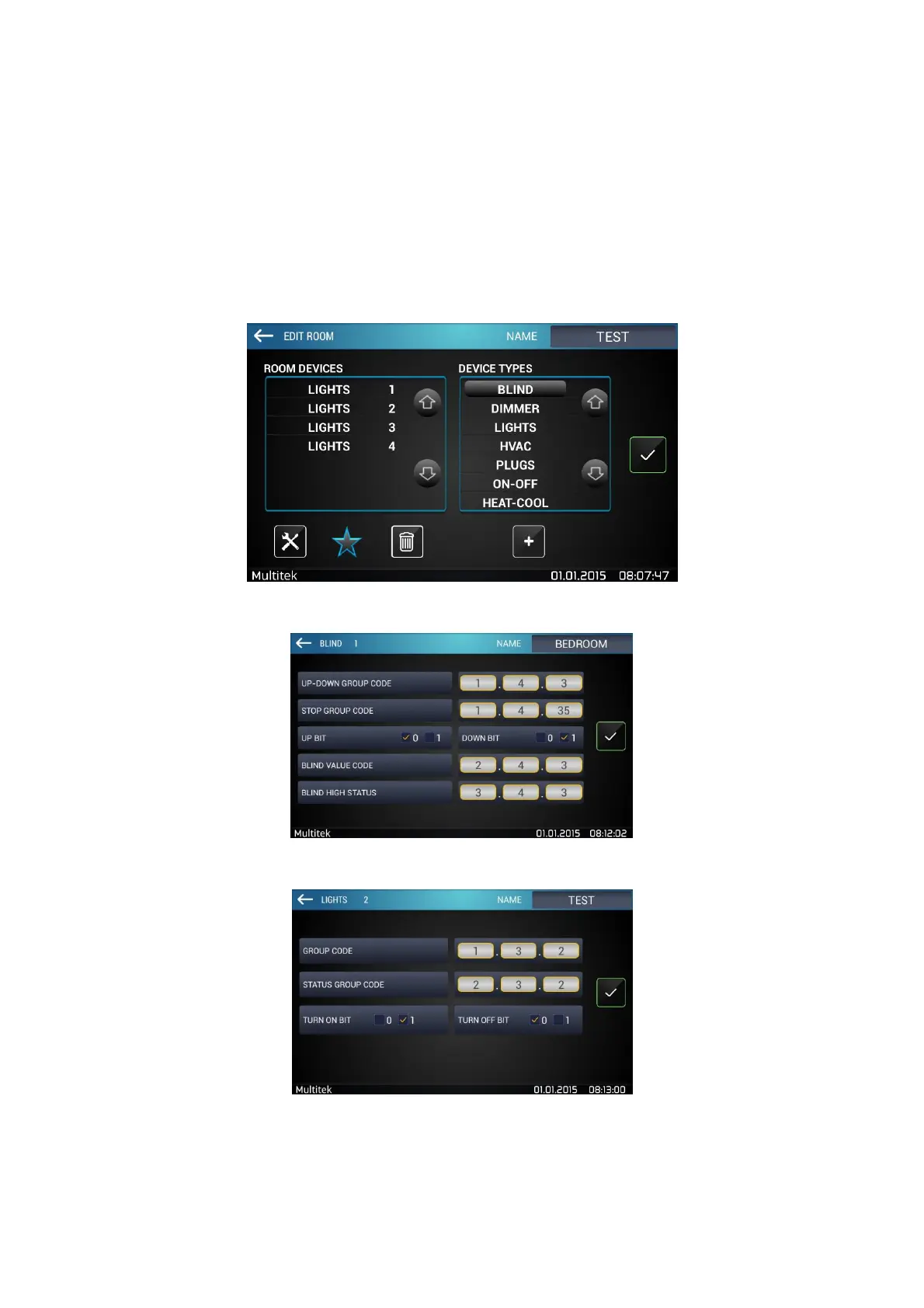
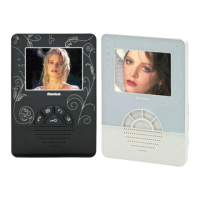
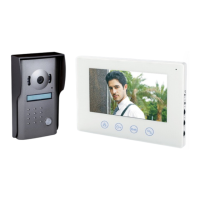
A screen similar to add room screen will show up. Same steps that are used while adding a room will be used. In
the figures below there are examples of room editing screens.
Figure 27:Editing Room Screen
Figure 28:Editing Blind Configuration
Figure 29:Editing Light Configuration
Note: To save changes in Add Room / Edit Room menus’, exit by pressing okay (check) icon on the right. If you
press returning back icon on the top left corner, your settings will not be saved.


 To Next Page