28
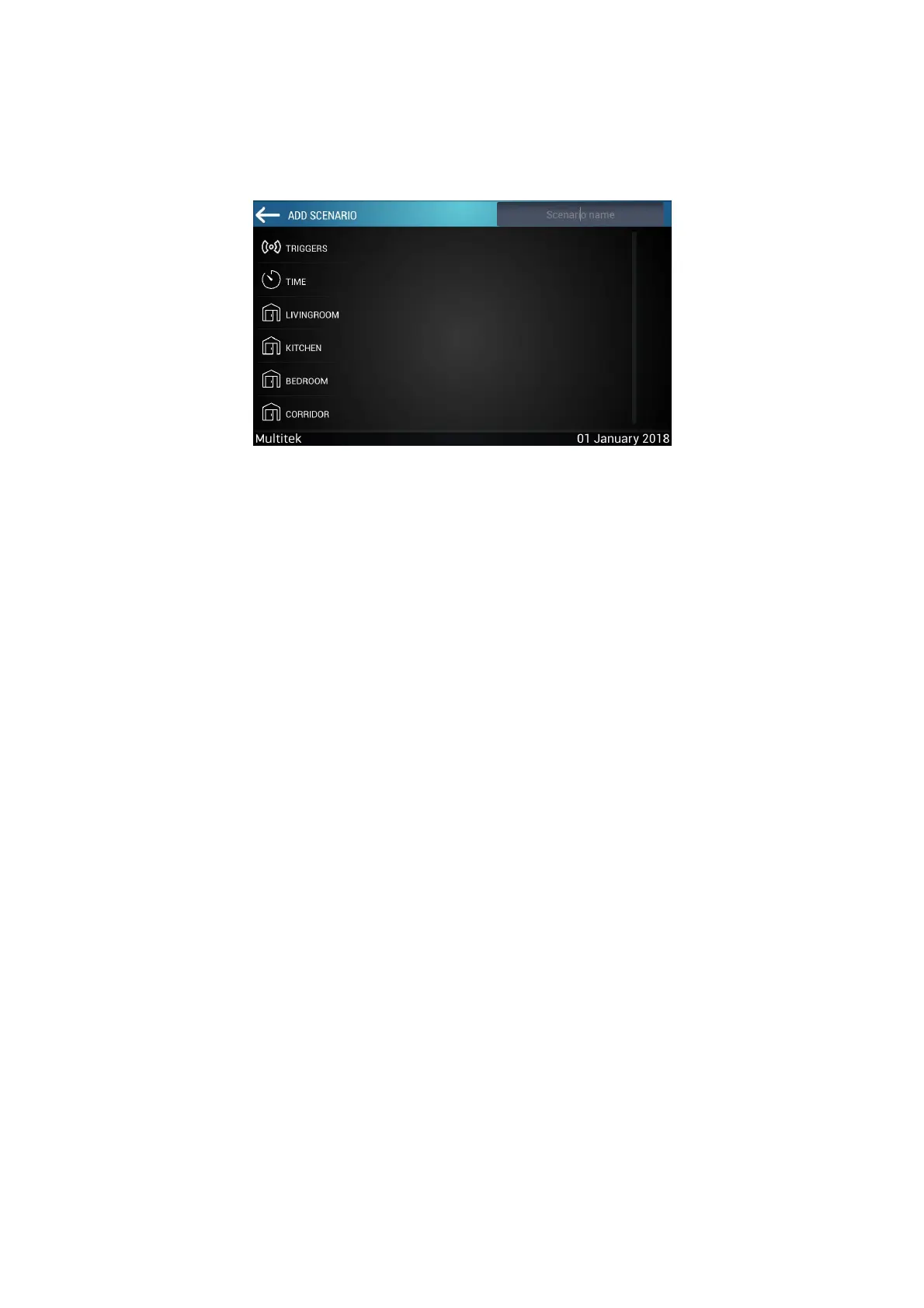
Select the custom scenario option from the page that opens. After selecting the custom scenario, the following
screen will appear.
Alarm, Time, Device can be added from the options on the left by entering the scenario name.
Triggered Scenarios
Alarm scenarios. When the zone is activated, the scenario is automatically activated and executed according to
the function assigned to the devices.
Only one scenario can be created for a zone type.
- Trigger devices can be added to the scenario when the scenario is empty, no trigger can be added after any
device.
- There is no option to add a trigger when editing scenarios because the trigger can only be added to the
beginning, in which case all devices within the scenario must be deleted. Since this is creating a new scenario,
the trigger cannot be added from the edit section.
Timed Scenarios
Scenarios can be added after adding the device. Time cannot be added when the scenario is empty. The time is
added after the device is added. If time is added after the last device, the time is deleted while the scenario is
being recorded. Time is set in minutes by pressing the time icon and entering the edit. Time sets the wait
between two operations. For example; If you want the second device to turn on after 3 minutes the first device
is turned on, you must first add the device and add the time, then add the 2nd device.
Scenario that can be assigned date
Scenarios without time or triggering can be assigned a date and time. This scenario type will be activated at the
set date and time and can be activated by the user at any time. After the scenario is created, it is saved. In the
Scenario Setting main menu, the scenario to be assigned the date is selected. The calendar icon appears on the


 To Next Page