2. 2.4GHz wireless mode quick start guide
--To use the scanner on computer
You may sometimes want to use the scanner on computer, in this case , please set up
the scanner according to the following steps.
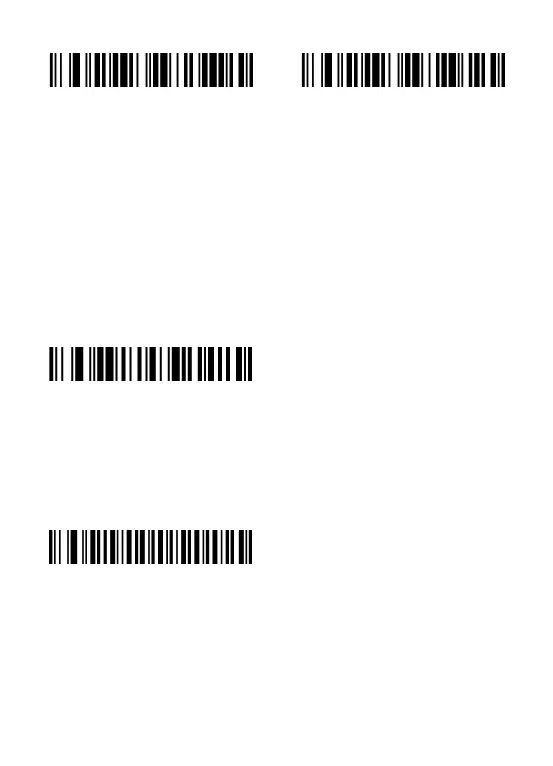
STEP1. Scan the following code “2.4GHz Wireless Mode” to change the connection
mode from bluetooth mode to 2.4Ghz wireless mode. When the light on the top of
the scanner turns green, it means the scanner successfully changes mode to 2.4GHz
Wireless Mode.
Note: if you want to set the scanner back to bluetooth mode, please press and hold the button for 10
seconds or scan the code “bluetooth mode”. When the light on the top of the scanner turns blue, it
means the scanner successfully changes mode to bluetooth mode.
STEP2. Plug the USB receiver in to USB port of your computer, and then scan the code
“match” to pair the scanner with the USB receiver.
Note:30 seconds after the USB receiver is plugged, the scanner cannot match the USB receiver. If the
pairing fails, the scanner will emits sound like “di en”. Please unplug the USB receiver and plug it
again, then scan the code "match "
STEP3. Scan the code “instant upload mode” to set the scanner to instantly upload
the barcode


 To Next Page