EasyManua.ls Logo

Nakajima AE-710 - Margins

Nakajima AE-710
36 pages
Print Icon
To Next Page IconTo Next Page
To Previous Page IconTo Previous Page
Loading...
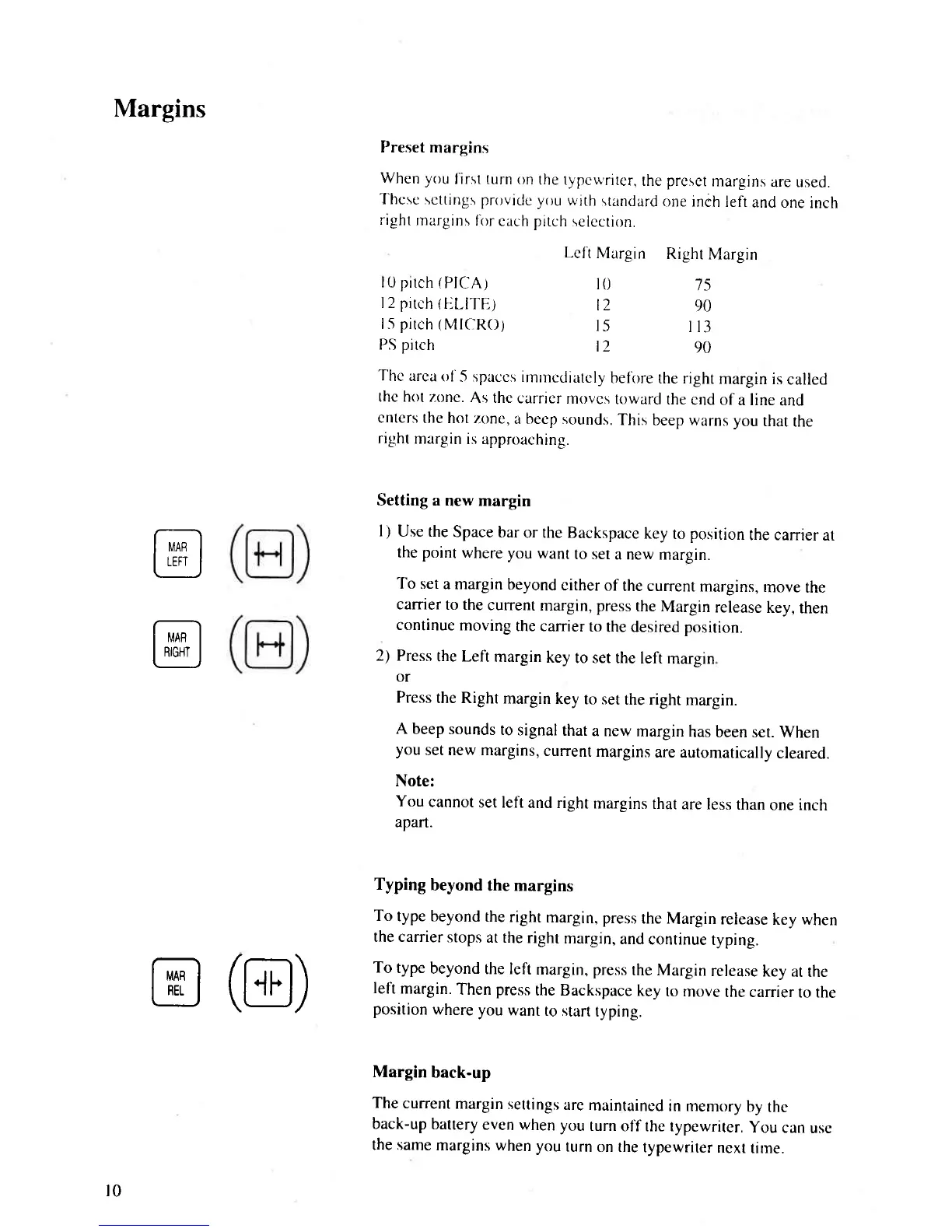
Margins
Preset
margins
Whcn you
I'irst turn
on
the rypcw,rirer,
the
preset
margins
are used.
T'hcse
scttings provrde
you
wirh
rtundard
one inch
left
and one
inch
right
rnargins
filr
cach pitch
selcction.
Lcl't
Margin
Right
Margin
I0 pitch
(PICA)
l2
prtch
(ELITE)
1.5
pitch
(MICRO)
PS
pitch
l0
t')
l5
t2
15
90
il3
90
ffil
ILenl
@
Thc
arca
ol'-5 spaccs
imrncdiarcly
belirre
the right
margin
is
called
thc h<lt
zone.
As thc
carricr
movcs
toward
the
cnd of
a line
and
cnters
the hot
zone,
a becp sounds.
This
beep warns you
that
the
right
margin
is
approaching.
Setting a
new margin
|
)
Use the
Space
bar
or the Backspace
key
to
po_sition
the carrier
at
the
point
where
you
want
to set
a new margin.
To set
a margin
beyond
either
of
the current
margins,
move
the
carrier
to the
current
margin, press
the
Margin
release
key,
then
continue
moving
the carrier
to
the desired position.
2) Press
the Left
margin
key
to set the
left
margln
or
Press
the Right
margin
key
to set
the right
margrn.
A
beep sounds
to
signal
that
a new
margin
has
been set. When
you
set new margins,
current
margins
are automatically
cleared.
Note:
You
cannot
set left
and right
margins
that
are less
than
one inch
apan.
Typing
beyond
the margins
To
type beyond
the
right
margin, press
the
Margin
release
key when
the carrier
stops
at the
right
margin,
and
continue
typing.
To
type
beyond
the left
margin, press
rhe Margin
release
key
at the
left
margin.
Then
press
the Backspace
key
to
move
the carrier
to the
position
where
you
want
to start
typing.
Margin
back-up
The
current
margin
settings
are
maintained
in memory
by
the
back-up
battery
even when
you
turn
off the typewriter.
you
can
use
the same
margins when
you
turn
on the
typewriter
next
tirne.
@
(@)
t0

Related product manuals