EasyManua.ls Logo

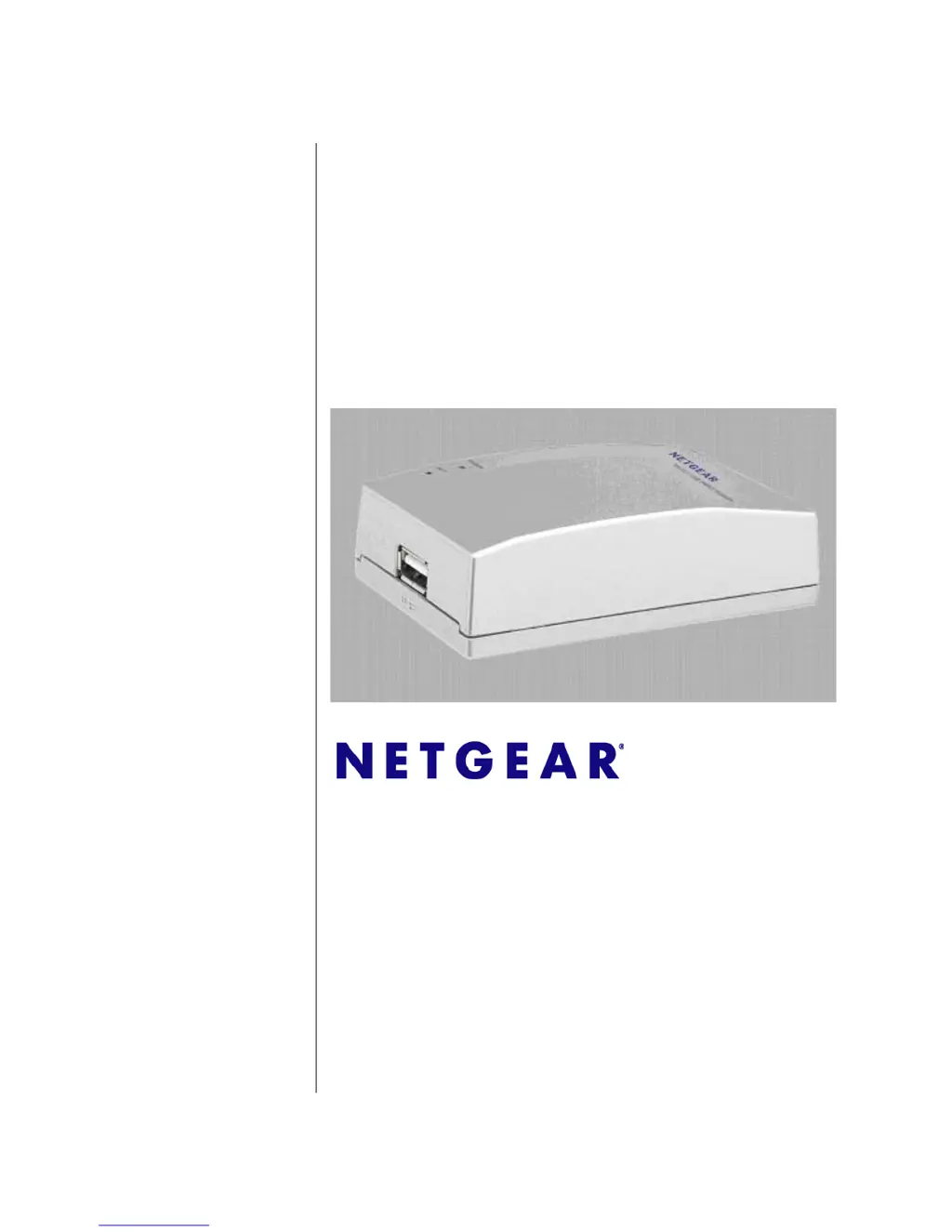
NETGEAR PS121 - USB Mini Print Server - User Manual

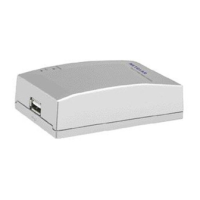
NETGEAR PS121 - USB Mini Print Server
52 pages
Print Icon
To Next Page IconTo Next Page
Loading...
202-10211-02
April 2007
NETGEAR, Inc.
4500 Great America Parkway
Santa Clara, CA 95054 USA
NETGEAR USB
Multifunction Printer
Server PS121v2 User
Manual

Table of Contents

Questions and Answers

  • A
    Austin HancockJul 26, 2025
    What to do if nothing is printing from my NETGEAR Print Server?
    • H
      Hannah ReynoldsJul 26, 2025
      If nothing is printing, try printing from another computer. You can also try turning the print server off and then on again. If the printer does not match the printer driver in the operating system, set up the print server using the PS121v2 Resource CD. Also, disable the printer's bidirectional feature if it is turned on under Windows 98SE or Windows ME.
  • W
    William LeachJul 31, 2025
    Why is my NETGEAR PS121 - USB Mini not found?
    • J
      Jeremiah TrujilloJul 31, 2025
      The print server might not be found because of connectivity issues with your computer or internet. Make sure you can access other places from your computer. If you cannot, then troubleshoot your computer or Internet connectivity. Also, if you are running a software firewall, disable it.
  • P
    pestradaAug 6, 2025
    How to fix NETGEAR Print Server if it has no power?
    • E
      Eric KleinAug 6, 2025
      If the print server has no power, make sure the power cord is connected to the print server and that the power adapter is connected to a functioning power outlet. If it is in a power strip, make sure the power strip is turned on. If it is plugged directly into the wall, verify that it is not a switched outlet. Also, ensure you are using the correct NETGEAR power adapter supplied with your print server.
  • M
    Mary SmithAug 12, 2025
    What to do if my printer is printing garbage characters with NETGEAR PS121 - USB Mini?
    • L
      Laura BallardAug 12, 2025
      If the printer is printing "garbage" characters, the printer driver in the operating system might not match the printer. To resolve this, run the Add Printer Wizard.
  • G
    Gregory VelazquezAug 19, 2025
    What to do if no lights are lit on my NETGEAR Print Server?
    • A
      Andrew Willis MDAug 19, 2025
      It takes a few seconds for the status light to be lit. Wait a minute and check the status light on the print server.

Summary

Chapter 1 Getting Started

Observe These Precautions

Provides essential safety and handling guidelines for the device.

Chapter 2 Installation and Setup

Install the Print Server and Set up One PC

Guides through the initial installation process for the print server and one computer.

Adding a Printer with Windows Vista

Step-by-step guide for adding printers on Windows Vista.

Adding a Printer with Windows XP or Windows 2000

Step-by-step guide for adding printers on Windows XP/2000.

Chapter 3 Managing the Print Server

Chapter 4 Troubleshooting

Basic Functioning

Covers fundamental issues like power and connectivity problems.

Printing Errors

Addresses common printing issues such as garbled output or no printing.

Appendix A Default Configuration Settings and Technical Specifications

NETGEAR PS121 - USB Mini Print Server Specifications

General IconGeneral
Device TypePrint server
ManufacturerNETGEAR
ModelPS121
Data Link ProtocolEthernet, Fast Ethernet
Connectivity TechnologyWired
Data Transfer RateUp to 100 Mbps
Compliant StandardsIEEE 802.3, IEEE 802.3u
InterfaceUSB 2.0
CompatibilityWindows, Mac, Linux
Power SupplyExternal power adapter
Ports1 x USB
Network InterfaceEthernet
Supported ProtocolsTCP/IP, IPP

Related product manuals