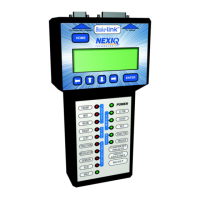
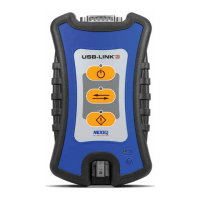
USB-Link™ 3 Installation and Setup Manual
Chapter 3: Installing the Drivers and Setting Up the Device 33
To connect the USB-Link™ 3 to your PC using Mini Access Point Mode:
1 Connect the DB26 female end of the appropriate adapter cable to the connector on the top of
the USB-Link™ 3.
2 Attach the other end of the adapter cable (i.e., Deutsch connector) to the vehicle’s diagnostic connector.
- When connected, the Power LED (green) on the USB-Link™ 3 should be illuminated (On).
- If the Power LED is not illuminated, turn the vehicle’s key to the ON position, leaving the engine Off.
3 Navigate to the System Tray on your PC.
4 Click on the Network icon in the System Tray.
NOTE: The vehicle’s diagnostic connector is typically located under the dashboard on the driver’s side,
or beside the driver’s seat. It can also be located in the engine compartment near the electronic control
module (ECM).
Figure 3.12 Windows
®
System Tray


 To Next Page