Chapter 6 Installing the Device Driver
2 Installing the DS-U1 Driver
- 19 -
6
2
Installing the DS-U1 Driver
Before installing the DS-U1 driver, close all resident programs such as screen savers or virus
checkers.
NOTE: To install the DS-U1 driver, you must log in as the Administrator.
Leave the microscope unconnected while installing the application.
2.1
Closing All Applications
Resident programs such as screen savers and virus checkers may prevent installation. Disable all
resident programs before installing. Make sure to close all resident programs. The following
sections show how to disable the Windows standard screen saver. For other programs, please
refer to the respective manuals.
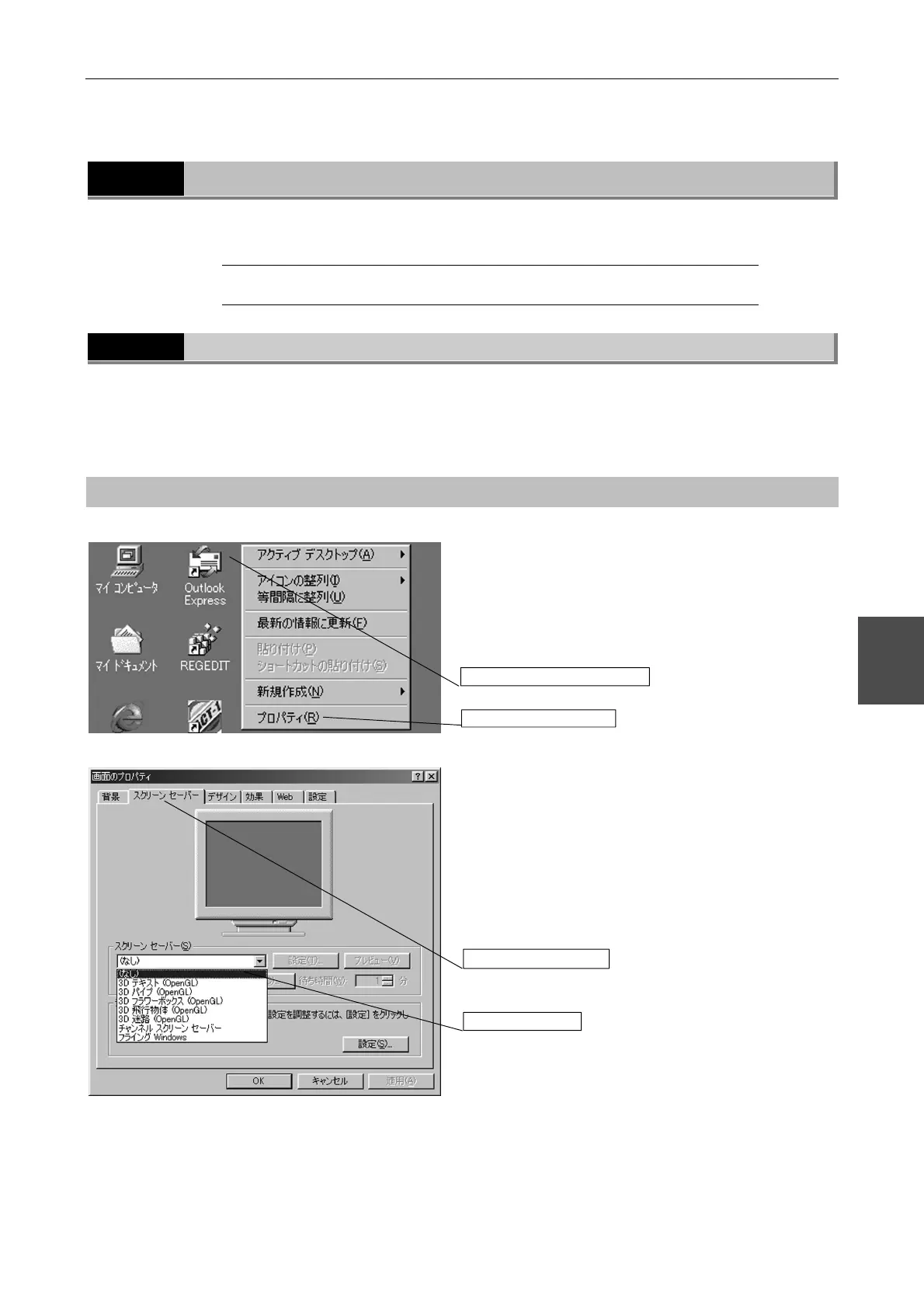
Operating procedures
u Shortcut menu
Right-click on an empty region of the desktop to open
the Shortcut menu.
Click [Properties] from the Shortcut menu to open the
[Display Properties] dialog box.
u [Display Properties] dialog box
Click the [Screen Saver] tab in the [Display Properties]
dialog box.
Click the [Screen saver (S)] text box to open the
pull-down list.
Click [None].
Click [OK] button.
1. Right-click on the desktop.
2. Select [Properties].
[Screen Saver] tab
Click [None].


 To Next Page