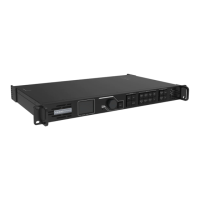
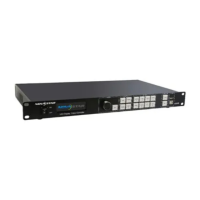
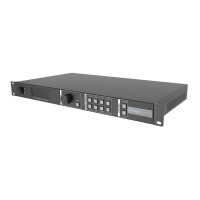
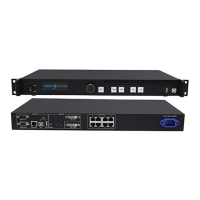
MX40 Pro LED Display Controller User Manual
6 Display Effect Adjustment
6.1 Apply Presets
Apply a saved preset in VMP to the device to quickly complete display effect adjustment.
On the main menu screen, select Preset.
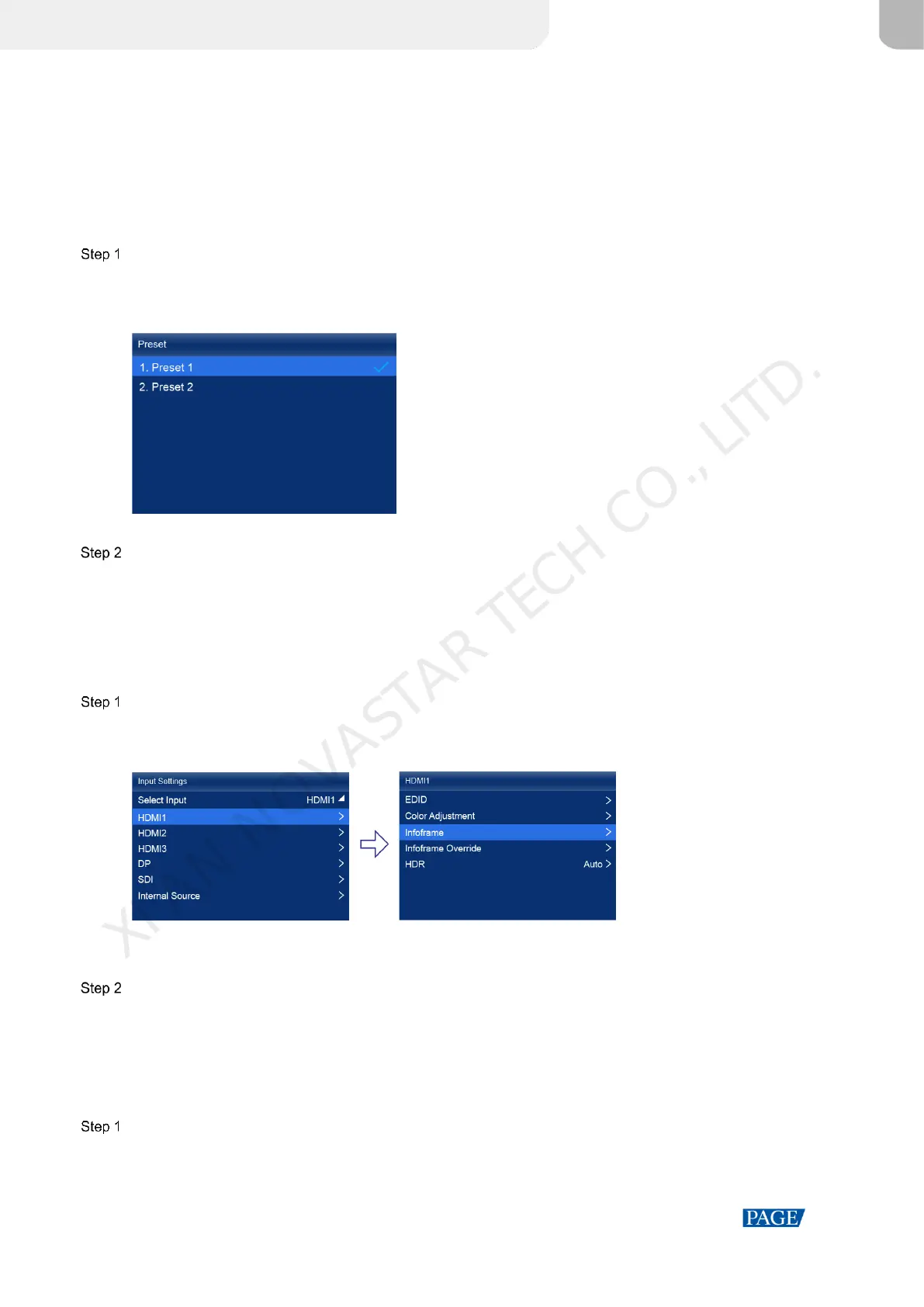
The saved presets in VMP is displayed on the menu screen, as shown in Figure 6-1.
Figure 6-1 Presets
Select a preset.
6.2 Set External Input Source Parameters
6.2.1 View Input Source Information (HDMI1, HDMI2, HDMI3, DP, SDI)
View the attribute values of the external input source, including the resolution, frame rate, bit depth, color gamut, etc.
On the main menu screen, choose Input Settings > input source > Infoframe. The input source is HDMI1, HDMI2,
HDMI3, DP or SDI.
Figure 6-2 Input source information
When the device working mode is All-In-One Controller, the Select Input menu is not displayed.
View the input source information.
6.2.2 Set Resolution and Frame Rate (HDMI1, HDMI2, HDMI3 and DP only)
Set the resolution and frame rate of the external input source. If the resolutions of the input source and screen are the
same, the image can be displayed pixel to pixel. A lower frame rate may result in image flickering, while a higher
frame rate helps stabilize the display image.
On the main menu screen, choose Input Settings > input source > EDID. The input source is HDMI1, HDMI2,
HDMI3 or DP.
XI'AN NOVASTAR TECH CO., LITD.


 To Next Page