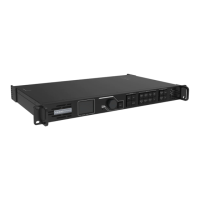
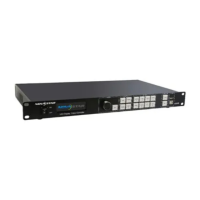
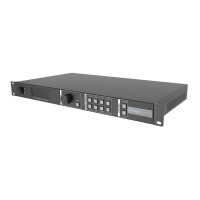
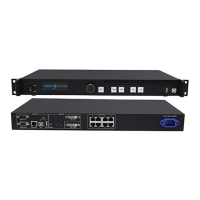
MX40 Pro LED Display Controller User Manual
6.4.6 Set Sync Source
Select a synchronization signal for the display frame rate and set the phase offset.
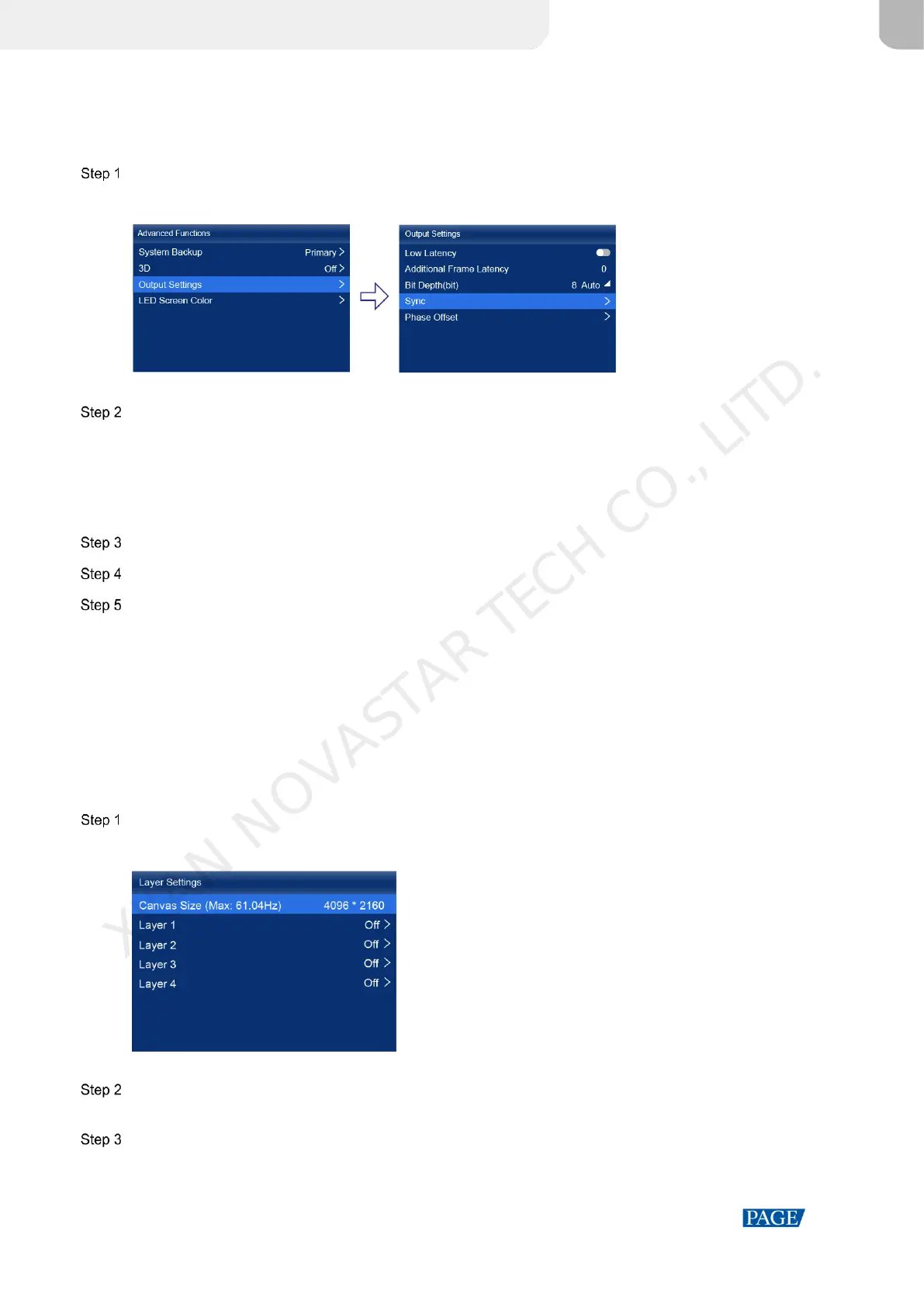
On the main menu screen, choose Advanced Functions > Output Settings > Sync.
Figure 6-15 Sync
Select Sync Source and then select the desired sync source from the drop-down options.
Active Source: Sync with the frame rate of the active source.
Genlock: Sync with the frame rate of the Genlock signal.
Internal: Sync with the frame rate of the controller's internal clock. When this option is selected, a related
parameter Frame Rate is displayed. You can select a value from its drop-down options.
Press the BACK button to go back to the upper level menu.
Select Phase Offset.
Choose Adjustment Mode and then select the desired mode from the drop-down options.
Off: Turn off the phase offset function.
Angle: The related parameter Angle can be set.
Fraction: The related parameter Fraction can be set.
Absolute: The related parameters Lines and Pixels can be set when the sync source is Active Source.
6.5 Set Layers (Alll-In-One Controller Mode only)
When the device working mode is All-In-One Controller, set the canvas size and the layers (up to 4) on the canvas.
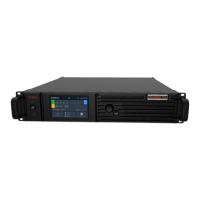
On the main menu screen, select Layer Settings.
Figure 6-16 Layer settings
Select Canvas Size to enable the value editing status. Rotate the knob to change the value and press the knob to
confirm the value.
Select a layer and set the related parameters.
Status: Turn on or off the layer.
Input Source: Select an input source.
XI'AN NOVASTAR TECH CO., LITD.


 To Next Page