MX40 Pro LED Display Controller User Manual
2 Appearance
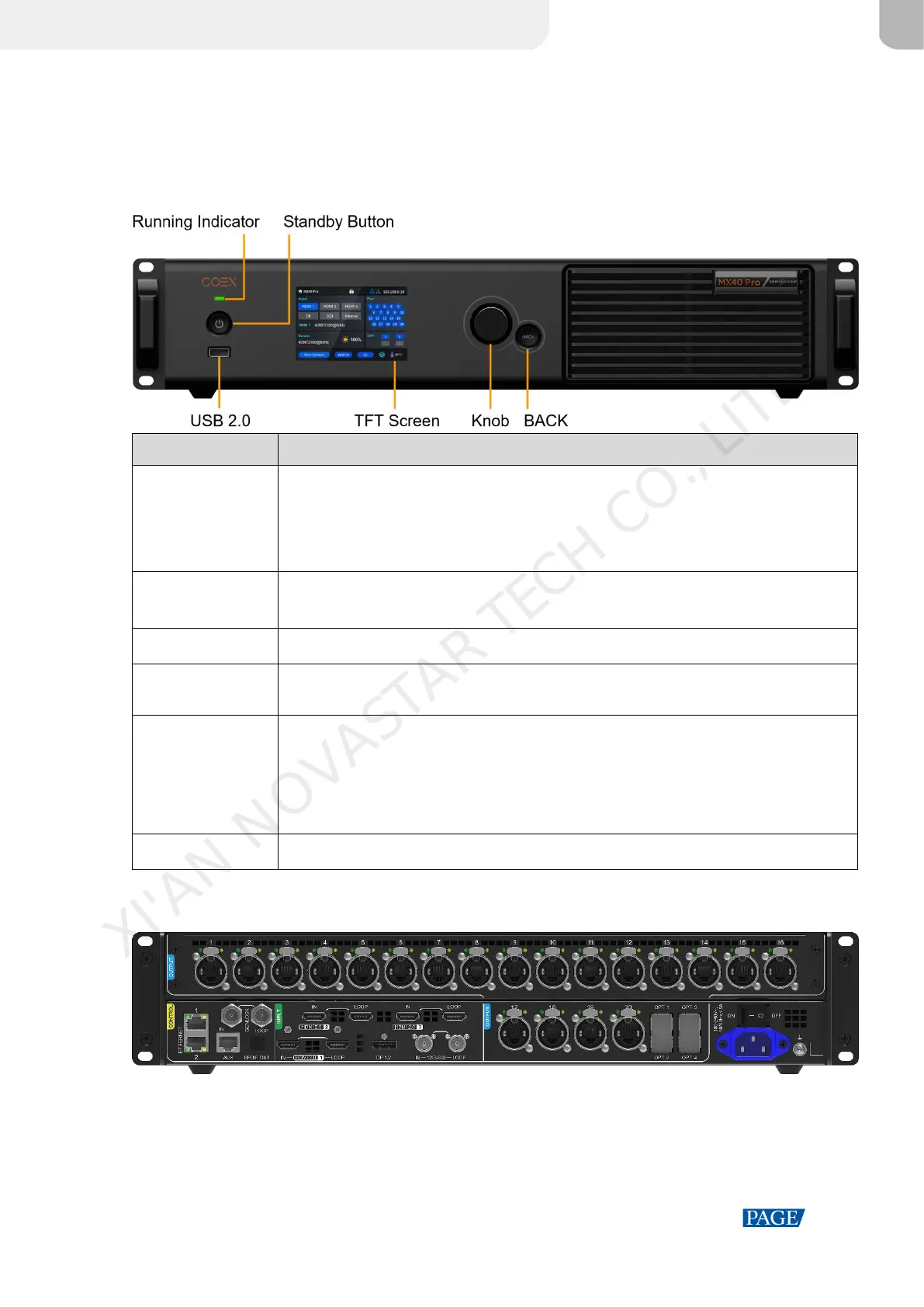
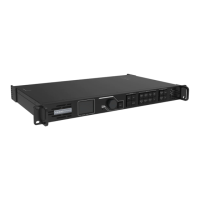
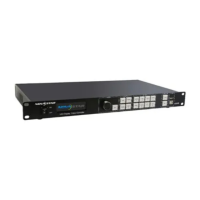
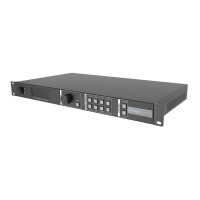
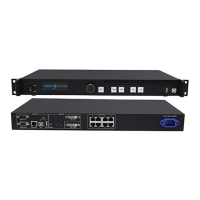
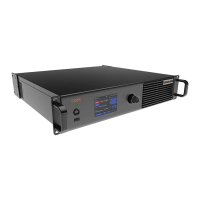
2.1 Front Panel
Solid red: Standby
Solid blue: The device is being powered on.
Solid green: The device is running normally.
Flashing red: The device is running abnormally.
Press the button to power on or power off the device.
Hold down the button for 5s or longer to restart the device.
Used to send cabinet configuration files and export the diagnostic result
A 3.5-inch screen that displays the device status, menus, submenus and messages for
parameter settings
On the home screen, press the knob to enter the main menu screen.
On the main menu screen, rotate the knob to select a menu item or adjust the parameter
value. Press the knob to confirm the operation.
Hold down the knob and BACK button simultaneously for 5s or longer to lock or unlock
the buttons.
Go back to the previous menu or cancel the current operation.
2.2 Rear Panel
XI'AN NOVASTAR TECH CO., LITD.


 To Next Page