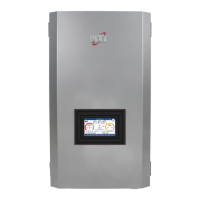
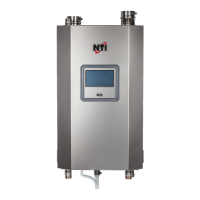
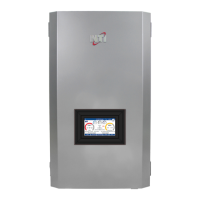
Installation and Operation Manual TFTN 085-199
17.0 WIFI CONNECTION
Before proceeding, download the “NTI net” mobile app to your smartphone and login with your “NTI net” credentials. The
app guides you through the process of connecting the boiler to the local WiFi Network and registering it to your “NTI net”
(nti.remotethermo.com) account. If you do not have an “NTI net” account, visit ntiboilers.com and select the “NTI net” icon
to register.
The function of the “NTI net” mobile app depends on the type of user; homeowners can manage connected appliance via the
app (including setting and modifying heating schedules), while contactors can only use the app to connect and register
appliances. As a result, the landing page when the app is opened will look different for homeowners and contractors:
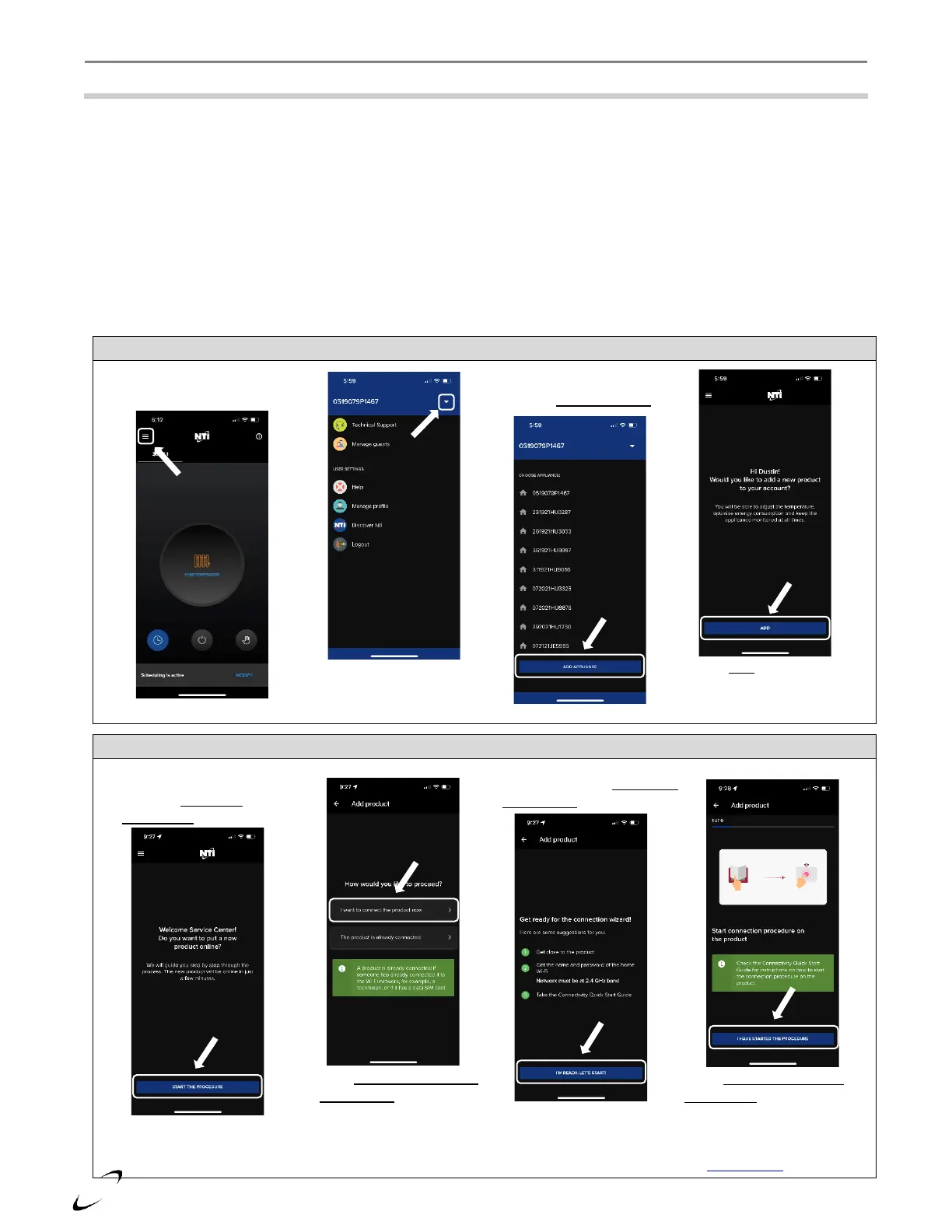
• Homeowners – if you have logged into the app with a homeowner account, you will first need to navigate to the
“Add product” page to begin the connection process; see Figure 17-1.
• Contractors – if logged into the app with a contractor account, the app will open on the “Add product” page; see
Figure 17-2.
Figure 17-1 “NTI net” App – Navigating to the “Add Product Page” (Homeowner account only)
Figure 17-2 “NTI net” App – “Add Product Page”
Select the menu button in the
top left of the screen
Open the “NTI net” mobile app
and press START THE
PROCEDURE
Select I want to connect the
product now
When ready, select I’M READY,
LET’S START! to proceed
Select I HAVE STARTED THE
PROCEDURE then move to the
boiler display to start the
connection procedure on the
boiler; see Figure 17-3. If using
the Setup Wizard, start at step 4
Select the dropdown button to
expose the ADD APPLIANCE
button
Select ADD to proceed to the
“Add product” page; see Figure
17-2


 To Next Page