- 42 -
1. DISPLAY
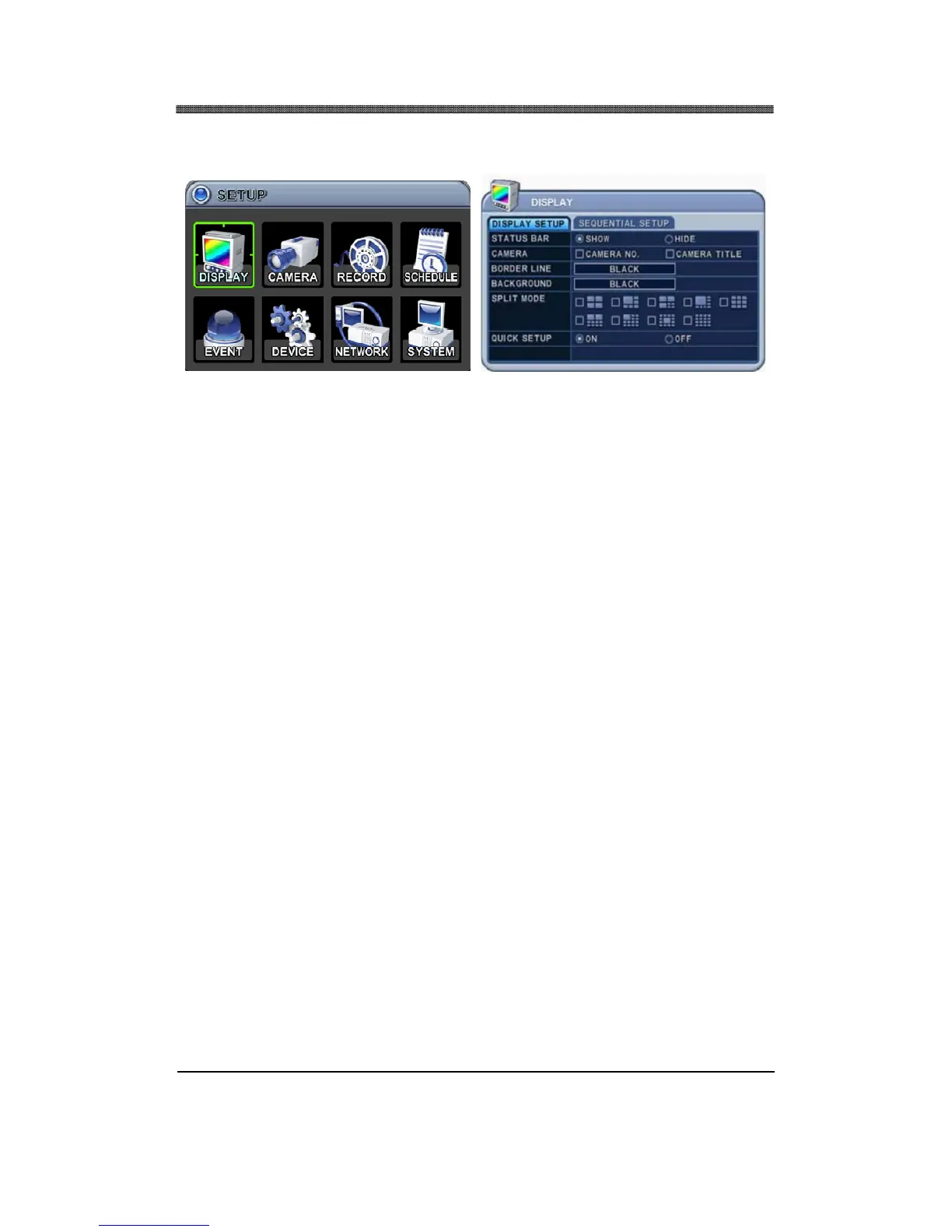
DISPLAY menu allows the user to customize a variety of options related to the main display of the
DVR. It allows the display of the STATUS BAR, the channel number and the camera title, selection of
border line and background colors, and the sequential display of display modes.
1.1 DISPLAY SETUP
1.1.1 STATUS BAR
Select the display of the status bar containing various USB, client connection, date & time, remaining
hard disk drive size and remaining recording time. If set to HIDE, then the bar at the bottom of the
screen will be hidden from the main display. The default is SHOW.
1.1.2 CAMERA
Select the display of channel numbers and the title of each camera.
1.1.3 BORDER LINE
Select the border line color from the following available colors:
• Black
• Dark Gray
• Gray
• White
The default border line color is Black.
1.1.4 BACKGROUND
Select the background color from the following available colors:
• Gray
• White
• Blue
• Black
• Dark Gray
The default background color is Gray.
1.1.5 SPLIT MODE
Select the split screen display modes.
1.1.6 QUICK SETUP
Select the ON / OFF to enable / disable the quick setup menu.


 To Next Page