EN
48
ODYS PRIME
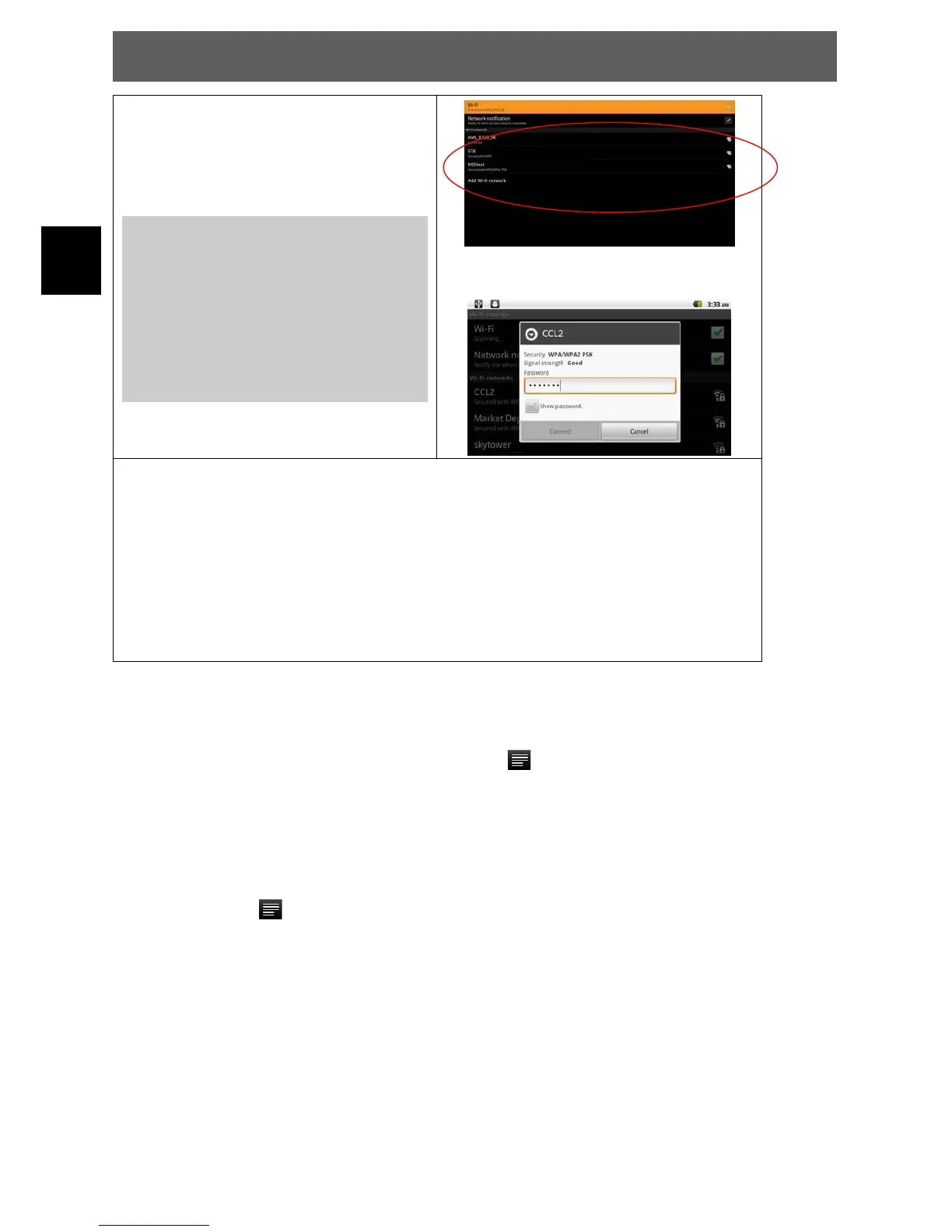
(3) After enabling WiFi the TV will
scan automatically for available WiFi
networks and display them. The list of
available networks shows all the
wireless networks in range of your
device.
Note:
a) The available network list is constantly
refreshed automatically.
b) When the Wi-Fi is enabled, Your Tablet
will connect automatically to your
configured networks when they are in
range.
c) If Your Tablet finds a network that has
never been configured, it will display a
notification icon.
(4)Select the network you want to connect to and press OK. Enter the required
network information (password) and then select “Connect” and press OK. Your
Tablet will now attempt to establish a connection to that WiFi hot spot with the
network parameters you entered. If the connection is successful, the message
Connected to XXX will appear under the WIFI setting.
Advanced Connection
To manually scan for available Wi-Fi networks,
(1) In the “Wi-Fi settings” screen, tap the Menu icon
, and then tap “Scan.”
(2) If the Wi-Fi network you want to connect to does not appear in the list, scroll down
the screen, then tap “Add a Wi-Fi network.” Enter the required settings, then tap
“Save.”
To access the advanced network parameters (“Regulatory domain,” “IP address,” etc)
tap the Menu icon
, and then tap “Advanced.” Other parameters will appear. The
required information can be obtained from the person who manages the network.



 To Next Page