Installing i-Picture Software
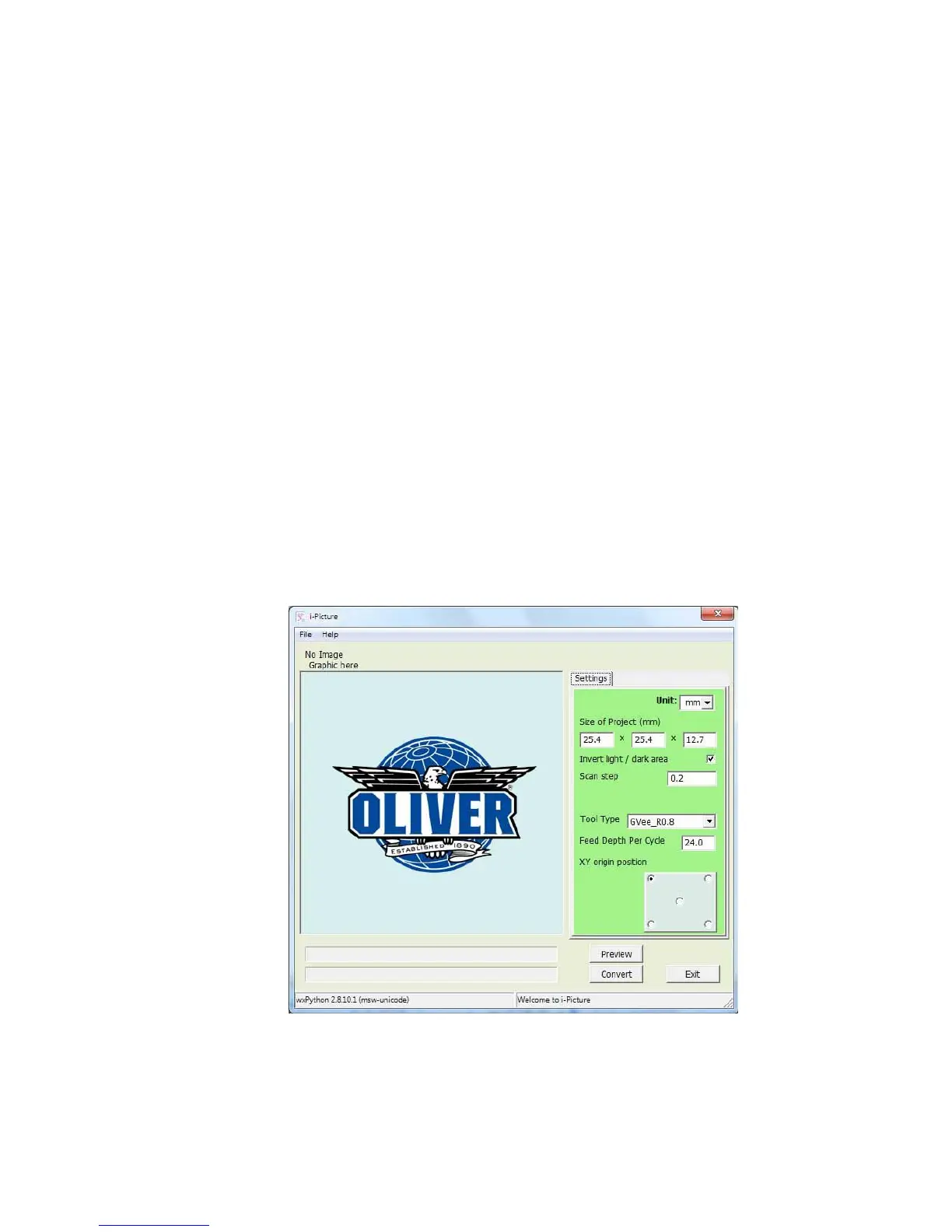
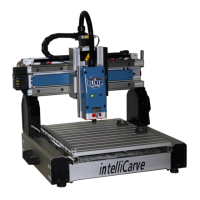
When you purchase the intelliCarve, it comes with i-Picture software. i-Picture converts your image files (gif,
png, bmp & jpg) to a .gee file in order for intelliCarve to perform. To begin using i-Picture software it first must
be loaded into your personal computer. Locate the thumb drive from the toolbox and insert it into the USB
port of your personal computer. Locate the executable file labeled i-Picture_v1.2.exe and click to begin in-
stallation. Follow the prompts to complete the installation.
Using i-Picture
1. Opening a File
Start i-Picture. Under the File tab, click Open Image File, to upload your image file. Allowa-
ble formats for pixel files are gif, png, bmp, and jpg files. To open a G code file, click Open G
Code under the File tab. Allowable formats for G Code files are nc, txt, and dat files (see
Advanced Operation Section).


 To Next Page