15
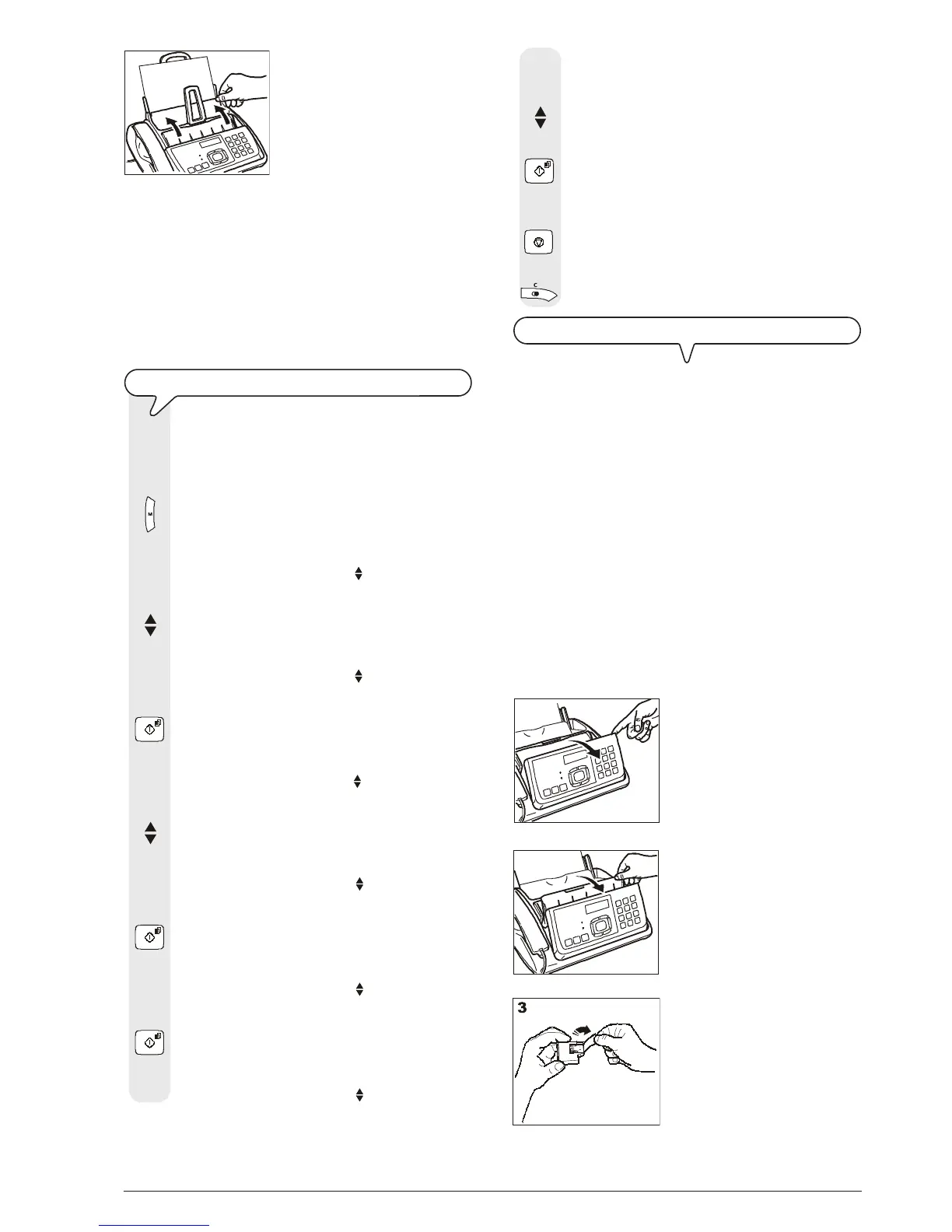
5. Close the ASF panel as indicated
by the arrows.
IMPORTANT
If you add sheets (max. 100) to the ASF, make sure you place
them under and not on top of those already present.
The fax machine has a memory that enables it to receive up
to 150 pages (base model only) even if you do not add any
paper; for the model with a built-in telephone answer-
ing device only, the capacity may be less than 150 pages
according to the duration of the messages recorded on the
telephone answering device.
CHOOSING THE PRINTING PAPER SIZE
Check the printing paper size set matches the actual
size of the paper inserted. If this is not the case, correct
performance of the fax machine is not guaranteed.
1. Press the key:
The display shows:
MENU
RECEPT. SET-UP
2. Press the keys
until the display shows:
MENU
FAX SET-UP
3. Press the key:
The display shows:
FAX SET-UP
DATE AND TIME
4. Press the keys
until the display shows:
FAX SET-UP
PRINTER PARAM.
5. Press the key:
The display shows:
PRINTER PARAM.
PAPER SIZE
6. Press the key:
The display shows:
PAPER SIZE
A4
7. To choose one of the other available settings, "PAPER
SIZE - LETTER" or "PAPER SIZE - LEGAL", press the
keys:
8. To confirm the setting, press the key:
9. To return the fax machine to its initial stand-by mode,
press the key:
10. If you want to move back one function, press the key:
INSERT THE PRINT CARTRIDGE
IMPORTANT
The fax machine comes with a free starter cartridge,
which may however only be used once. If you reinsert it
after the ink out message has been displayed, the fol-
lowing message will appear: "BEWARE! CARTRIDGE
ALREADY USED! THE CARTRIDGE MAY ONLY BE USED
ONCE". Remember only to use original cartridges (see
code printed at the end of the manual). Non-original or
refilled cartridges are not to be used. The use of such
cartridges makes the product's guarantee null and void.
If, after the cartridge has been installed, the "CHECK CAR-
TRIDGE" message appears again, try removing it and then
reinserting it, pressing it more firmly into position. If the mes-
sage remains on the display, remove the cartridge and clean
the electrical contacts of the cartridge and the carriage, see
"To clean the electrical contacts of the print cartridge",
section "Maintenance operations".
1. Flip the operator console for-
wards as indicated by the arrow.
2. Lift the print cartridge compartment
cover using the lever, as shown
in the figure.
3. Take the cartridge out of its pack-
age and, holding it on both sides,
peel off the film covering the noz-
zles. Turn the print cartridge so
that the electrical contacts face
downwards.
1
2
5


 To Next Page