66
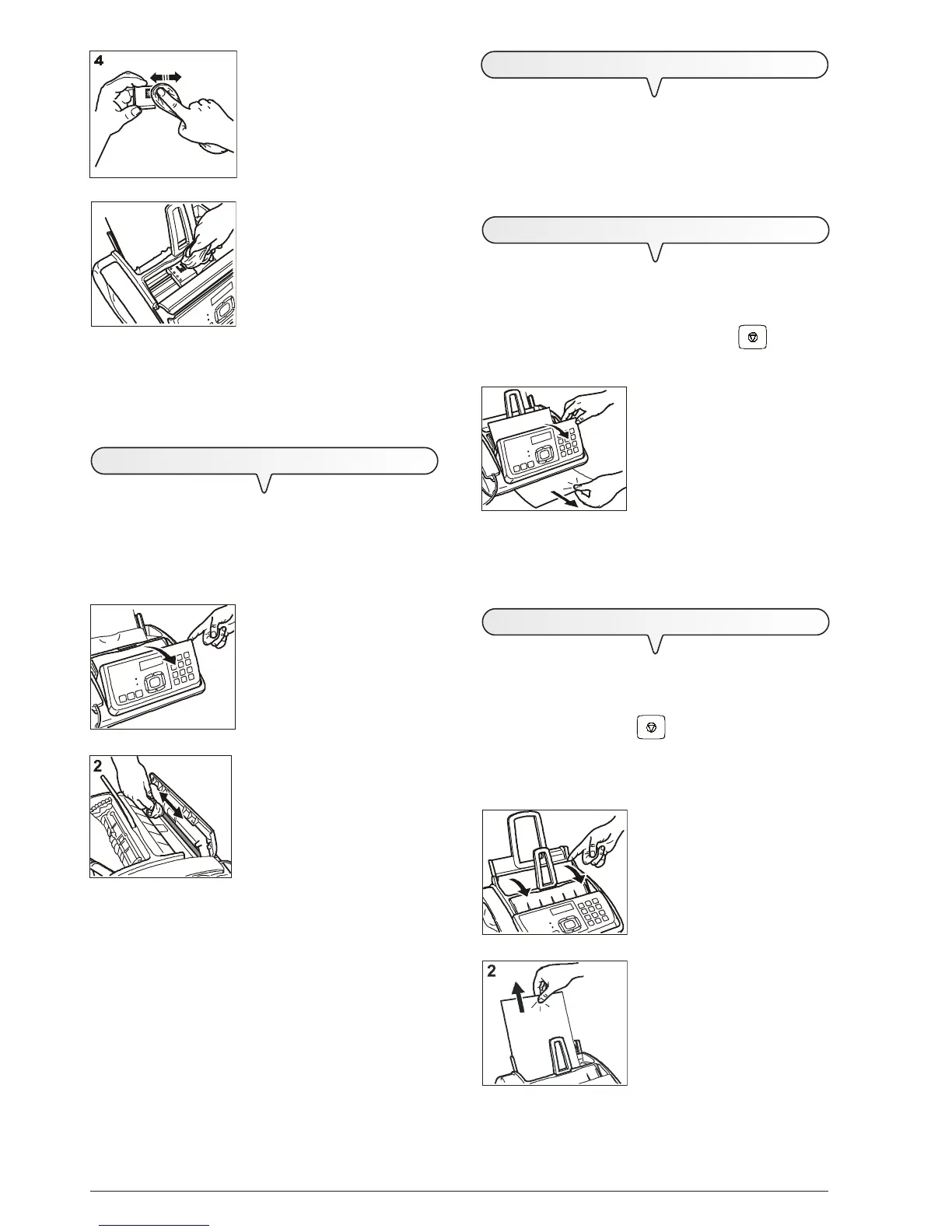
4. Clean the electrical contacts us-
ing a slightly damp cloth.
Warning!
Do not touch the nozzles!
5. Clean the electrical contacts of
the print cartridge carriage with a
slightly damp cloth.
6. Replace the print cartridge in its seat. Ensure that the electrical
contacts face downwards.
7. Push the print cartridge until it clicks into place.
8. Close the print cartridge compartment cover and the console.
T
O
CLEAN
THE
OPTICAL
READER
Dust accumulating on the glass surface of the optical reader
may cause problems in the scanning of documents. To avoid
these problems, the glass should be cleaned every now and
again as follows:
With the fax machine disconnected from the power socket:
1. Flip open the console.
2. Clean the glass surface of the op-
tical reader with a cloth damp-
ened with a product designed
specifically for cleaning glass and
then dry it thoroughly.
Warning!
Do not pour or spray the clean-
ing product directly onto the
glass surface.
3. Close the operator console.
NOTE
To check whether the optical reader is clean, make a copy of
a blank sheet. If any vertical lines appear on the copy and the
optical reader looks perfectly clean, contact qualified technical
staff.
T
O
CLEAN
THE
CASING
1. Unplug the fax machine from the power outlet and the
telephone socket.
2. Use exclusively a soft, lint-free cloth dampened with a neutral
detergent diluted with water.
T
O
REMOVE
JAMMED
DOCUMENTS
During transmission or copying, a document could get
jammed (this condition is signalled by the display showing the
message: "REMOVE DOCUMENT, PRESS <
I
>").
Try to unload the document by pressing the
key. If the
document is not unloaded, remove it manually as follows:
1. Open the console, remove the
document from the ADF and close
the console again.
NOTE
Never use pointed objected to remove jammed documents.
T
O
REMOVE
JAMMED
SHEETS
OF
PAPER
If the paper used to print received documents or to copy docu-
ments gets jammed (this error is signalled on the display by
the message "PAPER ERROR, PRESS <
I
>"), try to unload
the sheet by pressing the
key. If the sheet is not un-
loaded, remove it manually as follows:
If the paper gets jammed in the ASF:
1. Open the ASF panel.
2. Remove the jammed sheet. En-
sure that it does not tear.
5
1
1
1


 To Next Page