CONNECTING THE OMNIFI DIGITAL MEDIA STREAMER
6
WiFi (wireless) Connection (Optional)
The following procedure describes how to set up your Omnifi Digital
Media Streamer with a D-Link
®
DWL-121 WiFi adapter (wireless local
area network).
1. Follow directions on the previous page for Ethernet Connection, but
instead of connecting the Ethernet adapter (# 4) to the Omnifi,
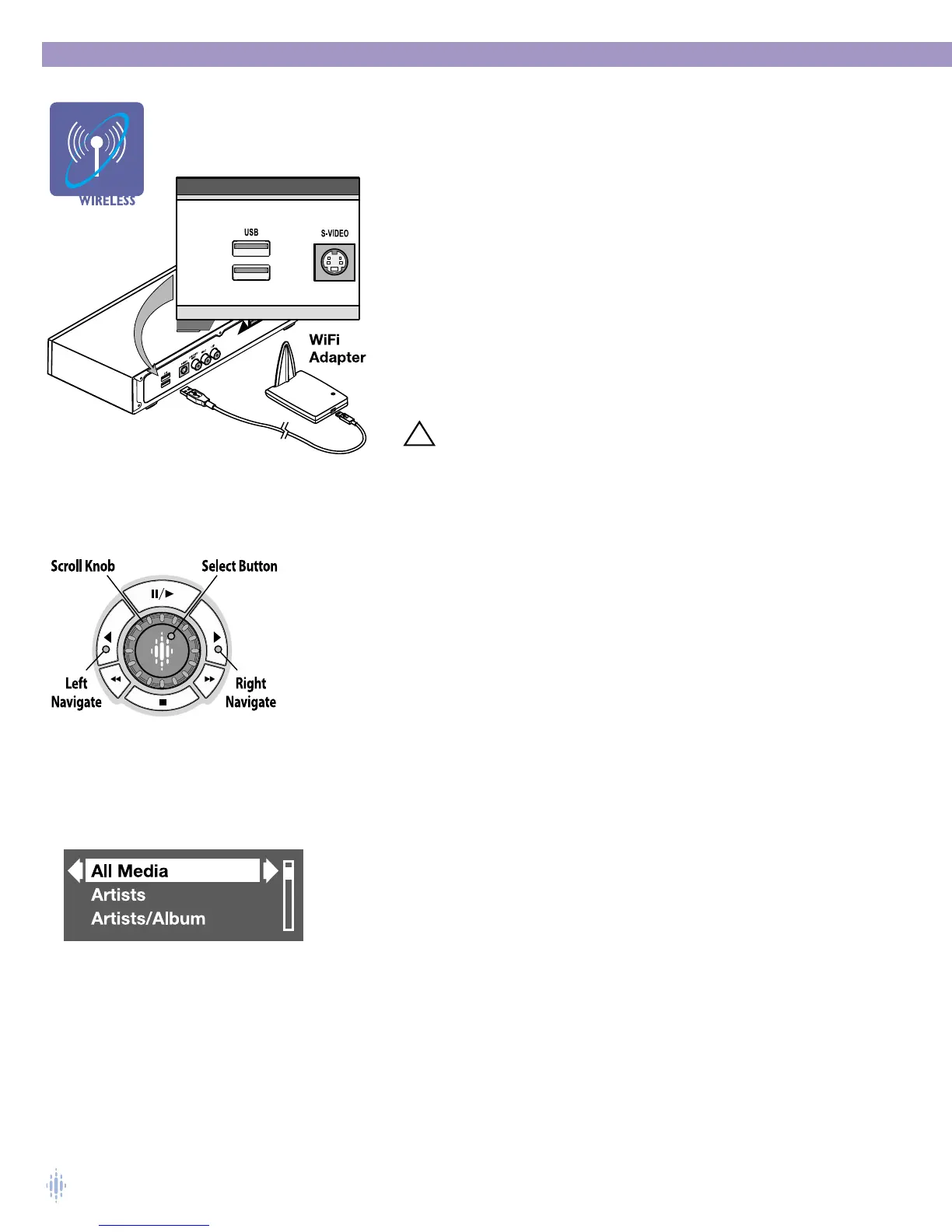
connect the Omnifi WiFi adapter to a USB port on the rear of the
Omnifi. Figure 7.
2. Place the Omnifi WiFi adapter in a location away from large metallic
objects.The Omnifi Wifi adapter includes an adjustable antenna so
that it may be placed in a horizontal or vertical orientation.The USB
cable allows you great flexibility in placing the WiFi adapter.
For example, if your Omnifi Digital Media Streamer is placed inside of a
stereo cabinet, best results will occur if the WiFi adapter is placed on
top of the stereo cabinet, or attached to the side of the stereo cabinet
but near the top.
CAUTION! To prevent damage to the WiFi adapter, keep away
from direct sunlight and/or components that
produce excessive heat.
3. Plug the Omnifi power cord into an AC outlet.When you plug your Omnifi DMS
into AC power you will see the Omnifi logo on the display, and on the TV if you are
using the TV interface:
4. The first time Omnifi starts up, you must select a wireless SSID. Omnifi will search
for a network.A message will appear stating that no network could be found. Using
the SCROLL KNOB or the DOWN ARROW button on the remote control, and
the SELECT button, scroll down the list shown on the Omnifi display and use the
SELECT button to select Settings > Wireless > SSID > Default, Figure 8.
Omnifi will scan for wireless network SSIDs.A list of all SSIDs will be shown on
the display. Select the SSID for the network on which your PC with
SimpleCenter is
operating.
NOTE: If you have security (WEP) enabled on your wireless network, see page 24
for settings for your Omnifi.
After you select the correct SSID, press the LEFT NAVIGATE button twice.You will be
prompted to save the new settings. Select YES. Omnifi will display the message Saving
Your New Settings, this may take up to 20 seconds.
Omnifi will restart and find SimpleCenter on your network. If you have just one PC
on the network and SimpleCenter is operating, the Omnifi display will show
SIMPLECENTER (Your Computer Name). Select this server and you will see the
media categories, figure 9, if you have added media.
Yo u ’re now ready to browse your Media Library and play audio using your Omnifi
Digital Media Streamer.
Figure 7
Figure 8



 To Next Page