PLAYING MUSIC
4 Playing Music
11
Omnifi Remote Control
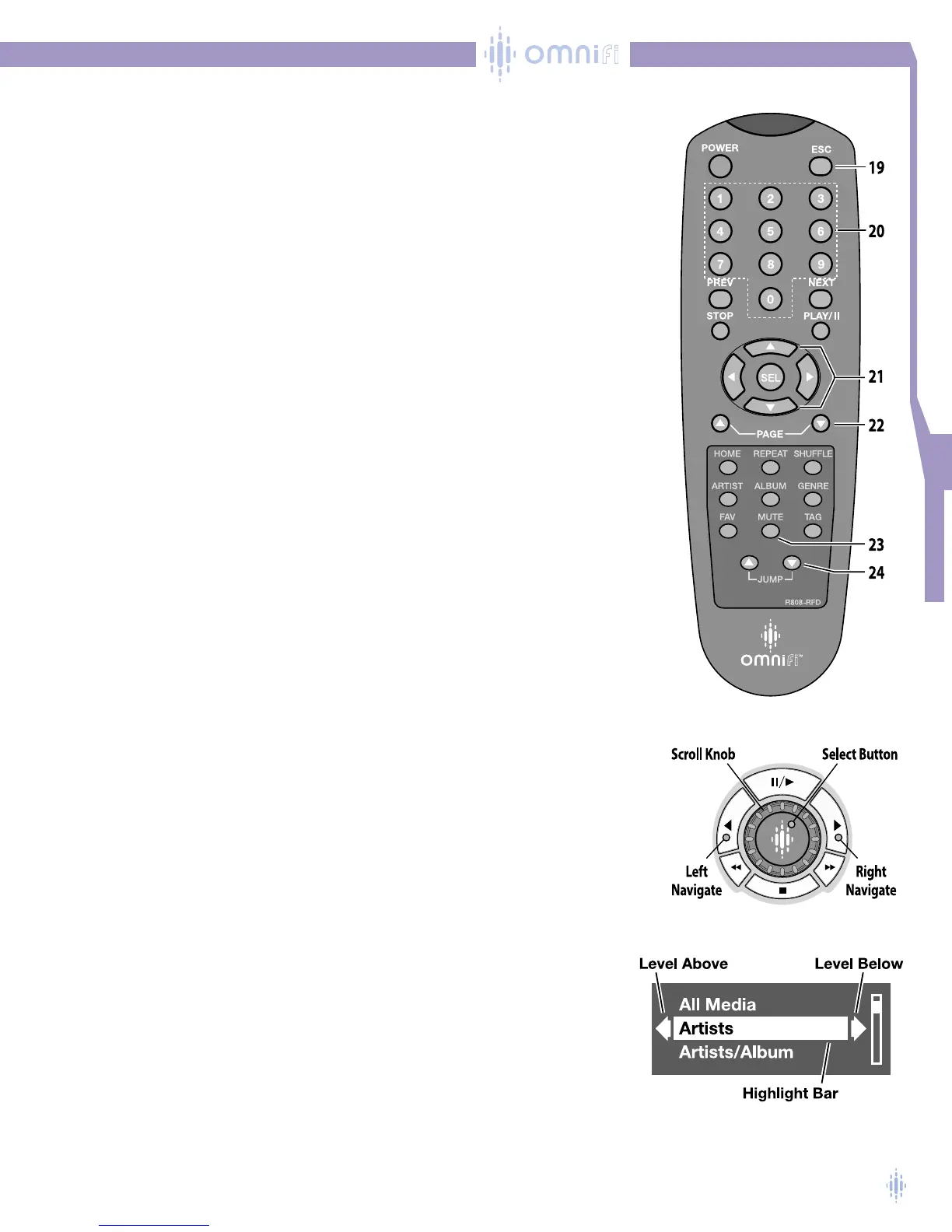
The Omnifi IR remote control includes all of the functions available on the Omnifi
front panel plus some added features that make browsing even more convenient,
figure 13.The features unique to the remote control are described below:
19 – ESC (Escape)
Pressing ESC toggles between the playback display and the browse point on the
Omnifi LCD.
20 – Presets
Setting Presets using the Remote Control
To set a Preset using the remote control, simply press and hold the numbered PRESET,
buttons 1thru 8, you want to program for 2 seconds.
Playing Presets using the Remote Control
To play a preset assigned to a specific numbered button, press that numbered PRESET
button momentarily. Omnifi will begin to play the first song in the playlist assigned to
that preset number.
21 – 4-Way Navigation Button-set
The UP and DOWN ARROW buttons on the remote activate scrolling on the Omnifi
interface. Pressing the UP or DOWN ARROW button moves the highlight line up or
down a single line on the Omnifi or TV display.
22 – Page
The PAGE buttons allow you to move up or down through the displayed list in your
Media Library by 10 lines. For example, pressing the PAGE DOWN button on the
right side of the remote control moves the text highlight down the list 10 lines.
Likewise, pressing the PAGE UP button moves the highlight up 10 lines.
23 – MUTE
Pauses the current song being played.
24 – Jump
The JUMP buttons allow you to move up or down through the displayed list in
your Media Library in 10 percent jumps. For example, if you start at the top of
your Artist list, you can jump one-tenth of the way down the list with each activa-
tion of the JUMP DOWN button.
Browsing the Media Library on Your Omnifi DMS
The controls on the Omnifi allow you to quickly navigate to your desired track
stored on your PC. Omnifi includes a set of navigation buttons that you use to
browse through your media, as well as the basic controls for music playback, such
as Start/Pause, Stop, Next Track, and Previous Track.When browsing, the Omnifi display
can show up to three lines of text.
Use the Scroll Knob, Right Navigate, Left Navigate, and Select buttons to navigate
through your audio media, figure 14.The Scroll Knob scrolls the white highlight
bar shown above (on All Media) quickly up or down through any list of text
shown on the display.An arrow on the left side of the white highlight bar indicates
that there is a level above the current level, and likewise an arrow on the right
side of the white highlight bar indicates that there is a level below the current
level, figure 15.
Figure 13
Figure 15
Figure 14



 To Next Page