PLAYING MUSIC
10
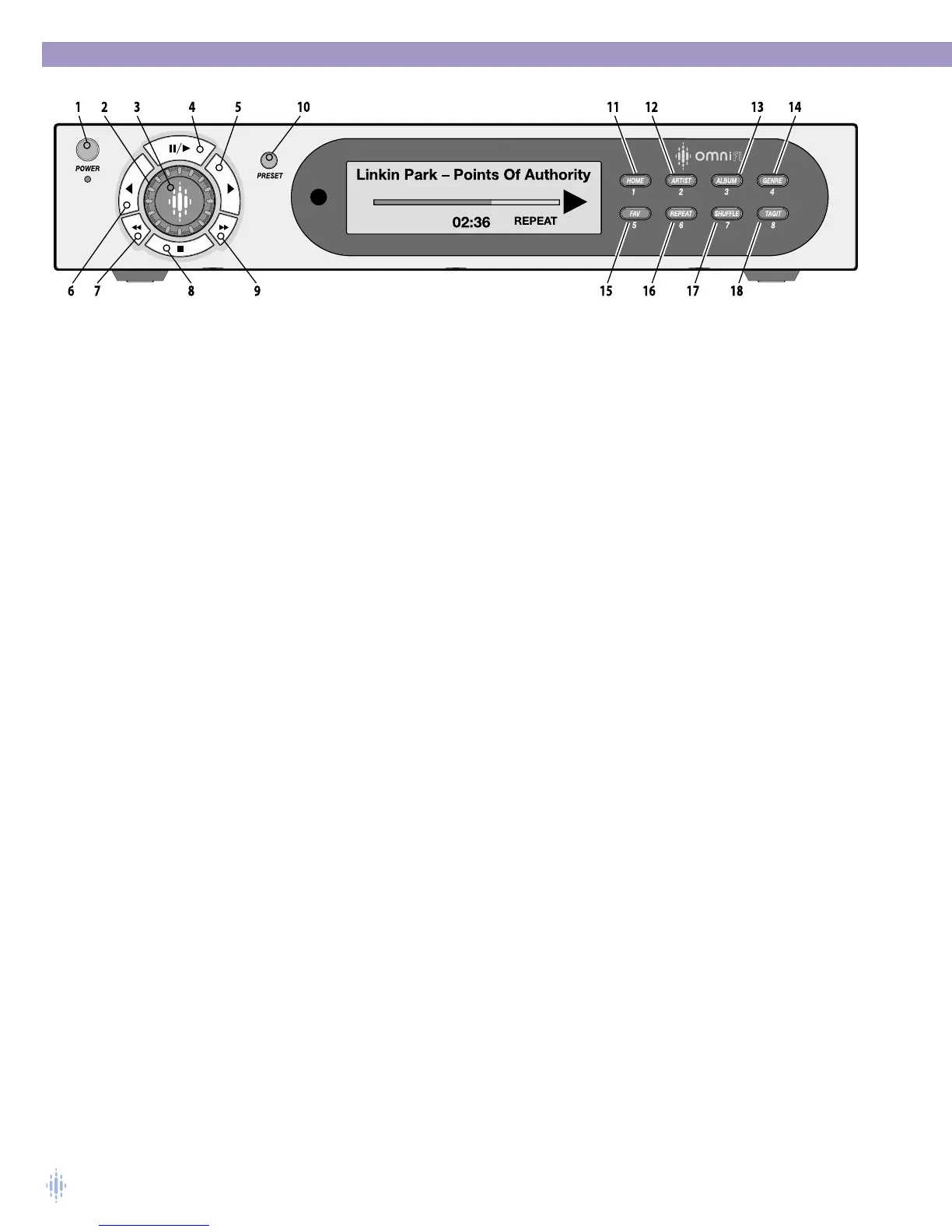
13 – Album
Pressing the ALBUM button causes the display to jump to the top of the ALBUM category in the
Media Library.
14 – Genre
Pressing the GENRE button causes the display to jump to the top of the GENRE category in the
Media Library.
15 – Favorites
The Favorites list is located at the top level of the Omnifi interface. Press the Home button and then
the Navigate Left button to move the display to the top level.The FAVORITES function
(activated by pressing the FAV button) allows you to make make a playlist on your Omnifi Digital
Media Streamer.
Press the FAV button for two seconds to add the currently playing track to a playlist called
Favorites.The Omnifi displays a brief message indicating the track was added to the Favorites playlist.
The tracks in the Favorites playlist are listed in order by when they were added, with the most
recently added track at the top of the playlist.
When browsing, press the FAV button for two seconds to add the track to the Favorites playlist.You
can only add tracks to the Favorites playlist.
Your Favorites playlist can contain up to 20 tracks. If the Favorites playlist already contains 20 tracks,
adding a new track to the Favorites playlist will delete the track that has been in the playlist for the
longest period of time.
To play the Favorites playlist, press the FAV button momentarily. Omnifi will play the playlist starting
with the first (most recently added) track.
16 – Repeat
To repeat the current track, press the REPEAT button.The REPEAT icon will appear on the display.
To turn off repeat mode, press the REPEAT button again.
17 – Shuffle
To shuffle the current playlist category, press the SHUFFLE button while in that category or
playlist.The SHUFFLE icon will appear on the display.To turn off shuffle mode, press the SHUFFLE
button again.
Example; To shuffle all of your music, select "All Media" and then select SHUFFLE.To shuffle by an
artist, select Artist, Artist Name, and then select SHUFFLE.
18 – Tag
The TAG function allows you to gather information on an artist or track and access lit later on, with
just one button press while you are in your car. Pressing the TAG button while a track is playing
causes the Omnifi to send the track and artist information to SimpleCenter which gathers a wealth of
information on the tagged tracks, this information will appear in the Music Explorer feature of
SimpleCenter. For more information, go to Chapter 3, Organizing Your Music.
To tag a track, press the TAG button while the track is playing.
Figure 12



 To Next Page