PLAYING MUSIC
8
Omnifi Control Features and Functions
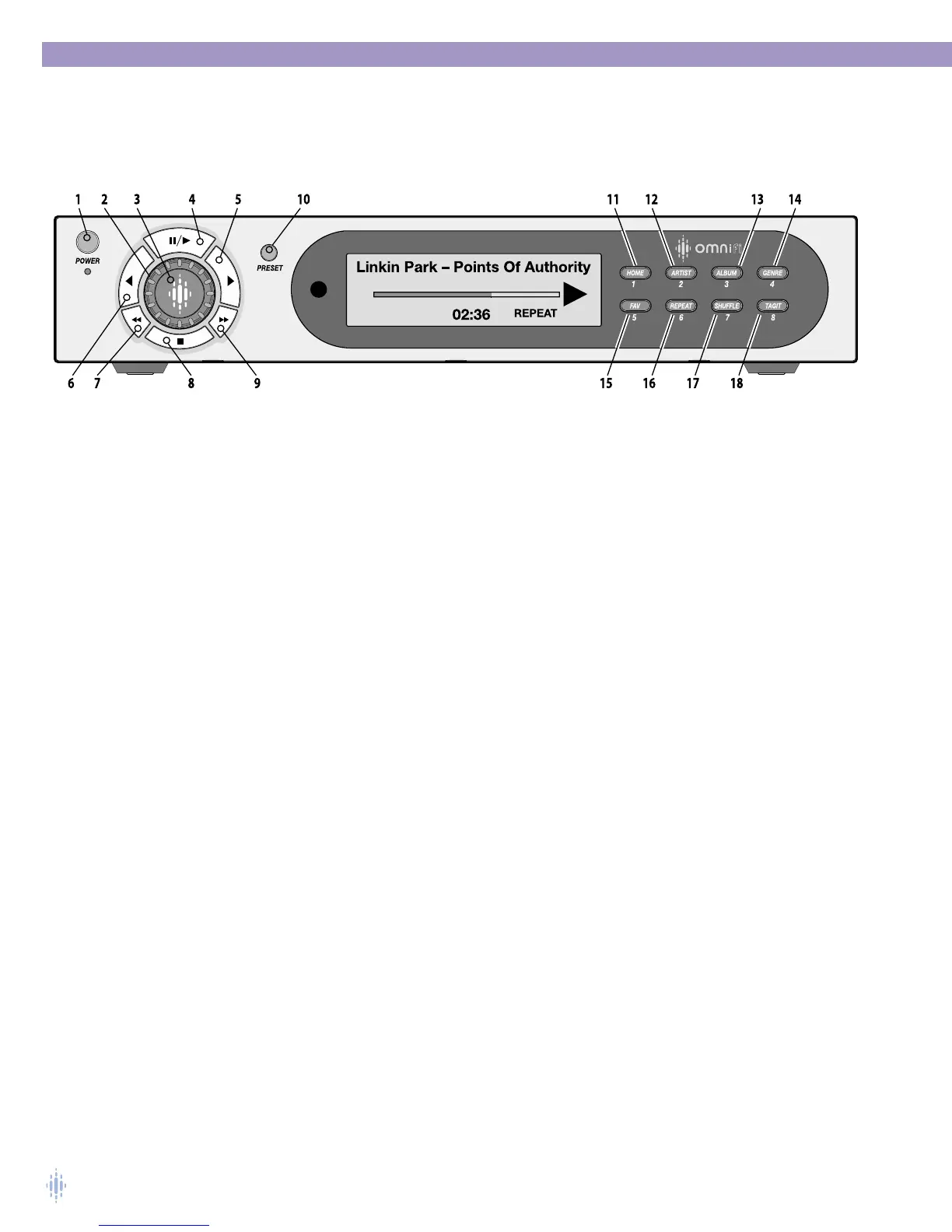
This section describes all of the control features and functions found on the Omnifi front panel as
well as on the remote control. See figures 11-13.
1 – Power
To turn on Omnifi, press the POWER button.To turn off Omnifi, press the POWER button again.
When you press the power button, your Omnifi will return to its last functional state before you
turned it off. For example, if Omnifi was playing a song, it will return to the point in the song when it
was turned off, but in a paused state.
NOTE: If your Omnifi DMS functions erratically, you can reset the device by holding down
the POWER button until the power light turns red. Using the power button on the
remote works as well.
2 – Scroll Knob
The Scroll Knob is used to scroll up and down the list of items using the Omnifi display; turn the
knob counter-clockwise to scroll up, clockwise to scroll down.The Scroll Knob controls a line
highlight. Each tick on the Scroll Knob moves the line highlight by one line.
3 – Select
Press the Select button to select an item that you have navigated to that is highlighted on the display.
If the highlight is on a first or second level, pressing the Select button will navigate to the next lower
level, so it is equivalent to pressing the Navigate Right button.
If the highlight is on a track, pressing the Select button will initiate the playback of the track, so it is
equivalent to pressing the Play/Pause button.
4 – Play/Pause
Press this button to play the track highlighted on the display.
If the highlighted track is playing, press the Play/Pause button to pause playback of the track.
If the highlighted track is paused, press Play/Pause button to restart playback (playback will resume at
the paused point in the track).
5 – Navigate Right
Press the Navigate Right button to browse down a level, allowing you to explore what’s in a
highlighted item (such as a playlist or category--for example, the Genre category). If the current item
is a track, pressing this button activates playback of the track.
6 – Navigate Left
Press the Navigate Left button to browse to the left to a higher level. For example, if you’ve
navigated to the right to see the tracks in a particular playlist, you can press this button to go back
to a list of all of your playlists or to your
Media Library categories.
Figure 11



 To Next Page