SETTINGS & CONFIGURATION
6 Configuration
23
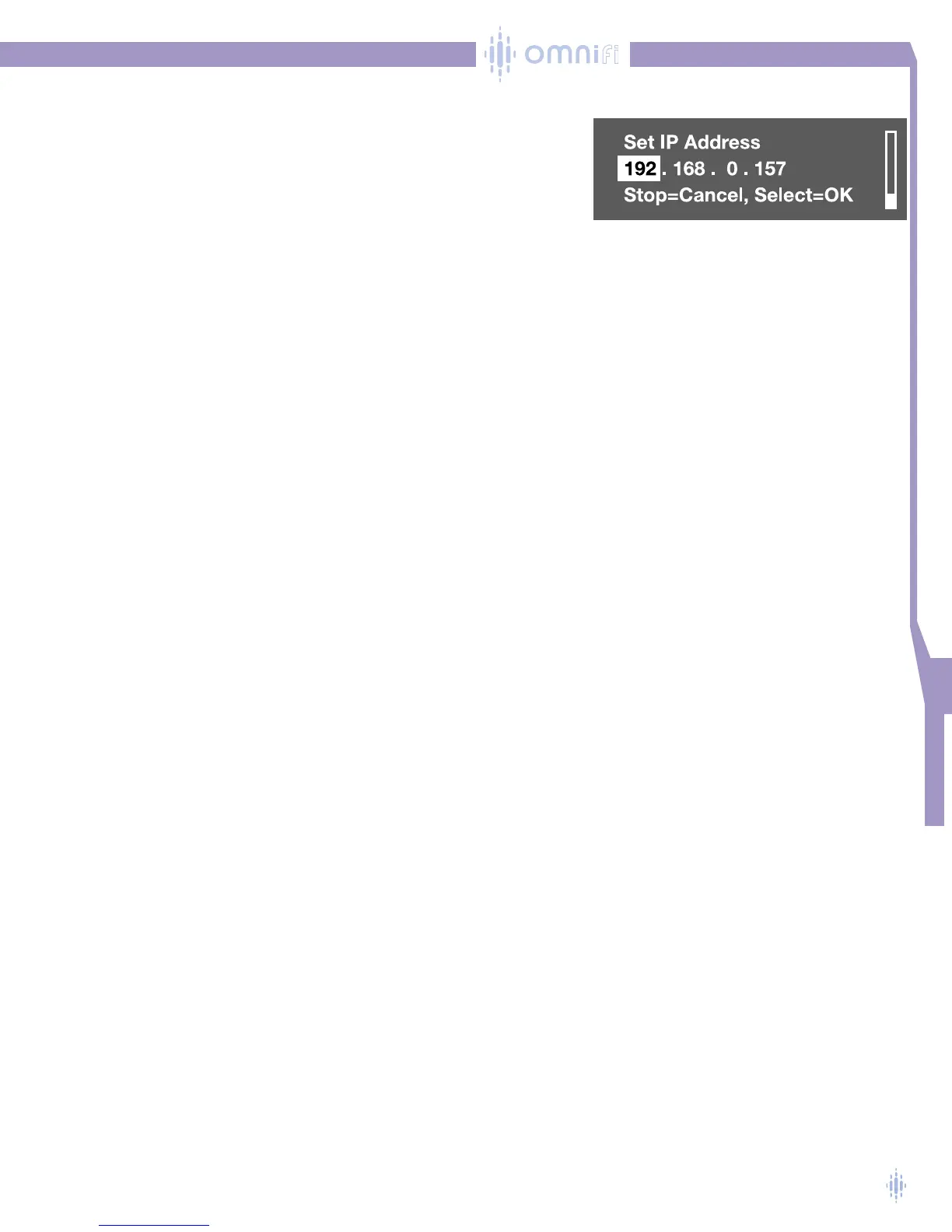
Inputting IP Address Values
If you have chosen Manual Configure, you can edit these IP addresses by
selecting each line, figure 41.
A highlight appears on the first IP address number. Use the SCROLL KNOB
to move through numbers until the desired value is shown. Use the
NAVIGATE RIGHT or NAVIGATE LEFT button to move between IP address
values. Press the SELECT button when you are finished, or press STOP if you
want to exit the function without keeping any changes.
The Subnet and Gateway IP addresses can be modified in the same way.
Saving Your Changes
When you have completed changes in the Network Settings function, press the
NAVIGATE LEFT button.You will be asked if you want to save your changes.
Select Yes or No.Your Omnifi may restart after you make changes.
For more information on networking, see www.omnifimedia.com.
Wireless Settings
The Wireless Settings menus are used when the WiFi Adapter is used for wireless
connectivity to your PC.
SSID
SSID is a network identification value used in wireless networks. If you have a WiFi
adapter installed and are in the presence of your home wireless network, pressing SSID
will cause your Omnifi to search for available networks.After Omnifi finds the net-
works, you will see a list of available networks (SSIDs). If your home network is the
only network, you will see just the SSID of your home network. Select this SSID.
You can manually input an SSID. If Omnifi does not find an SSID, the display will shown
an option for entering an SSID using the SCROLL KNOB.You can also manually enter
an SSID by scrolling to the bottom of the list of SSIDs.There is an option to manually
input an SSID.
Mode
Wireless networks can be used in two modes, infrastructure and ad-hoc.When you
scan for and select an SSID, your mode will automatically be set. If you manually input
an SSID, you will have to choose between the two modes. If your home network
includes an access point, choose Infrastructure mode. If your home network does not
include an access point and you are connecting directly to a PC with a wireless adapter,
choose Ad-hoc mode.
Figure 41



 To Next Page