USING SIMPLECENTER
5 Using SimpleCenter
21
CD
The CD converting (ripping) feature is used to create digital
music files (both MP3 and WMA) from your audio CD
collection. For more information on converting, see
www.omnifimedia.com.
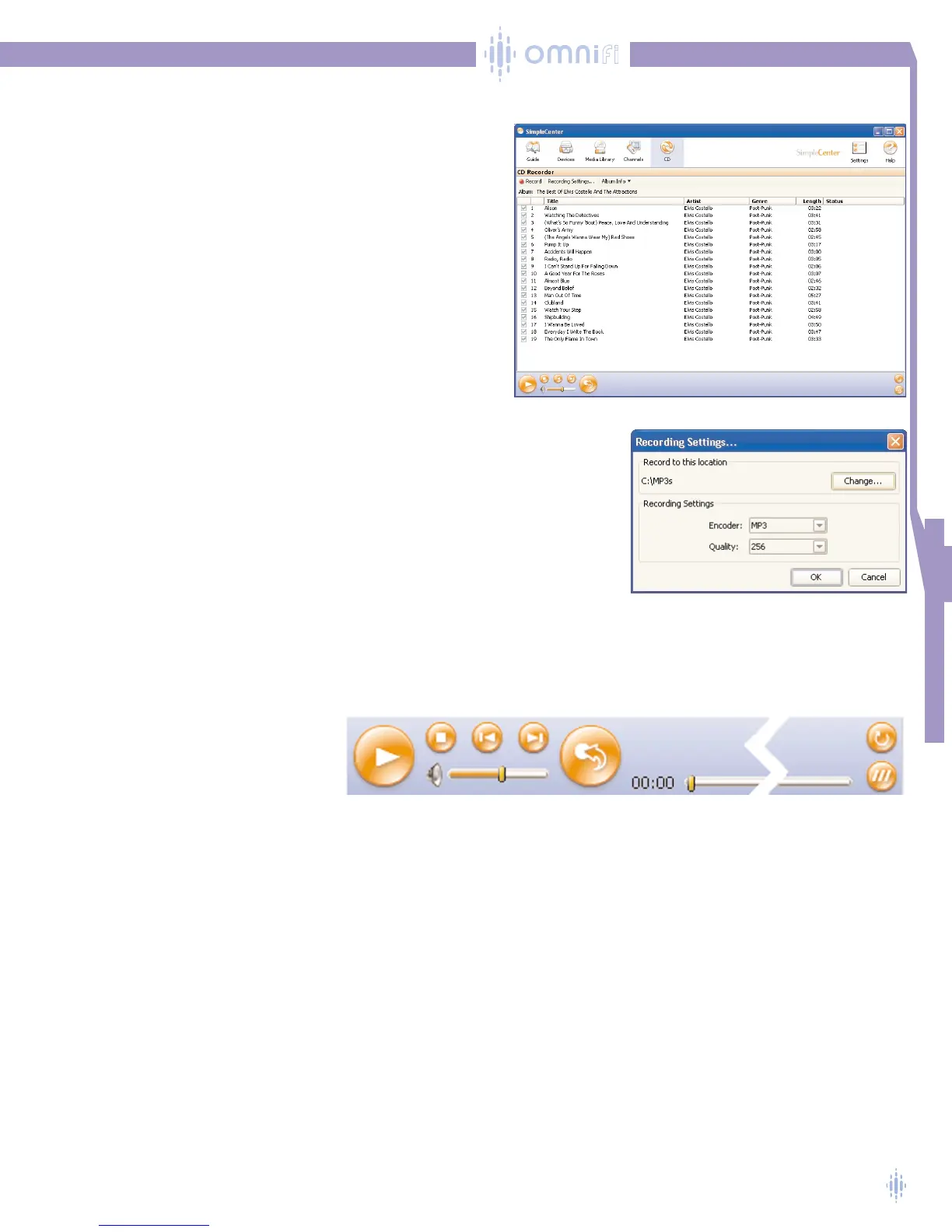
To convert a CD, insert the CD into the CD-ROM drive on
your PC, and click the Record button, figure 32. SimpleCenter
copies the music from the CD into your Media Library.
Select Recording Settings.A menu, figure 33, will appear:
Use the Record to this location function to pick the folder
into which the new digital media files are stored.
Using the Recording Settings, you can select the digital
media format (MP3 or Windows Media), and you can select the
recording bit-rate.A higher number will result in a
higher recording sound quality, but will also produce a larger
digital media file. A rule of thumb is that a 3-minute song
recorded at 128Kbps will produce about a 3 megabyte digital media file.
For more information regarding digital media,
see www.omnifimedia.com.
SimpleCenter uses the Gracenote service to provide the artist name and track titles
to the digital media files created from your CD. Make sure that your PC has an
active Internet connection while you are ripping.
Playing Your Media at the PC
Your SimpleCenter media player enables you to play your media both on your
Omnifi devices and on your computer. In the bottom area of the SimpleCenter window,
you’ll find your media player controls.
The orange buttons on the left-hand
side of the media player toolbar allow
you to Play, Stop, Go Back, Go Forward,
and Tag!.Volume controls are also
located in the left-hand area of the
toolbar, figure 34.
On the right, you’ll find the Shuffle
and Repeat functions. Use these
buttons to play your music at random
or to play media in a continuous loop.
You can play streams from Internet
media sources included in the Channels
feature of
SimpleCenter.
Figure 32
Play
Stop
Go
Back
Go
Forward
Tag!
Shuffle
Repeat
Elapsed Time and
Progress Bar
Volume Control
Figure 34
Figure 33



 To Next Page