PLAYING MUSIC
4 Playing Music
7
STEP 3 Getting Started Playing Music
Just a note;
Not only can you play music from your Omnifi, but with the features available with
SimpleCenter, you can also play internet radio, spoken word broadcasts, and other
services available from the web. For simplicity, in this chapter we are calling all these
features as "playing music". Don't let this fool you, as you use Omnifi you will see it
can do so much more than just play music.
To help you get started playing music on your Omnifi, this section covers the following
topics:
• Before you start
• Browsing the Media Library
• Playing tracks
• Browsing and playback control details
• Omnifi Features
Before You Start
Before you start playing music on your Omnifi:
1. Be sure that SimpleCenter software is running on your PC. See Chapter 2 for
details.After you install the software, SimpleCenter launches automatically each time
you start your PC. If SimpleCenter is running, there will be a small SimpleCenter icon
in the system tray on your PC.
2. Use the sample tracks that came with
SimpleCenter or add music tracks to your
Media Library.This is explained in detail in Chapter 5.
3. Be sure the Omnifi is on.
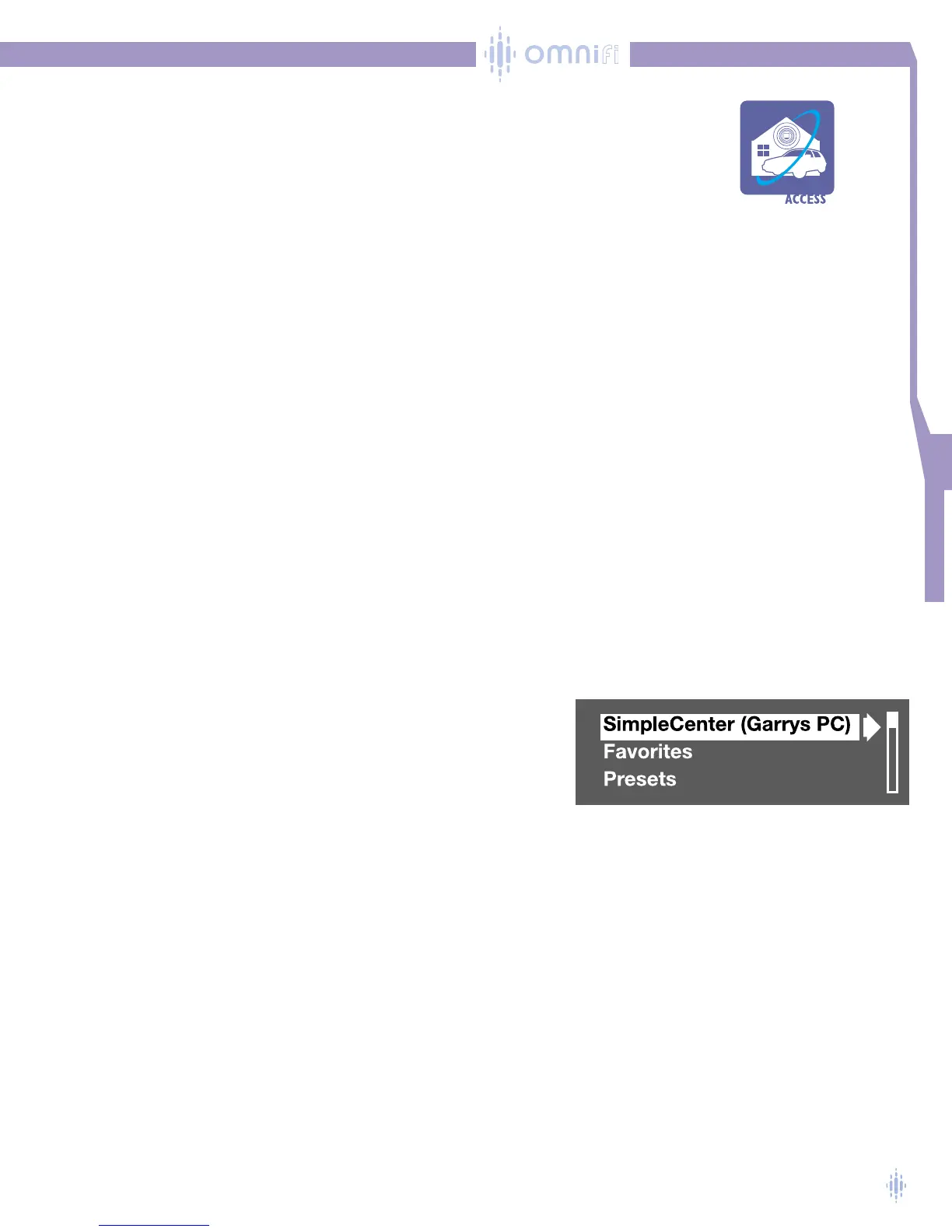
4. Ensure the Omnifi is connected to the network with the PC running
SimpleCenter. See Chapter 3 for details. Omnifi will show a list of
all viable media servers.The following display example shows one avail-
able server on Garry’s PC, figure 10.
Figure 10



 To Next Page