SETTINGS & CONFIGURATION
22
Configuring Your Device
This chapter will help you configure your home wireless network settings and allow
you to modify other device settings.You may need to configure the settings on your
device if you already have a home wireless network and your network’s settings are
different than Omnifi’s factory default settings.
Network Settings View or modify static IP address, subnet (mask), and
gateway IP addresses
Wireless Settings View or modify SSID and mode; modify WEP key
Video Settings Choose between Composite video, S-video, or no TV
interface.This is for the On Screen Display (OSD)
Device Information Device firmware versions
Search For SimpleCenter Searches the nework for all SimpleCenter applications
currently running.
Restore Factory Settings Restores IP address and other settings to factory
defaults
Accessing Settings Mode
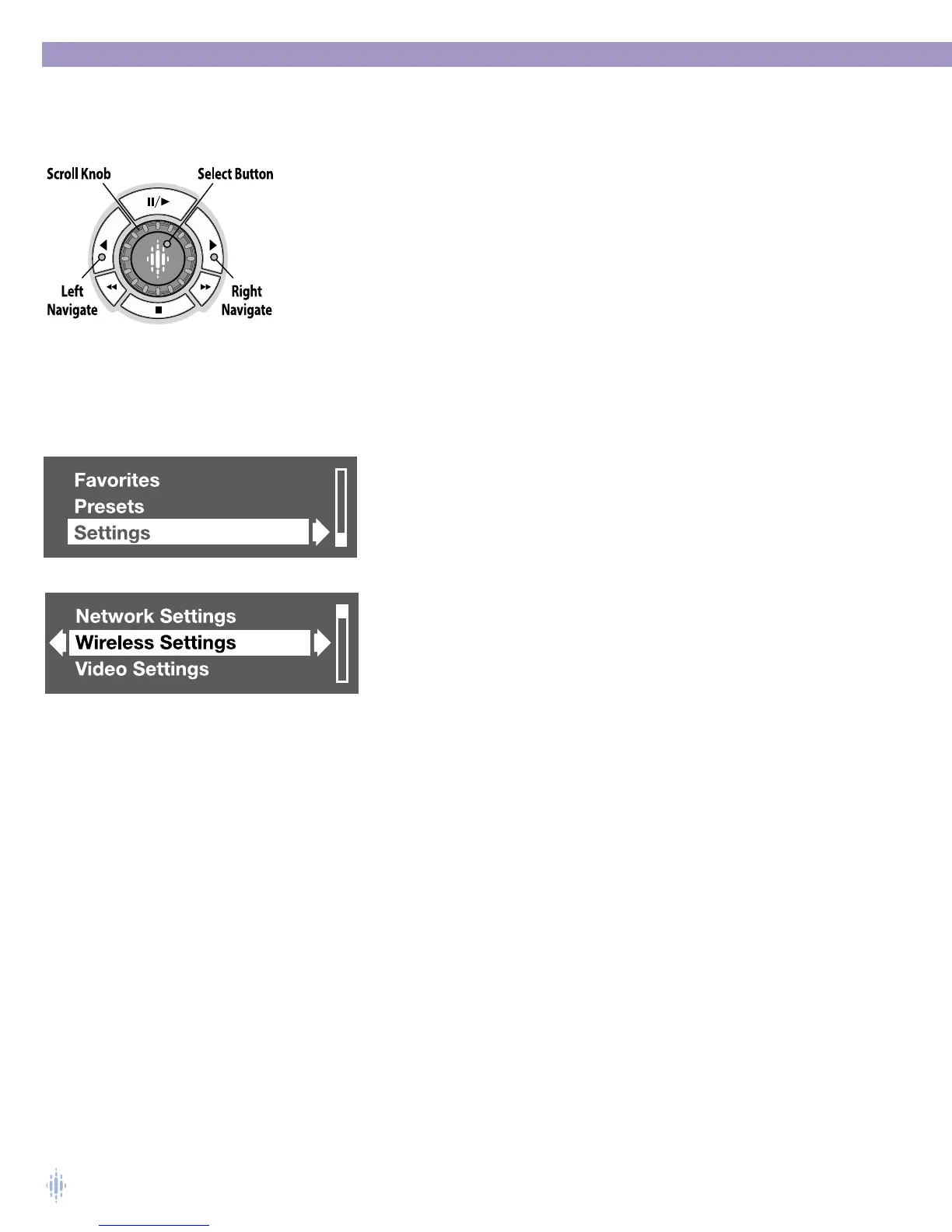
Access Settings mode by pressing the HOME button and the LEFT
NAVIGATE button.This will take you to the top level of the Omnifi display.
Using the SCROLL KNOB scroll down to the bottom of the list, figure 38.
The display will look as shown in figure 39.
Select Settings mode by pressing the SELECT button.The display will show a
list of the items in Settings mode, figure 40.
Use the SCROLL KNOB to scroll up or down in the list of items.To select
an item, scroll the highlight bar to an item and press the SELECT button or
the RIGHT ARROW button.To move up a level, press the LEFT ARROW
button.
The following is a description of the Settings functions and procedures:
Network Settings
Manual and Auto Configure
Auto (Manual) Configure allows your Omnifi DMS1 to automatically acquire an IP
address from your wireless network. Selecting Auto Configure will give you a choice
between Auto Configure and Manual Configure. Choose Manual Configure if you want
to manually input an IP address.
NOTE:You will have to manually input a netmask and gateway address.
The Address, Subnet (mask) and Gateway are shown on the lines below Auto/Manual
Configure. If you have chosen Auto Configure (default), you cannot edit these IP
addresses.
Figure 38
Figure 39
Figure 40



 To Next Page