28 External devices
Playing the next or previous track
Touch v to play the next track.
Touch t within the first 2 seconds of
the track playing to return to the
previous track.
Returning to the beginning of the
current track
Touch t after 2 seconds of the track
playing.
Fast forwarding and rewinding
Touch and hold t or v. Release to
return to normal playback mode.
Alternatively, you can move the slider
showing the current track position to
the left or right.
Playing tracks randomly
Touch n to play the tracks in random
order. The screen button changes to
o.
Touch o again to deactivate the
shuffle function and go back to the
normal playback mode.
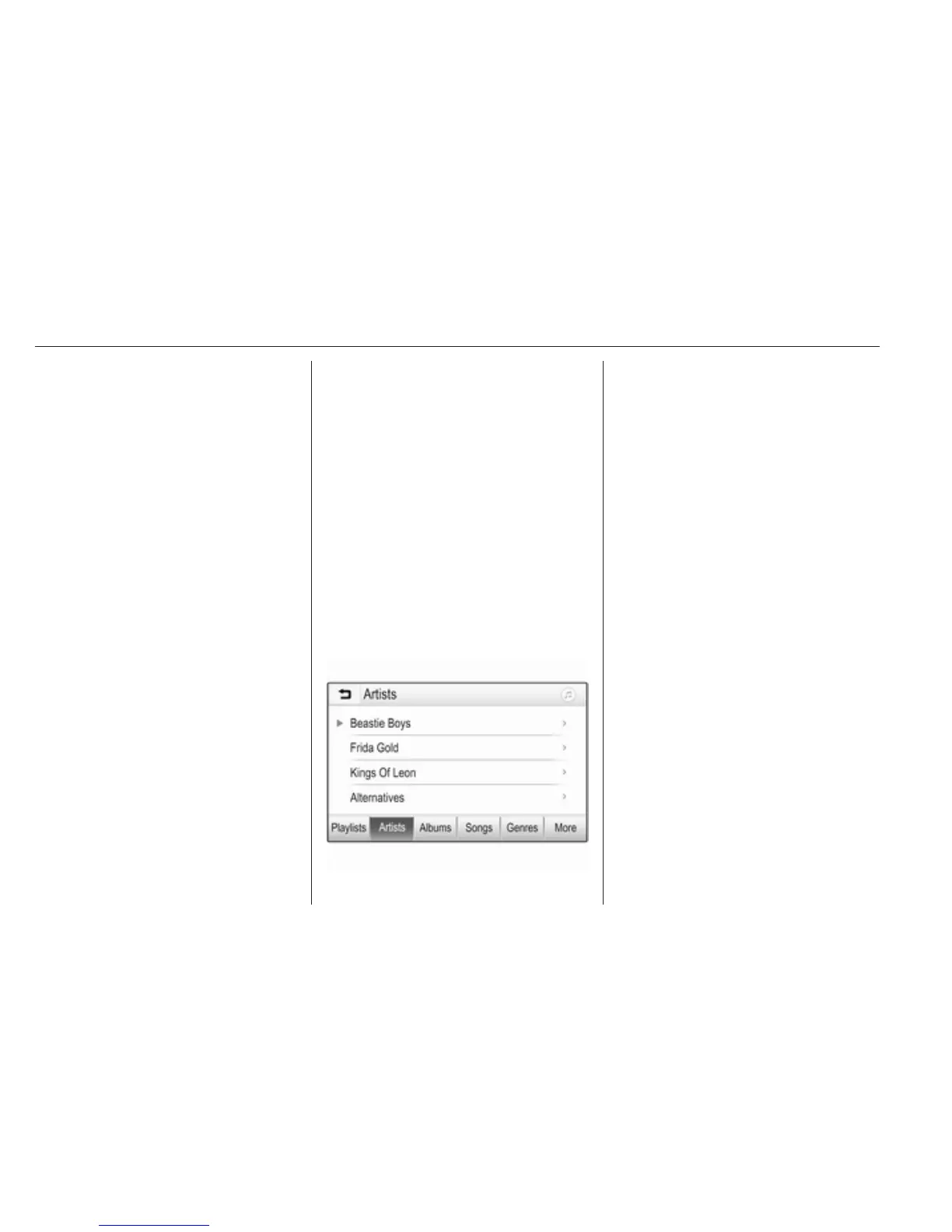
Browse Music function
Note
The browse function is not available
for AUX sources and, depending on
the device, it may only be partially
available for Bluetooth sources.
To display the browse screen, touch
the screen. Alternatively, select
Menu in the bottom line of the audio
main screen to display the respective
audio menu and then select Browse
Music.
Different categories, in which the
tracks are sorted, are displayed, e.g.
Playlists, Artists, or Albums.
Select the desired category,
subcategory (if available) and then
choose a track.
Select the track to start playback.
Displaying pictures
You can view pictures from a USB
device.
Note
For your safety, some features are
disabled while your vehicle is in
motion.
Activating the picture function
If the device is not yet connected to
the Infotainment system, connect the
device 3 25.
Press ; and then select GALLERY
to open the media main menu.
Touch l to open the picture main
menu to display a list of items stored
on the USB device. Select the desired
picture.



 To Next Page