100c User Manual
20
Load Button
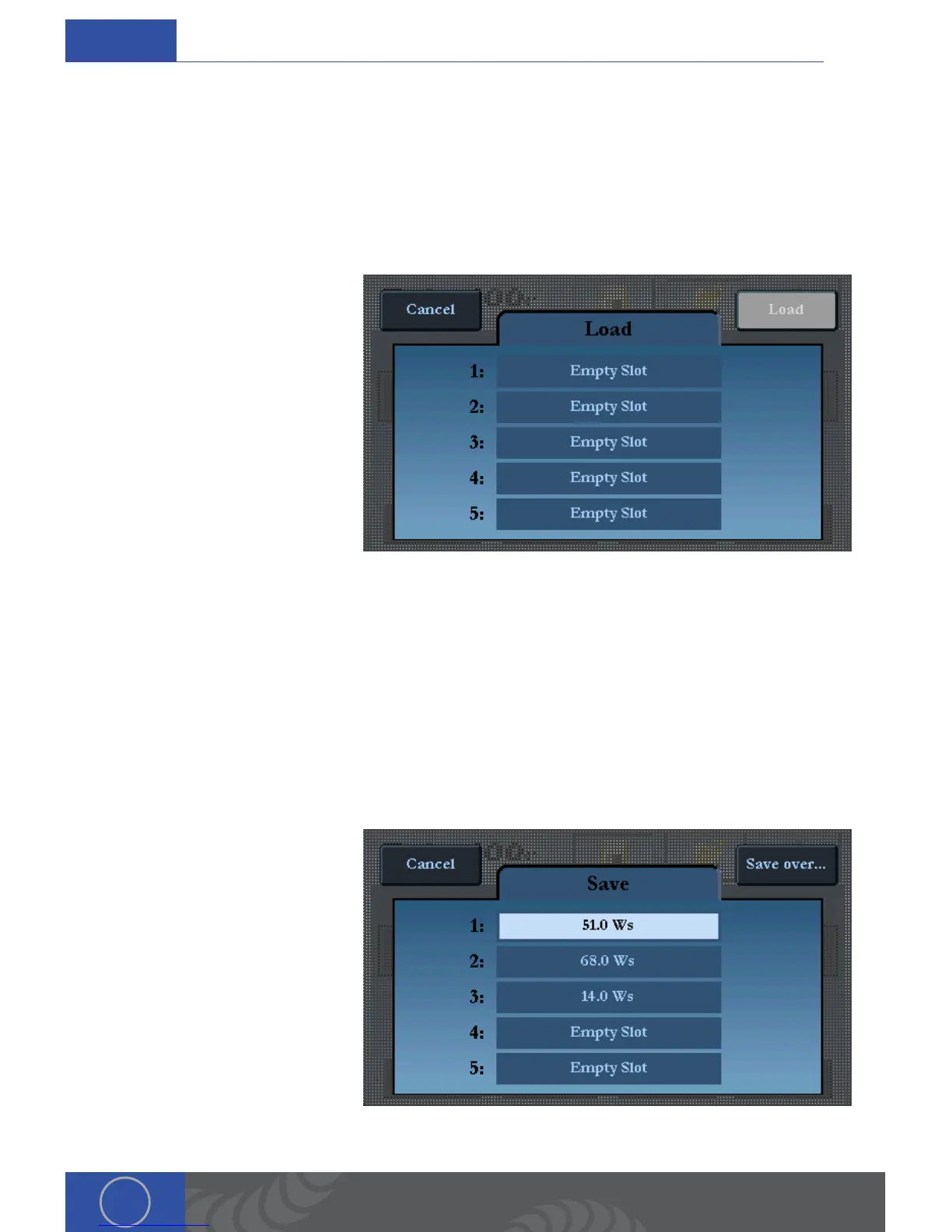
e Load Button opens five “Factory Presets” and five “User Created” weld settings (User Created
slots will read as “empty slot” until a User Created setting is saved. See save button to learn how
to do this). is feature allows users to tell the Orion what type of metal they are welding or which
saved setting they would like to load. After selecting a factory preset or user created option, the
Orion will calibrate itself to the settings of that preset.
1. Touching the “Load” button
at the top left of the user
interface.
2. A list of “Factory Preset”
metals will appear on the
left, and previously saved
“User Created” options will
appear on the right.
3. Select the type of metal
being welded or previously
saved User Created option.
4. Touch the “Load” button at
the top right of the screen
and the system is calibrated
to that setting.
Save Button
is feature will save the users current Weld Energy, Agitation, Trigger Type, and all the current
settings in the settings tab (ie Pre-Flow Delay, Post-Flow Delay, Accelerator, Pre-Weld, Retract
Delay, and Weld Time/Duration). To begin, touch the “Save” button at the top left of the interface
then follow these steps:
1. Chose an empty slot in the
middle of the screen.
2. Touch the Save button at
the top right hand side of
the screen.
*When users go to load this
saved setting it will read
as the energy setting in
Watt Seconds. Be sure to
remember what the saved
energy setting was in order
to load this saved setting.
ch.2


 To Next Page