21
OrionWelders.com
ch.2
Settings Button
e settings button gives users the ability to change system preferences. When users touch the
settings button a page with four system preference tabs will appear. e four tabs are Interface,
Gas, Pulse Arc Timing, and System. We will discuss each settings button tab below.
INTERFACE TAB
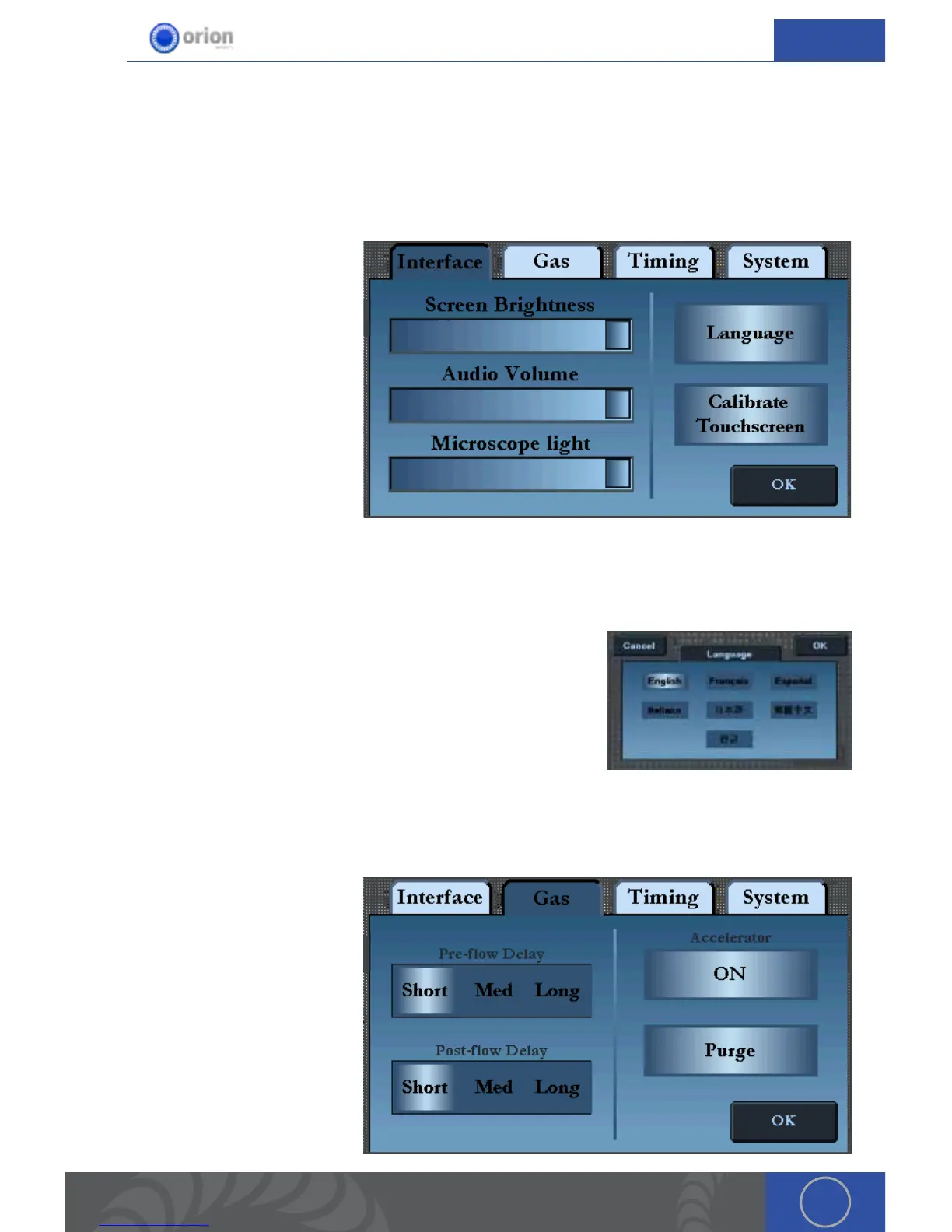
Here users can adjust the Screen
Brightness, Audio Volume, and
Microscope LED brightness.
Simply slide your finger left and
right on the slider bars to change
these settings.
Calibrate Touchscreen Button -
Touch the Calibrate Touchscreen
button if the user interface does
not seem to be responding well.
Use the tip of the alligator clip
when calibrating the touchscreen.
*If the touch screen is working correctly we recommend not accessing this function. Try using
the tip of your finger or the tip of your alligator clip on your touchscreen before deciding to
calibration the touchscreen. If the screen is still not responding very well then touch the Calibrate
Touchscreen button and follow the steps on the screen.
Language Button - Touch the Language button on the right
side of the screen to open a list of language options. Select the
desired language then touch the “OK” button in the top right
hand of the screen.
GAS TAB
e Gas Tab allows users to change the default gas flow settings to adjust gas flow behavior.
Pre-flow Delay - Allows users to
control the amount of shield gas
released before the weld occurs.
An increased pre-flow delay can
be used to allow for complete
clearing of the gas line and good
shielding at the weld spot. is
can be used in applications that
require the electrode tip to stick
out further from the Stylus Hull
opening than is normal. e pre-
flow delay can be alternatively
shortened for applications that


 To Next Page