Operator Manual
Display
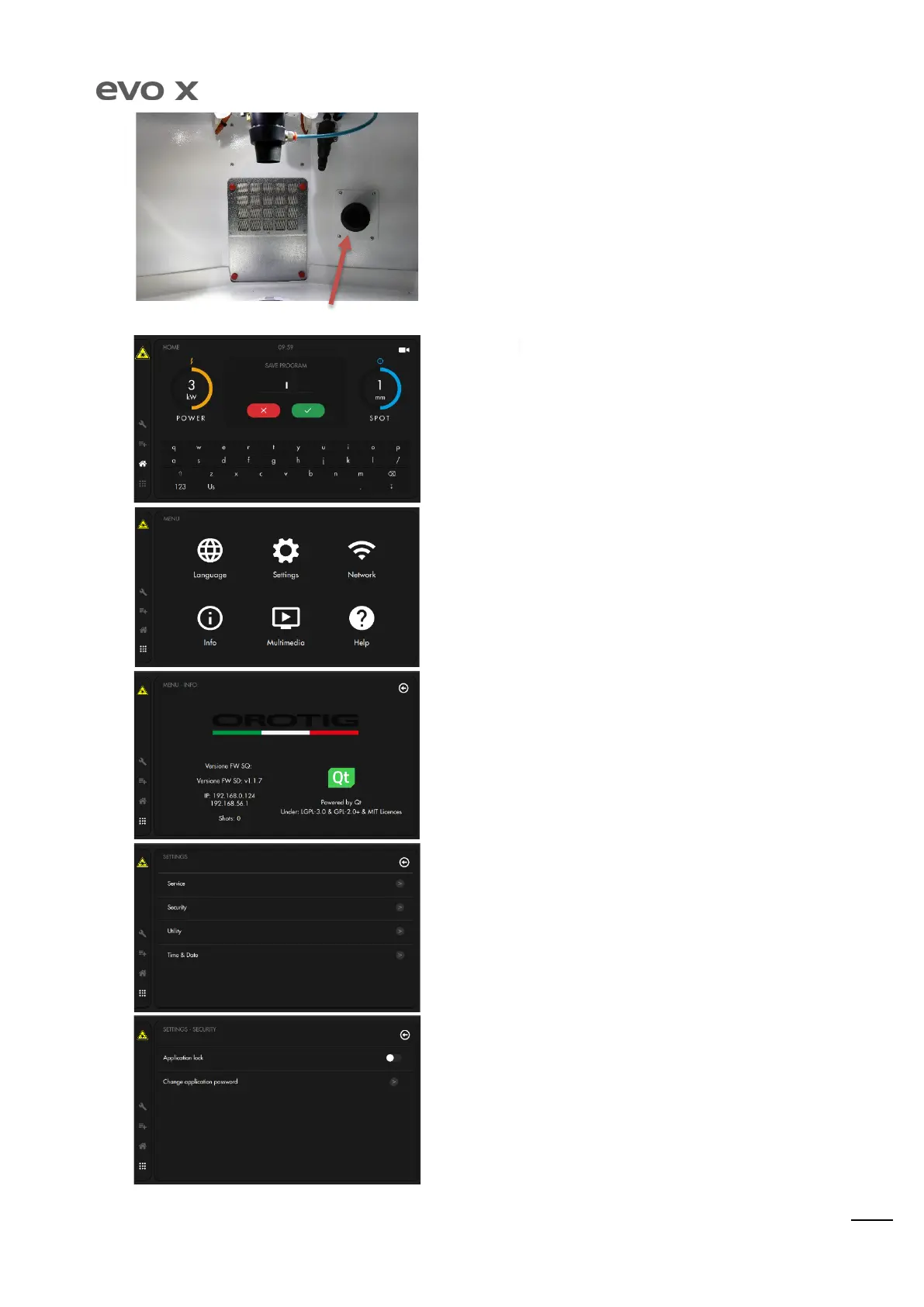
Inside of the welding chamber, right handside, there is the rotary
switch. This joystick allows the operator to move around the home
parameters screen and select welding values by rotating left and
right. Once a parameter is highlighted, push the rotary switch to
open it and rotate the rotary to increase or decrease the value. Once
set the desired value, push the joystick once again to fix the value and
go back to main home level.
Using the rotary switch it’s possible to work easily and faster keeping
the hands inside the welding chamber without be forced to touch the
display screen.
Once the desired parameters have been established, they can be
saved using the "SAVE" key. This screen will appear, which can be
used to name the program. By pressing the green tick icon, the
program will be saved in the list.
By selecting the SETTINGS icon, access is given to all the settings and
general information as well as customisation of the machine.
The screen shows the FIRMWARE installed on the display and
microprocessor board, the IP address to which the machine is
connected and the number of shots carried out.
This window allows access to the SERVICE menu (for authorised
assistance only) or management of the access password, the
automatic stand-by function and setting of the date and time.
By activating the “Application lock” button, the request for the PIN on
start-up of the equipment is introduced.


 To Next Page