Part 1 – Introduction
21
$ Enter Button
Used to make menu option selections and register
data entries. In addition, pressing this button while
a camera screen is selected by pressing the Menu
button in Live or Playback mode displays the Camera
menu.
% Arrow Buttons
Used to navigate through menus and interact with
GUIs. In a Setup menu, use the Up/Down Arrow
buttons to increase or decrease numerical values.
In Live or Playback mode, use the Left/Right Arrow
buttons to view the previous or next screen.
^ ALARM Button
Pressing this button while the alarm has been
activated resets all NVR outputs, including the built-
in buzzer. Displays the event log on the screen when
the alarm is o in Live mode.
& SEQUENCE Button
Pressing the SEQUENCE button while in Live mode
initiates Live Sequential mode (displays channels in
sequence).
* ZOOM Button
Used to zoom in on a specic part of the screen. Once
zoomed in, use the arrow buttons to pan around.
( PTZ Button
Initiates PTZ mode and allows you to control the
selected PTZ camera.
) VIEW Button
Pressing the VIEW button while in PTZ mode displays
the preset list.
a SAVE Button
Press the SAVE button while in PTZ mode to save the
current position as a preset.
b MENU Button
Pressing the MENU button while in Live mode
displays the Live menu. Alternatively, pressing the
button while in Search mode displays the Search
menu. Press the button once more to close the menu.
Use the arrow buttons to select menus and options.
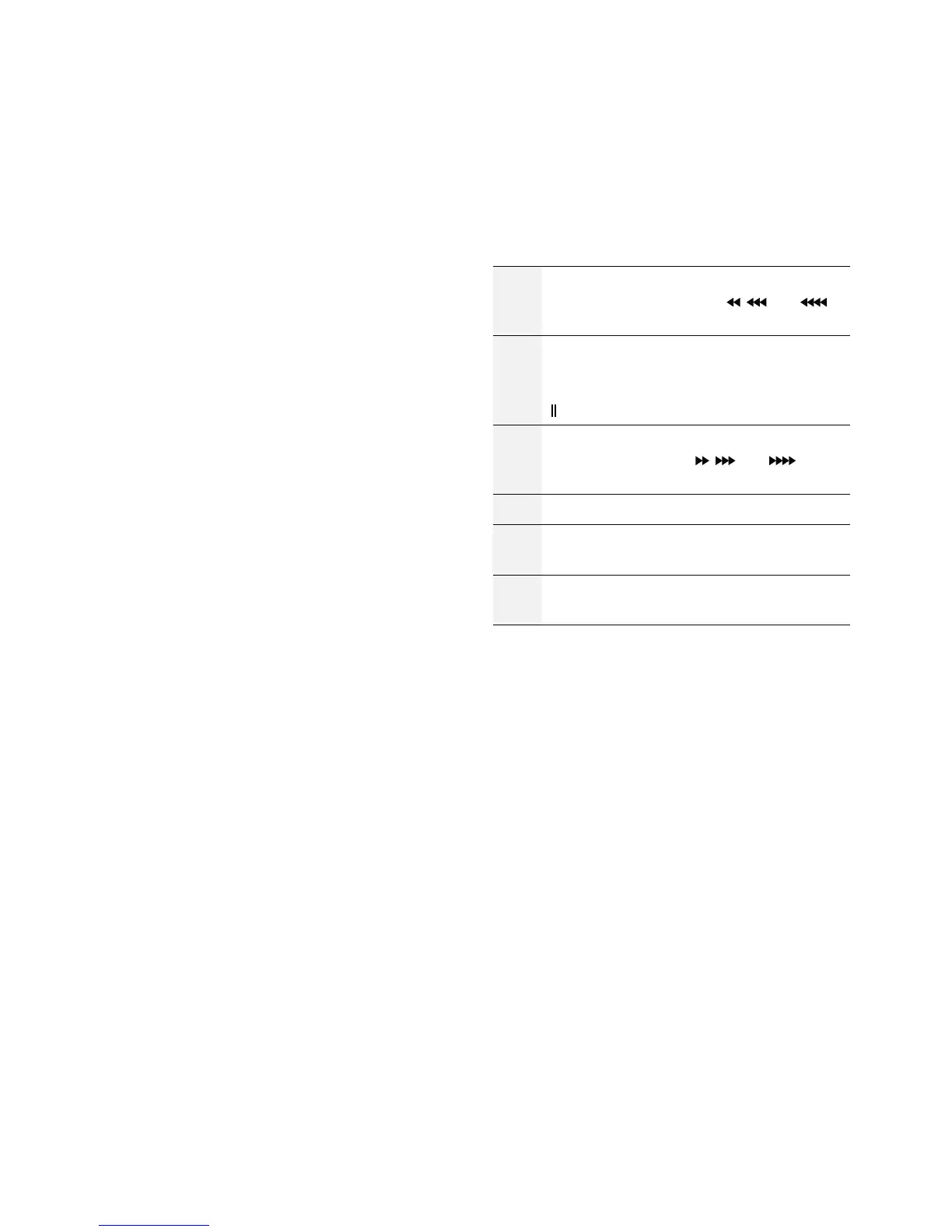
c Playback Buttons
Scans backward through the video at a fast
rate. (Press to cycle through
, , and
the speed)
"
Plays the video in normal speed and displays
r on the screen. Pressing the "qbutton
during playback pauses the video and displays
on the screen.
!
Scans forward through the video at a fast rate.
(Press to cycle through
, , and the
speed)
#
Stops the video and restores Live mode.
%
Skips to the previous screen (while in paused
state).
&
Skips to the next screen (while in paused
state).
d BOOKMARK Button
Adds a bookmark to the current playback position.
e CLIP COPY Button
Used to perform Clip Copy.
f MUTE Button
Temporarily disables audio.


 To Next Page