Part 4 - Search
79
t One-Touch Clip Copy congures the storage range
automatically based on the storage drive's capacity.
If there is insucient space available on the selected
storage device, you will only be able to Clip Copy
an amount of data equaling the remaining space
available on the storage device.
t The maximum size limit on Clip Copy les is 30GB.
Clip Copying a segment that is more than 2GB in
size produces multiple les that are up to 2GB in
size, each. The maximum size limit for One-Touch
Clip Copy les is 2GB.
t Clip Copy les can be played back on Windows
systems. For more information, refer to the
RASplusIP operation manual.
t For USB ash memory devices, the NVR supports the
FAT32 le format only.
Do not disconnect the USB cable or power o the USB
device while USB Clip Copy is in progress. Doing so
can cause the NVR to malfunction or critically damage
the external USB device's le system. You may be
prompted with an error message when trying to back
up on the device. If so, you will need to restart the NVR.
If the USB hard disk's le system has been damaged,
restarting the NVR will not solve the problem and
the aforementioned error message will continue to
be displayed each time you attempt a backup. If this
is the case, you will need to format the HDD or use a
recovery program to repair the damage to the drive's
le system.
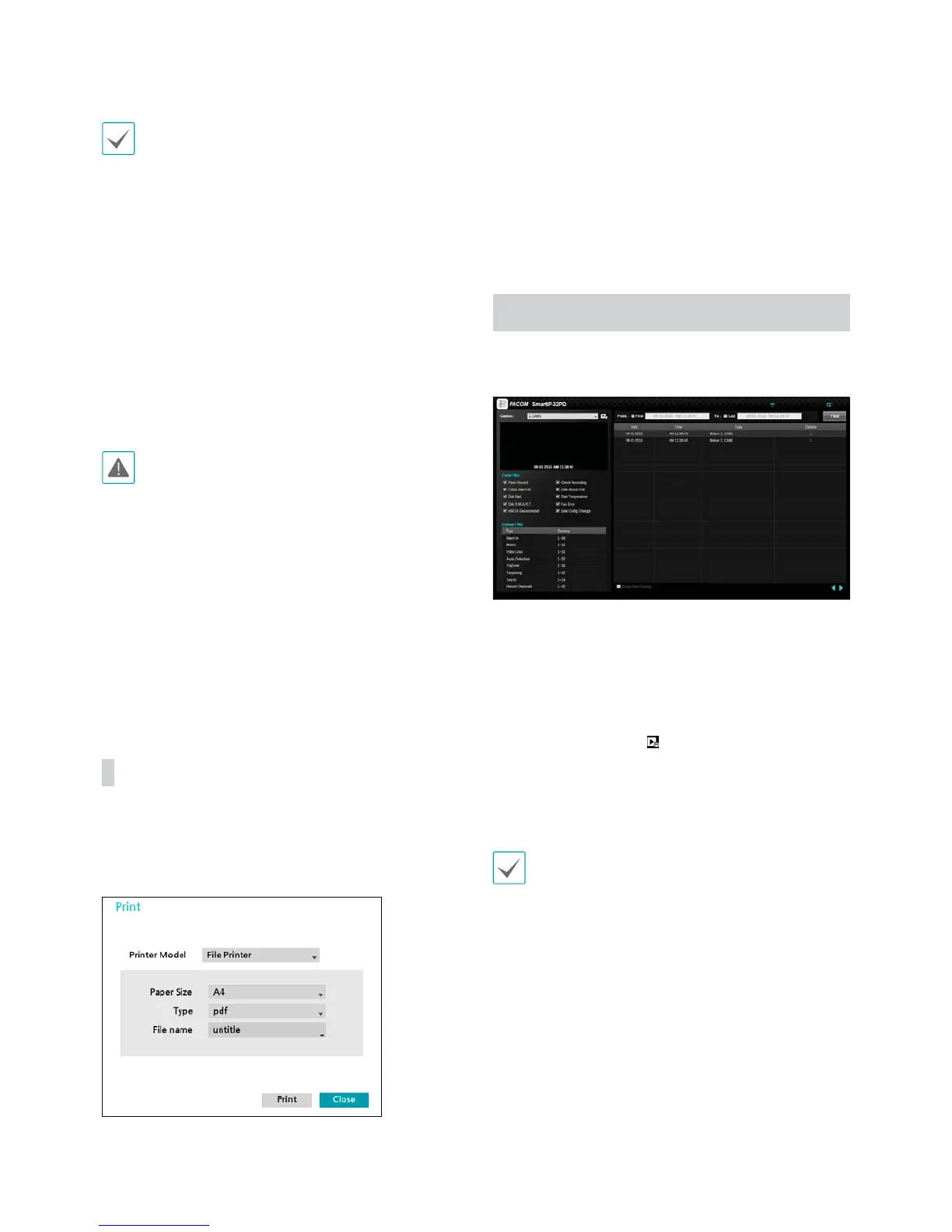
Print
Print the current image.
While in Search Mode, select Pause to pause playback.
Select Print from the Search menu to open up the Print
Setup window.
t Printer Model
- File Printer: Saves the current frame to the USB
storage device as a .pdf le that can be printed on
the printer connected to a computer.
t Paper Size: Select the desired paper size.
t File name: Designate a name for the le.
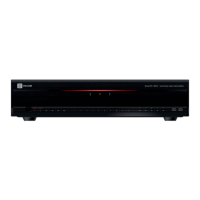
Event Log Search
Select Search Mode > Event Log Search to bring up
the Event Log Search window.
t Select an event to display the recording made on the
selected time and date (paused state). Select the Play
button in the middle of the screen to start playing
back the recording. Use the drop-down menu above
to load recordings from other cameras.
t Selecting the specic event displays the screen to be
stationary. By clicking
on the camera right, you can
copy the event.
t You can uncheck the First and Last options at the
top of the Event Log Search window and specify the
search time frame manually.
Select First for From and Last for To to select the entire
recording from start to end.


 To Next Page