Part 2 - Getting Started
32
PTZ Control
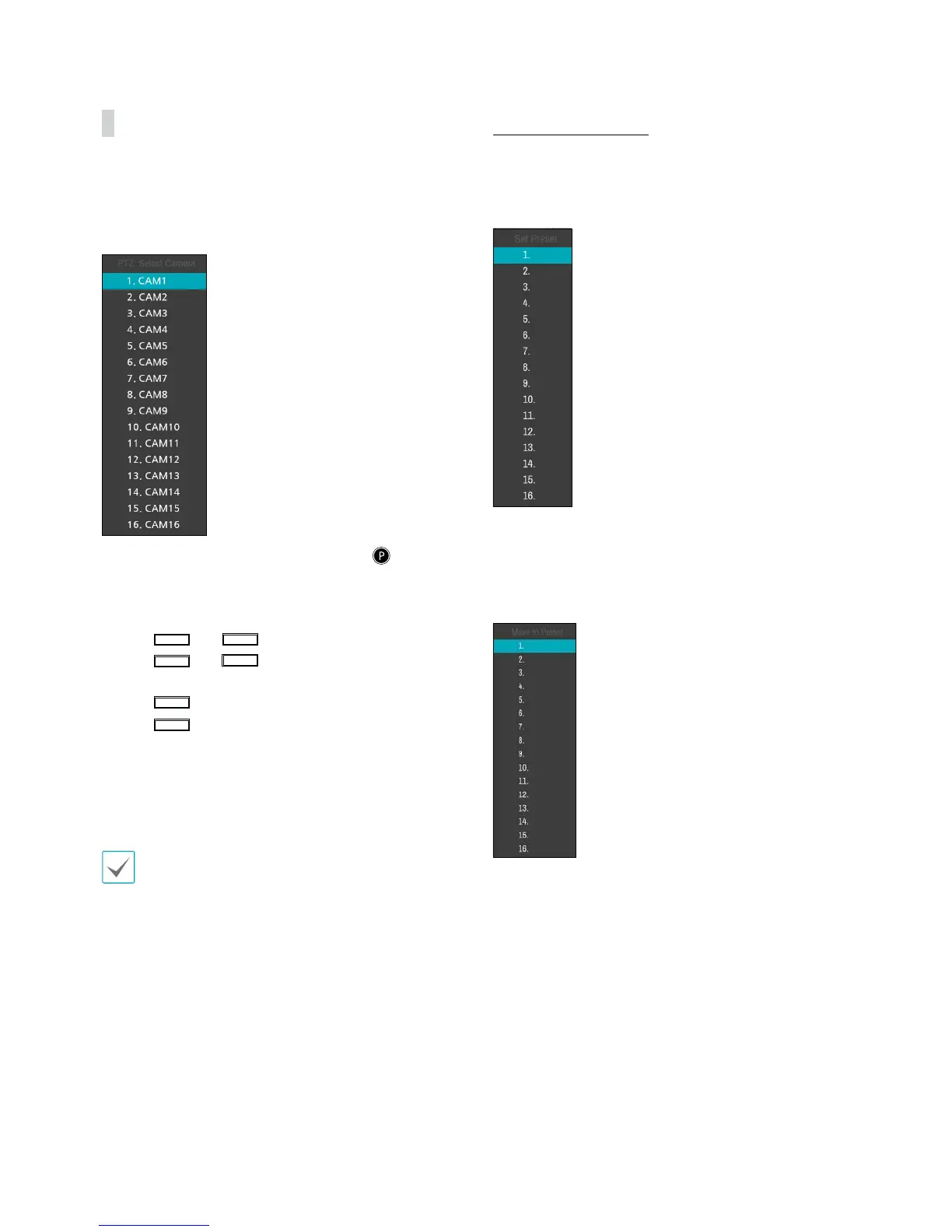
While in Live mode, right-click and select PTZ from the
context menu or press the PTZ button on the NVR's
front panel or remote control to display the PTZ camera
selection window.
Select the camera you wish to control. The icon will
begin to ash on the selected camera's OSD window.
Use the Arrow buttons to pan and tilt the camera up,
down, left, and right.
Use the
and
buttons to zoom in/out.
Use the
and
buttons to shift focus from
nearby to far and vice versa.
Use the
button to load the preset window.
Use the
button to save current position as a
preset.
You can also change the direction by dragging on the
mouse.
Also, it's possible to use the mouse wheel to zoom in/
out.
t Logging in with an account that has PTZ Control
Authority is necessary in order to control PTZ
cameras.
t A message will prompt if there is no PTZ camera
displayed on the Live screen.
t Zoom in/out and shift focus using the PTZ Control
(ZOOM, FOCUS) buttons on the remote control.
t To exit PTZ mode, press the PTZ button again.
Setting Up a PTZ Preset
While in PTZ mode, select the VIEW button on the
remote control to display the Set Preset window and
assign the current position as a preset.
While in PTZ mode, select the SAVE button on the
remote control to display the Move to Preset window.
Select a preset to move the current PTZ camera to the
selected preset's position.


 To Next Page